Start your 3-day free trial
Sign up to experience all premium features at no cost.
*Available only to new users. Each user is limited to one trial.


On-demand video usually looks blurry on a fast connection because something other than raw speed caps the picture: the title, plan, quality setting, app, device, HDMI chain, or unstable Wi-Fi delivery. If you find video blurry even though a speed test looks fast, first classify when quality drops, then compare one title, app, and device at a time. A brief speed-test peak does not prove that the player received a stable high-quality stream for the whole program.
Key Takeaways
- A picture that starts blurry, becomes blurry later, or stays blurry on one title points to different causes.
- The service can only deliver the quality available for that title, plan, app, and playback device.
- Auto quality, Data Saver, browser support, and device decoding can cap the selected representation.
- Compare the same scene on another supported device before changing television picture controls.
- If playback also pauses or buffers, use the separate buffering guide instead of treating blur as the only symptom.
The broader streaming guide covers service and connection context. This guide stays with a narrower question: why playback continues smoothly but looks softer, blockier, or lower resolution than expected.
Use a repeatable scene with faces, text, fine clothing, or slow camera movement. Do not judge from a studio logo, intentional film grain, shallow focus, or a fast action cut. Then put the symptom into one row:
| Pattern | First comparison | Likely branch |
|---|---|---|
| Blurry from the first frame and never improves | Another known high-quality title | Source, plan, setting, app, or device cap |
| Starts soft, then sharpens within a minute | Replay after the connection is settled | Normal adaptive startup or cautious initial estimate |
| Starts sharp, then falls to a lower level | Watch network stability during the same scene | Adaptive quality reacting to unstable delivery |
| Only one episode, film, or upload looks poor | Same title on another device | Source master or title-specific representation |
| One app is blurry; other apps are sharp | Official app versus browser on the same screen | App setting, version, codec, or account playback rule |
| Every source looks soft on one television | Built-in app versus another input or device | TV scaling, picture mode, overscan, or viewing distance |
Record whether the image is simply soft, visibly pixelated, smeared during motion, or covered in compression blocks. Those are not interchangeable. Softness can come from scaling or intentional focus; blocks and mosquito noise usually indicate a compressed representation; motion smearing may come from the display or source frame rate.
Open the title information page and look for the quality label that the service shows on the affected device. Then compare a recent title that is known to be available in HD, 4K, or HDR on your account. Netflix explains that the label displayed for a title reflects the quality available on the device currently in use, and that the plan, device chain, and playback settings can limit the result.[1] A missing label is therefore useful evidence; it is not proof that more bandwidth will unlock a format.
For user-uploaded video, inspect the highest selectable resolution and allow time for a recent upload to finish higher-resolution processing. YouTube notes that original upload quality, screen size, browser, device, and available formats all affect playback quality.[2] If one upload is soft at its highest available setting on every device, the original or processed source is the likely limit.
Avoid judging quality from titles that deliberately use grain, soft lenses, archive footage, animation filters, or low-light scenes. Compare the same timestamp, not two unrelated programs. If the control title is sharp while the original is not, stop changing the router and television; you have already narrowed the problem to content or title-specific delivery.
Open the player quality menu while the poor picture is visible. If the app offers Auto, Higher, Best, Data Saver, or an advanced resolution list, write down the current value before changing it. Some settings belong to the profile or account, while others apply only to that device or to mobile data.
Run one controlled comparison:
Netflix documents a per-profile data usage setting in its Playback Settings and notes that, on networks with varying speeds, a setting other than Auto may help quality but should be switched back if it causes buffering; mobile data controls are covered separately.[1] YouTube similarly exposes Auto, Higher picture quality, Data Saver, and Advanced choices, though available options vary by device.[2] Do not assume that selecting the largest number forces the service to provide a representation that the title, plan, app, or device does not support.
On a metered or mobile connection, check both the operating system's data-saving mode and the streaming app's own data control. A household router may also apply a guest-network or parental policy. Change one layer at a time. If disabling one saver immediately restores detail, re-enable it and decide whether higher data use is acceptable rather than leaving every limit disabled without understanding the cost.
Use the same account and scene on one other supported playback path. A television app, streaming box, phone, and desktop browser may receive different codecs or maximum formats. Browser support also depends on operating system, hardware decoding, display protection, and the service's current compatibility rules. YouTube notes that some 1080p or 4K formats may be unavailable on devices that do not support its newer VP9 compression.[2]
Make a small matrix instead of trying random devices:
| Result | What it suggests |
|---|---|
| Official app is sharp; one browser is blurry | Browser, extension, hardware acceleration, codec, or browser-specific limit |
| Browser is sharp; TV app is blurry | TV app setting, app version, device decoder, or TV-side processing |
| External player is sharp; built-in TV app is blurry | Built-in app or TV platform path |
| Every device is blurry on one title | Content or account-side representation |
| One device is blurry across services | Device output, scaling, decoder, or display path |
Update the affected app and device through their official update mechanisms, restart them, and repeat the same scene. In a browser, first use a clean private window with extensions disabled for the test; then compare a supported second browser. Do not install unofficial codec packs or disable content protection. If hardware acceleration is suspected, change it only as a reversible test and record the original value because it can affect power use and other video sites.
A speed test measures a short transfer to a particular test server. A streaming player makes repeated requests to a different delivery network and adapts to recent throughput, delays, packet loss, and buffer health. A high peak can coexist with brief Wi-Fi stalls, congestion, overloaded home equipment, or a path that varies during the evening.
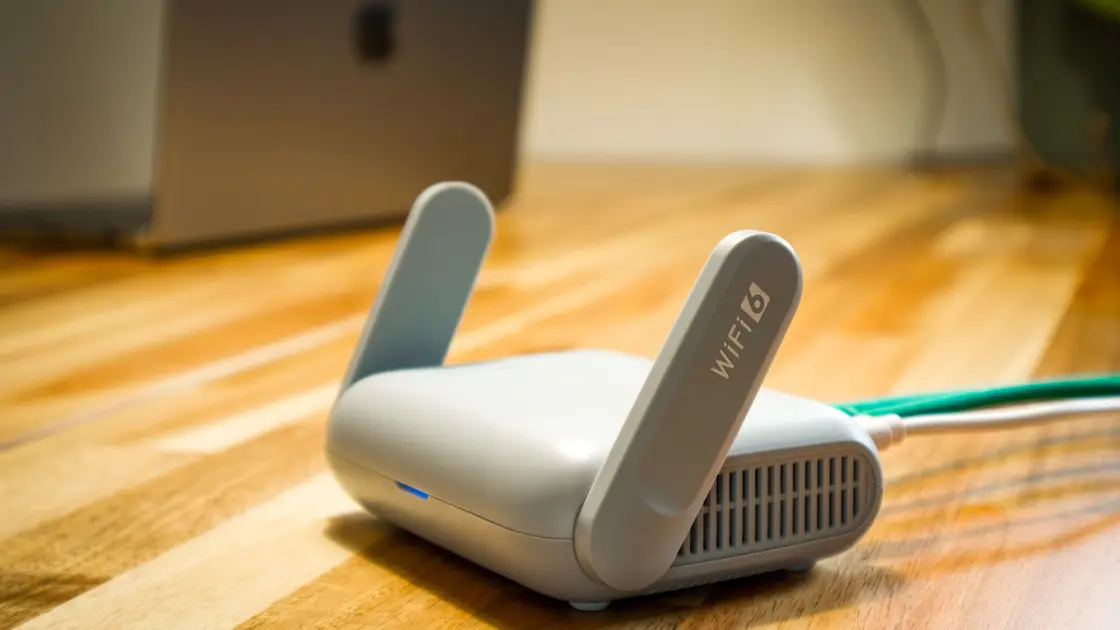
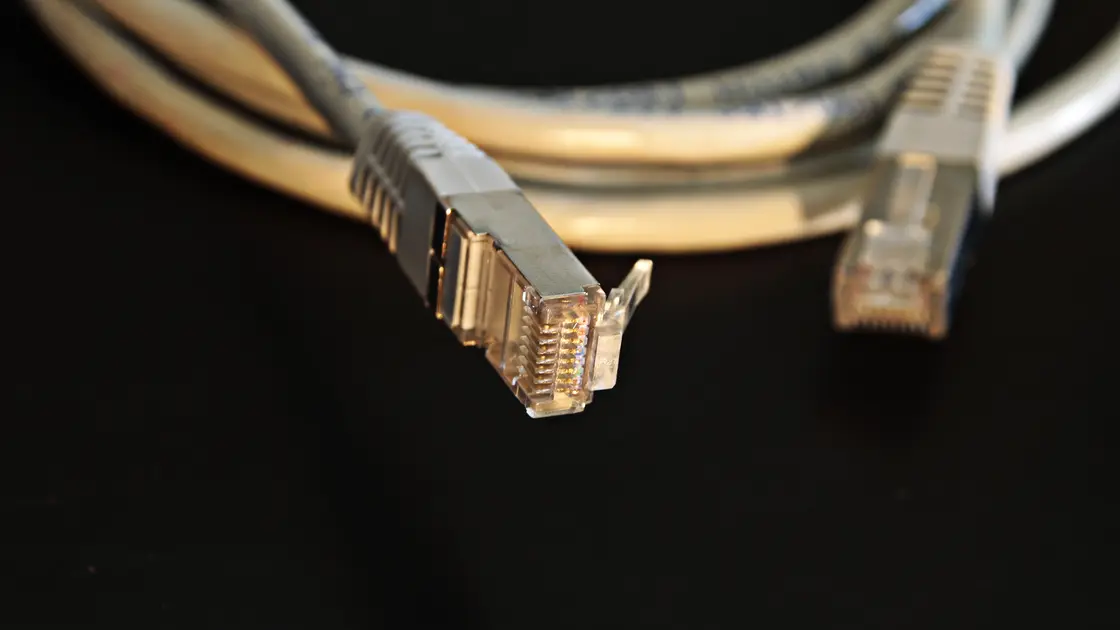
Keep the affected title open for several minutes and note exactly when quality falls. Then repeat on Ethernet, a nearer Wi-Fi position, or the other Wi-Fi band without changing the app setting. If the picture remains sharp on Ethernet but repeatedly degrades on Wi-Fi, the evidence points to local stability, not the service's source master. If both paths degrade at the same timestamp in one title, content-side delivery becomes more plausible.
Do not turn this into a second buffering article. If playback pauses, shows a spinner, or repeatedly empties its buffer, follow the dedicated streaming buffering diagnostic. If you need to size a household connection for simultaneous HD or 4K use, use the HD and 4K speed guide. Here the useful question is whether the player stays at a lower representation while continuing to play.
Before changing the television, compare its built-in app with another input using the same title. Confirm the playback device outputs the display's native resolution and that the television is not zooming, stretching, or applying overscan. Netflix adds that every device, cable, and HDMI port in the chain must support the target quality, with HDCP 2.2 or later for 4K or HDR.[1] A 1080p stream enlarged on a very large 4K screen can look softer at a close viewing distance even when delivery is correct.
Record the current picture mode. Then test only one reversible control at a time: sharpness, noise reduction, motion processing, or an input-specific picture preset. Excessive sharpness can create halos without restoring detail; aggressive noise reduction can erase texture; motion interpolation can change the appearance of moving edges. Reset the single control if it does not help. Do not copy calibration values from another model or reset the entire television as a first response.
Also verify that the app's information overlay, if available, reports the expected output after the image has settled. Treat the overlay as one observation, not a guarantee of source detail. Resolution labels do not measure focus, camera quality, encoding decisions, or display processing.
Stop when one controlled comparison changes the outcome. The goal is not to toggle every option; it is to isolate the layer that owns the limit.
Keep the evidence short: title, timestamp, app version, device model, selected quality, connection type, and which comparison stayed sharp. That record is far more useful to support than “the internet is fast.”
An adaptive player may start conservatively while it estimates delivery and fills a safe buffer; Netflix notes that playback sometimes starts at a lower resolution and switches higher after a short time.[1] If detail returns quickly and remains stable, that can be normal startup behavior. If it never improves, check the title, account, quality setting, app, and device cap.
The test and stream use different servers, time windows, and paths. The player also considers recent stability and supported representations. Peak capacity alone does not prove that the service selected or could deliver its highest format.
Use a manual setting as a controlled test when the app offers it, but do not treat it as a universal fix. It can increase data use and still cannot create detail absent from the source or unsupported by the device.
Yes. Services can vary quality by supported browser, operating system, codec, hardware decoding, and display-protection path. Compare the official app or another supported browser before changing network equipment.
No. The television scales lower-resolution video to its panel, but scaling cannot recreate missing source detail. Screen size and viewing distance can also make compression or softness easier to see.
They can change how artifacts look, but they cannot recover detail discarded by encoding. Too much sharpness or noise reduction may make the picture less natural. Preserve the original values and test one control at a time.
No. Wi-Fi instability is one possible cause, especially when quality falls after starting sharp. A single-title problem, device cap, Data Saver setting, browser limit, or display processing can produce similar symptoms without a generally slow connection.
AethoVPN cannot make a streaming service send a higher-quality rendition when adaptive bitrate, device decoding, display resolution, or the account tier limits it.
Sources checked 4 October 2026.
Sign up to experience all premium features at no cost.
*Available only to new users. Each user is limited to one trial.