Start your 3-day free trial
Sign up to experience all premium features at no cost.
*Available only to new users. Each user is limited to one trial.

When a Twitch stream keeps dropping frames, OBS cannot deliver your configured bitrate to the Twitch ingest server steadily, so the fix is upload headroom, a wired path, another ingest server, or removing interfering network software. If the rising counter is skipped frames instead, the encoder is overloaded; lagged frames point to rendering overload.[1][2] Read the OBS counters first, because only network drops call for upload, router, ingest, or route testing.
Key Takeaways
- Read the OBS status counters before changing bitrate, presets, or network settings.
- A fast download result does not prove that sustained upload has enough headroom.
- Establish a short wired baseline, then change one variable per test broadcast.
- Twitch Inspector can reveal instability without asking viewers to diagnose it for you.
- A VPN is only a reversible route comparison after local and encoder causes are isolated; it does not guarantee fewer dropped frames.
This guide is for the broadcaster's outgoing stream, not a viewer whose video buffers. For viewer-side playback, use the streaming buffering guide. The broader streaming guide covers service and access context.
Open View → Stats in OBS and watch the counters during the same scene that normally fails. Do not treat every stutter as a network fault.
| OBS symptom | Most likely layer | First comparison |
|---|---|---|
| Dropped frames (network) rises | Encoder-to-ingest delivery | Sustained upload, wired path, ingest server |
| Skipped frames due to encoding lag rises | Encoder cannot finish frames | Encoder preset, resolution, frame rate, CPU/GPU load |
| Frames missed due to rendering lag rises | Scene cannot be rendered on time | GPU load, game cap, scene complexity, capture method |
| OBS counters stay stable but viewers report pauses | Playback, platform, or a particular viewer path | Twitch VOD/Inspector and several independent viewers |
OBS describes dropped frames as a connection problem between the computer and the streaming server and recommends connection-focused checks such as another ingest server, a lower bitrate, wired Ethernet, and removing network software from the path.[1] That definition matters: lowering an encoder preset may help skipped frames, but it cannot repair packet loss on the upload route.
Record a two-minute baseline: bitrate, dropped-frame percentage, skipped frames, lagged frames, CPU/GPU load, and the time of day. Repeat the same scene and duration after each change. A single green second does not establish a stable stream.
Twitch Inspector is designed to show broadcast health and can be used with a bandwidth-test stream so you can test without notifying a normal audience. It reports the bitrate Twitch receives over time, which is more useful than a one-off speed-test peak.[3]
Use this sequence:
If OBS and Inspector both show delivery drops at the same time, continue with the upload path. If Inspector is stable but OBS shows skipped or lagged frames, investigate workload instead. If only one viewer has trouble while the ingest remains stable, the broadcaster's upload is not yet the leading explanation.
Do not chase a perfectly flat line. Small bitrate variation is normal. The meaningful pattern is repeated inability to sustain the configured output, rising network dropped frames, or disconnects that correlate with a route or household-load change.
The configured video bitrate is not the whole upload. Audio, protocol overhead, retransmission, monitoring, cloud sync, voice chat, and other devices also consume upstream capacity. A speed test taken for a few seconds may report a high peak while the connection later falls below the stream's continuous requirement.
Run several upload tests during the problem window, preferably to more than one nearby test server. Then compare a lower OBS bitrate without changing resolution, frame rate, or encoder at the same time. A useful diagnostic reduction is large enough to create headroom but still within the platform's current broadcast guidance. Twitch's streaming FAQ links its current encoding and broadcast recommendations; treat that page as the live authority instead of copying an old bitrate table.[4]
OBS suggests a video bitrate of about 75% of your measured upload speed as a starting point.[1] Its optional dynamic bitrate setting lowers the bitrate during congestion instead of dropping frames, but it reduces quality and does not fix the underlying path.[1]
Interpret the result carefully:
Do not select an extremely low bitrate as the permanent answer before locating the bottleneck. The test is meant to distinguish stable capacity from instability, not to hide a failing cable, saturated uplink, or ISP fault.
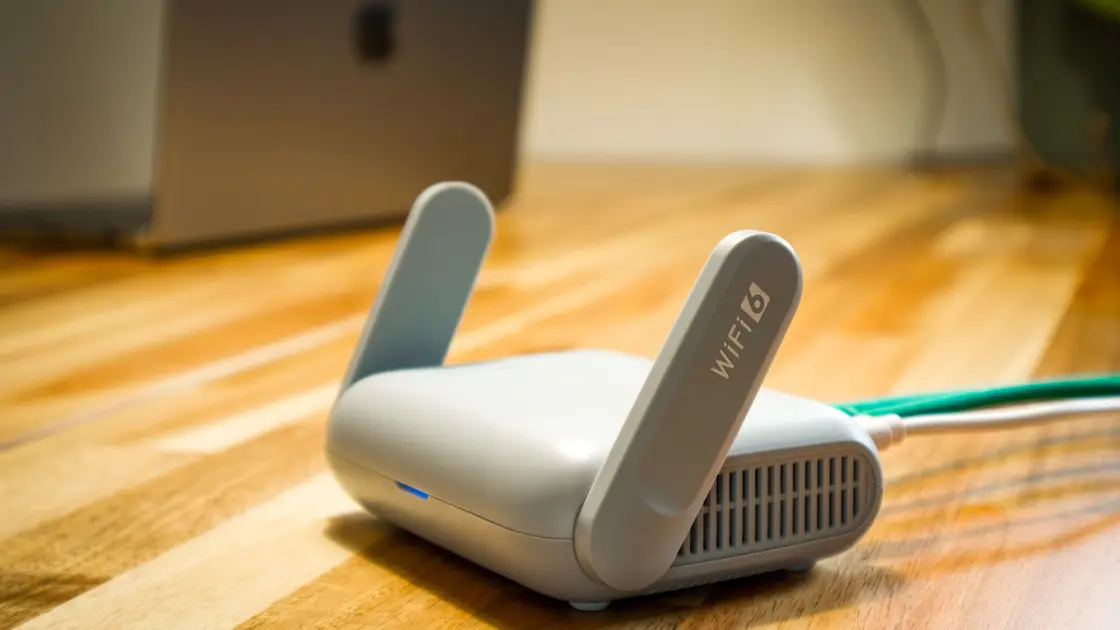
For one controlled test, connect the streaming computer directly to the primary router with known-good Ethernet. Disable Wi-Fi on that computer so the route is unambiguous. Pause cloud backup, photo sync, large uploads, security-camera transfers, game updates, and other live broadcasts on the household network.
This comparison separates three broad cases:
| Result | What it suggests | Next action |
|---|---|---|
| Wired and quiet is stable | Wi-Fi or competing upload traffic | Reintroduce one source of load at a time |
| Wired is unstable on every ingest | Router, modem, access line, or ISP path | Check interface errors, modem events, and timed ISP evidence |
| Wired is stable until another upload begins | Uplink saturation or queuing | Limit or schedule the competing upload; review router queue controls |
| Only the original Ethernet cable/port fails | Local physical link | Replace the cable or use another router port |
If Ethernet is impossible, test close to the main access point on a clean band and keep the device stationary. That is weaker evidence because Wi-Fi airtime and interference still vary, but it is better than changing five wireless settings at once.
Restarting everything may temporarily clear a fault without identifying it. Before rebooting the modem or router, note link uptime, event timestamps, upstream levels if your provider exposes them, and whether other devices lose connectivity. Those details help distinguish an OBS problem from an access-line event.
Automatic server selection is convenient, but a particular ingest path can be impaired even when general browsing works. OBS explicitly recommends trying a different server when dropped frames persist.[1] Keep the bitrate and scene fixed, then compare the automatic choice with one or two geographically sensible Twitch ingest endpoints.
Run each endpoint long enough to cross the usual failure window. Record dropped-frame percentage and disconnects rather than choosing whichever test looks best in the first minute. The physically closest city is not guaranteed to have the best current route; Internet peering can make a slightly farther endpoint more stable.
If one ingest is consistently stable while another fails, keep the stable endpoint temporarily and retain the timestamps. If all sensible endpoints fail in the same way, move back toward the local network or ISP. If the preferred endpoint changes hour by hour, congestion or route variation is more likely than a permanent OBS configuration error.
Avoid cycling through many servers while also changing bitrate and encoder settings. That produces no clean comparison and makes a temporary recovery look like a proven fix.
Firewall, endpoint security, traffic-shaping, packet-inspection, virtual network adapters, and VPN software can affect a long-lived upload. Do not permanently disable protection. Instead, update the software, confirm OBS is allowed, and use a short reversible comparison under controlled conditions. OBS specifically notes that security and VPN software may interfere and should be tested carefully.[1]
Use this order:
A VPN changes encapsulation and the route to the ingest service. It can occasionally avoid a poor ISP path, but it also adds overhead and another dependency. Improvement on one endpoint is evidence about routing, not proof that every future broadcast needs a VPN. No improvement is equally useful: it moves attention back to the local link, capacity, or provider.
If OBS reports skipped frames due to encoding lag or frames missed due to rendering lag, upload tests will not help. OBS traces both to an overloaded GPU or a bottleneck between the GPU and the rest of the system.[2] Change one item per test broadcast:
Check Twitch Enhanced Broadcasting as well. It encodes several renditions of the stream on your own GPU, and its automatic setup sizes them to your hardware and upload bandwidth.[5] Run one comparison with it turned off before you blame the network.
Escalate with a compact evidence bundle instead of “stream is bad.” Include the time zone, exact failure times, wired-versus-Wi-Fi result, configured bitrate, Inspector graph, OBS log, ingest endpoints tested, and whether other uploads fail. Remove stream keys, IP addresses you do not want to share publicly, and account tokens before posting logs.
Contact the ISP when a wired quiet-network test shows repeated upload loss across several destinations, modem or optical-terminal events align with the drops, or general upstream traffic also stalls. Contact Twitch when other upload destinations remain stable but multiple Twitch ingest endpoints fail with a repeatable pattern, or Inspector reports a platform-facing issue.
Keep encoding and rendering evidence separate. A support engineer cannot act on an upload route if the supplied log actually shows GPU rendering overload. Conversely, a powerful GPU does not rule out upstream loss.
No. The connection may have enough average upload speed but still suffer packet loss, jitter, queuing, Wi-Fi interference, or a poor ingest route. First confirm that OBS labels the frames as network dropped frames rather than encoding or rendering lag.
Use a lower bitrate as a controlled diagnostic. If it creates stable headroom, choose a sustainable setting and investigate why the original rate was unstable. Do not change bitrate, resolution, frame rate, and encoder preset together.
A speed test is short and may use a different destination. A live stream needs sustained upstream delivery to a Twitch ingest endpoint. Inspector plus a timed test broadcast measures the relevant path more directly.
Yes. Distance is only one factor. Interference, airtime competition, retries, band steering, and another device's upload can disrupt sustained traffic. A wired baseline is the clearest comparison.
Not directly. Encoder changes address skipped frames caused by encoding lag. They may indirectly reduce bitrate or workload, so keep the output rate constant when you want to isolate the network.
Only as a reversible route test after simpler causes are isolated. It may avoid one problematic route, or it may add overhead and make the stream worse. It is not a guaranteed dropped-frame fix.
That is a separate viewer or browser path. Use the live stream chat guide instead of changing the broadcaster's encoder.
Save an OBS log, Stats counters, Twitch Inspector graph, exact timestamps, bitrate, ingest server, wired comparison, and notes about other upstream traffic. Redact credentials and stream keys. A VPN can only be evaluated as a measured upstream route in a Twitch frame-drop test; OBS encoding overload and ingest-server state must be diagnosed separately.
Sources:
Sources checked 4 October 2026.
Sign up to experience all premium features at no cost.
*Available only to new users. Each user is limited to one trial.