Start your 3-day free trial
Sign up to experience all premium features at no cost.
*Available only to new users. Each user is limited to one trial.
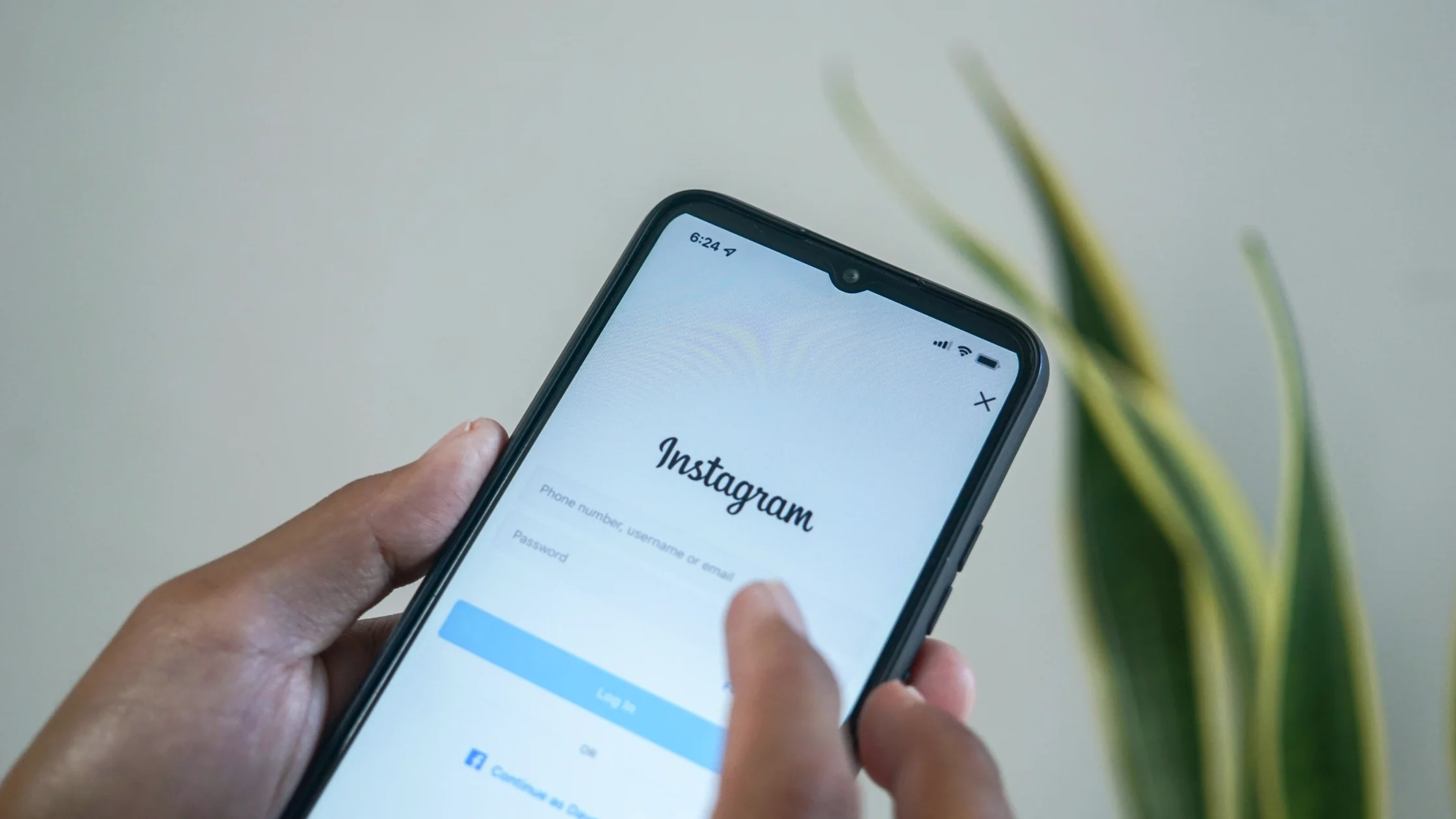

When you find Instagram not working, the cause usually falls into one of four buckets: a regional or network block, school or workplace Wi-Fi rules, account security verification, or a local app or DNS problem. Identify the category first, then decide whether to use a VPN, change networks, clear cache, or follow Instagram's official account recovery flow. Meta's Transparency Center explains that content access may be restricted in some regions based on legal requests or policy.[1]
Key Takeaways
- Separate "Instagram will not load" from "I cannot log in"; they need different fixes.
- School, office, hotel, and public Wi-Fi restrictions can usually be checked against mobile data or a VPN.
- When using a VPN, start with a nearby server and avoid frequent country switching.
- If your account is hacked or locked, use Instagram's official help process first.
Some regions, schools, offices, and public Wi-Fi networks block social media to save bandwidth or enforce policy. You may see timeouts, a browser error such as www.instagram.com unexpectedly closed the connection (ERR_CONNECTION_CLOSED), images that never load, Reels stuck spinning, or an app message that says the feed could not refresh.
This is similar to streaming geo-blocking, except the target is a social platform. You can also follow the same troubleshooting logic in our guide to unblocking YouTube region restrictions.
If the page loads but you cannot sign in, your account may be locked, the password may be wrong, two-factor authentication may be failing, or a location change may have triggered risk checks. Instagram's Help Center has flows for hacked accounts, login problems, and identity verification.[2]
DNS cache, an outdated app, incorrect system time, browser extensions, and ad blockers can all break loading. Do not assume it is a block before doing basic checks.
Switch from Wi-Fi to mobile data, or from a workplace network to your home network. If Instagram works after switching, the issue is more likely the original network policy or route.
Update the Instagram app, clear cache, and sign in again. In a browser, clear site data, disable suspicious extensions, and make sure system time is synced automatically. If login is failing, do not keep guessing passwords; that can trigger more checks.
If you are new to VPNs, start with what a VPN is.
If step 1 showed Instagram failing only on one network, and local law and that network's rules allow a VPN, test the route with AethoVPN: install the Android or Windows app, or add the setup-guide configuration on an iPhone or Mac (Pro or Premium), connect to a nearby location, then reopen the same feed or upload that failed. A feed that now loads points to a network-level block; a login challenge or suspension notice that remains belongs to Instagram's account recovery process. Try AethoVPN for 3 days for this Instagram test
Do not switch countries every few minutes. Social platforms treat unusual login locations as risk signals, and frequent jumps can trigger CAPTCHA, temporary limits, or account locks.
Reels, Stories, and photo uploads all benefit from stable upload speed and low latency. Start with a nearby server and then check actual performance. If you mainly watch video, see our streaming VPN guide.
Company or school social media restrictions may be part of an acceptable use policy. Even if you can technically access Instagram, you may still violate internal rules. Personal devices on personal networks are usually safer.
Enable two-factor authentication, use a strong password, and never enter your credentials into unknown "unlock" tools. Instagram also recommends two-factor authentication for stronger account protection.[3] Phishing pages are common; see our Instagram phishing guide.
If friends in different places also cannot open Instagram, it may be an outage. Check Meta or third-party status reports before changing lots of local settings.
If the app fails but the web version works, the issue may be app cache, permissions, or version. If both fail, the network path is more likely involved.
If Instagram says your account is hacked, locked, or needs identity verification, use the official Help Center. Avoid paid "unlock" services or supposed insider channels.[2]
Not always. A VPN will not fix app cache, account locks, or platform outages. It is most useful when the current network or route is restricted.
Normal VPN use does not automatically mean a ban, but frequent country switching, unusual logins, or automation can trigger risk controls. Use a regular server and enable two-factor authentication.
Check school network policy first. If you need access on a personal device, use your own mobile data. Before using a VPN, confirm it does not violate school rules.
Possible causes include low bandwidth, CDN routing issues, app cache, or video traffic restrictions. Try another network, clear cache, then test with a VPN.
Follow the official prompt and avoid repeated wrong passwords. After securing your email and phone number, check for unfamiliar logged-in devices.
Usually the VPN location is the cause, not the app: a distant or crowded server slows Reels and uploads, and a sudden location change or shared exit IP can trigger login checks. Disconnect and compare on the same network, then reconnect to one nearby location and stay on it. If Instagram still asks for a code, finish the official verification instead of switching countries again.
Sometimes, but stability and privacy risks are higher. Free servers may be crowded, abused, or unclear about logging, which can also affect account safety.
It is recommended. Public Wi-Fi risks include local network attacks, fake hotspots, and weak router settings. A VPN encrypts the connection between your device and the VPN server.
Disclaimer: This article is for general informational purposes only and does not constitute legal, technical, or platform compliance advice. Follow local laws, network policies, and Instagram's terms of service.
Sources:
Sources checked 4 October 2026.
Related Articles:
Sign up to experience all premium features at no cost.
*Available only to new users. Each user is limited to one trial.