Start your 3-day free trial
Sign up to experience all premium features at no cost.
*Available only to new users. Each user is limited to one trial.
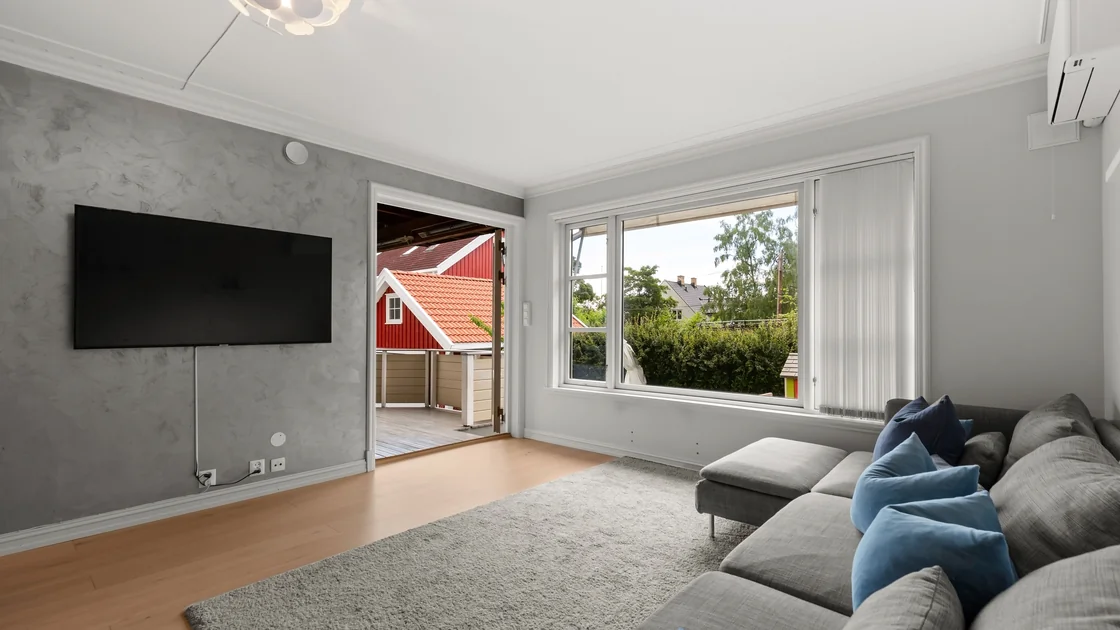

A YouTube TV playback error on Smart TV, whether the set is a Sharp or another brand, usually comes from one of five layers: the program itself, the account or playback area, the app and TV software, the HDMI/HDCP/HDR display chain, or the network path. If the app opens but a channel, recording, or on-demand program will not start, stops, or shows a playback error, first find which layer the failure follows: one program, one television, one playback chain, or the whole account. That result tells you which change is worth making.
Key Takeaways
- Keep one failing program and one known-working program as controls.
- Compare the same account on another supported device before changing the television.
- Update the app, television system, and external player as separate components.
- Treat an HDCP or HDR message as a display-chain problem, not a generic internet problem.
- Reinstall only after recording the error and confirming the account works elsewhere.
The Entertainment troubleshooting hub covers wider streaming choices. This guide assumes YouTube TV is already installed and can open. If the app crashes or returns to the home screen, use the Smart TV crash checklist. If it works on a phone but not the television, the phone-versus-TV diagnostic provides a broader comparison.
Record the exact error wording, local time, television model, app version, and what you tried to play. Test one live channel, one recording, and one on-demand item that your plan normally includes. Then retry the original item only once. Do not jump between many titles, because changing content, device, and connection together destroys the useful comparison.
Use a simple matrix:
| Result | Likely branch | Next comparison |
|---|---|---|
| One episode or recording fails everywhere | Item, recording, or publisher-side issue | Test another item and keep its title and time |
| All content fails on one television | App, TV system, or display chain | Try the same account on another supported device |
| All content fails on every device | Account, location, or service-side issue | Check the account and official service status |
| Picture fails but menus and audio remain | HDCP, HDMI, HDR, or decoder path | Simplify the display chain |
| Playback starts and repeatedly pauses | Device or network stability | Compare wired, Wi-Fi, and another device |
If only one movie or episode fails, stop here and use the single-title playback guide. This article is for a wider smart-TV playback failure, not for proving that one catalog asset is damaged.
Open YouTube TV with the same account and profile on a phone, tablet, or browser that is already known to be supported. Play the same item, then a control item. A working second device does not prove the home network is perfect, but it makes an account-wide outage less likely and focuses attention on the television installation or its playback chain.
If every device fails, check whether the account shows a location prompt, subscription problem, simultaneous-stream limit, or service notice. YouTube TV's official troubleshooting guide includes checking the current playback location before device repair.[1] A Home Area or Current Playback Area message belongs to the dedicated location workflow, not to an attempt to bypass location rules.
Keep the working device signed in. It preserves the correct account identity and gives you a control after every television change. Do not sign out everywhere, change the home area, or reset the account merely because one TV reports a playback error.
Check three update layers separately: the YouTube TV app, the smart television's operating system or firmware, and any external streaming player connected by HDMI. YouTube TV recommends installing available app and device updates as part of playback troubleshooting.[1] Restart after updates so the new components actually load.
Do not assume an app-store “up to date” label covers the television firmware. Conversely, a current TV system does not prove the app build is current. Record version numbers before and after the update. If the television no longer receives current software, compare its exact model against YouTube TV's supported-device guidance rather than repeatedly reinstalling.[2]
Device support is not just a brand name. Model generation, operating-system version, external-player generation, and display connection can matter. YouTube TV also notes that TVs running a mobile version of Android may not be supported.[2] A clear unsupported-device message belongs to the compatibility guide; an otherwise supported setup that suddenly fails playback stays in this diagnostic.
Exit YouTube TV, turn off the television or player, and disconnect power long enough for the device to shut down rather than remain in standby. Restart the router only if other evidence points to the network or several home devices are affected. YouTube TV lists closing and reopening the app, power-cycling the device, and restarting the router among its standard checks.[1]
After restart, open the account page first, confirm the intended profile, and play the same control item. Avoid clearing app data at this stage. A power cycle is reversible; clearing data may remove sign-in state, downloads in other apps, preferences, or the error context.
If the app now plays, note which component was restarted. If it fails again after standby, record that pattern because it suggests a device-session or firmware issue rather than a title or subscription problem. If the entire app closes instead of showing a playback error, switch to the crash guide instead of mixing the two failure types.
This step matters when an external player, receiver, soundbar, capture device, adapter, or HDMI switch sits between the streaming app and the screen. For a Roku player, YouTube TV says to turn on the television's HDMI Ultra HD Color setting after an HDCP error and to turn off HDR in Roku's display type settings if playback is choppy.[1] Its supported-device page points to Settings > Support > Device Capabilities in the app to confirm whether your hardware supports 4K.[2]
Power down the chain, reseat one certified HDMI cable, and temporarily connect the player directly to the television if that is safe and practical. Test the same item at a standard video setting before re-enabling HDR or advanced color modes. This is a diagnostic comparison, not a recommendation to permanently reduce quality.
Do not route protected video through an undocumented splitter or capture device to defeat HDCP. If direct connection works, add the receiver, switch, or adapter back one component at a time. Record the first component that recreates the error. If the television's built-in YouTube TV app fails with no HDMI device involved, skip this branch.
Run the same control playback near the router or over a known-stable wired connection if the television supports it. Then compare another device on the same network. YouTube TV recommends checking the connection and restarting the router, but the useful evidence is the comparison: one television failing on both wired and Wi-Fi points back to that device, while several devices failing on the same path points toward the network or service.[1]
Avoid treating a speed-test headline as proof. Packet loss, unstable Wi-Fi, captive portals, DNS filtering, router security controls, or congestion can interrupt playback even when a short download test looks fast. Change only one condition at a time and return to the original path after the test.
The buffering and network-path guide covers repeated pauses and connection comparisons in more depth. Network comparisons are useful only after the same YouTube TV session fails on one connection but works on another. They cannot establish app compatibility, account eligibility, or HDMI/HDCP health.
Reinstall only when playback works on another supported device, the account and location are valid, updates and restart did not help, and the problem remains local to one installation. Before removal, record the television model, system version, app version, exact error, account sign-in method, and whether you can still install the official app from the device store.
YouTube TV includes uninstalling and reinstalling the app after earlier restart and update checks.[1] Removal may clear corrupted local state, but it cannot repair an account restriction, a broken recording, an unsupported model, an HDCP incompatibility, or a service outage. Confirm that you can recover the account without exposing a password or one-time code.
After reinstalling, sign in through the same verified account path, choose the same profile, and test the original control pair. Do not change picture mode, router settings, account, and app version during the same attempt. A clean before-and-after result is more valuable than a long sequence of unexplained changes.
If the error remains, contact the owner of the failing layer. Contact YouTube TV when the same account fails across supported devices or a specific program fails everywhere. Contact the television, receiver, or player manufacturer when the problem follows one model, firmware version, HDMI input, or display mode. YouTube TV's own guide sends unresolved device-specific problems to the device manufacturer.[1]
Provide a compact evidence packet: exact error wording, local time and time zone, program/channel, live/recording/on-demand type, television and player models, software versions, account scope, results on another device, network comparison, and whether direct HDMI or standard dynamic range changed the result. Include no passwords, session cookies, payment details, full account identifiers, or activation codes.
Also note whether broadcast delay is enabled. YouTube TV says a lower broadcast delay leaves the player less buffer, so interruptions become more likely, and it recommends the Default setting to minimize them.[1] If changing that official setting alters the symptom, report both values; do not present the setting as a universal fix.
Opening the menus proves only that the app can start. Playback additionally depends on the account, program rights, device decoder, display chain, and stable media connection. Compare the same account and item on another supported device.
YouTube TV is a separate live-TV subscription with its own app, so its Home Area and playback-area checks do not apply to the free YouTube app or to unofficial clients such as Smart YouTube TV. The same isolation still works: test one video, another device, updates, the HDMI chain, and the network. For an unofficial client, compare the official YouTube app first.
A single channel, recording, or program failure is more likely tied to that item or its publisher path than to the entire television. Record the title and time, test another item, and avoid reinstalling for a one-item failure.
Yes, when an external player uses HDMI and protected video cannot complete its HDCP or HDR handshake. Test one known-good direct connection. The built-in TV app does not use that external HDMI path.
Not for a generic playback error. Follow YouTube TV's official location workflow only when it explicitly reports Home Area or Current Playback Area. Do not falsify location to hide a device or account problem.
No. It is useful when several devices share the failure or a network comparison changes the result. It will not fix an unsupported device, damaged app installation, item-specific error, or HDCP chain.
Use less destructive steps first. Clearing all data can remove sign-in state and settings. Record the account and error, update, restart, and reserve reinstall or data removal for a confirmed one-installation problem.
The player, cable, receiver, television input, or display setting may not support the complete HDR and copy-protection chain. Test direct connection and a standard video mode, then reintroduce components individually.
That is an app crash rather than a contained playback error. Use the Smart TV crash checklist to inspect memory, firmware, app state, and device stability without conflating the two symptoms.
Sources checked 4 October 2026.
Sign up to experience all premium features at no cost.
*Available only to new users. Each user is limited to one trial.