Start your 3-day free trial
Sign up to experience all premium features at no cost.
*Available only to new users. Each user is limited to one trial.
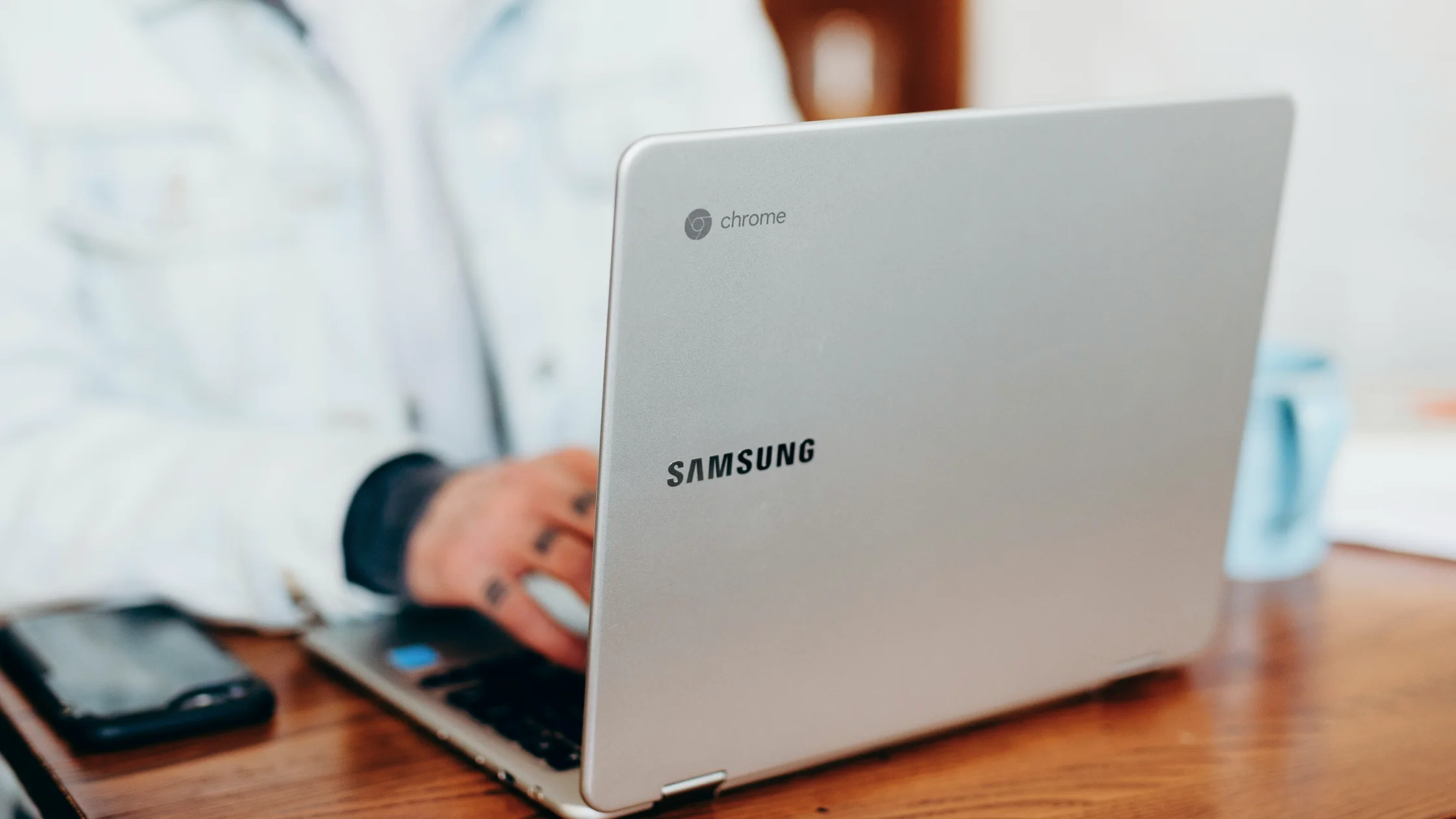

Can Chromebooks get viruses? They can run into malware, phishing pages, and harmful extensions. They are protected by the ChromeOS architecture, so traditional viruses usually have a harder time staying resident than they would on Windows or macOS.[1]
Key Takeaways:
- Chromebooks can run into malware, phishing pages, and harmful extensions, even though ChromeOS makes persistent traditional viruses harder.
- The more common real-world risks are malicious extensions, fake login pages, lock-screen scam pages, and sideloaded Android apps.
- The recommended recovery order is: remove recent extensions, then Safety Reset, then Powerwash if the problem continues.
- Install only necessary extensions from official sources and treat permission requests seriously.
ChromeOS really does have a more conservative security design than a traditional desktop operating system. The Chromium OS security overview describes layers such as sandboxing, a read-only root filesystem, verified boot, automatic updates, and encryption that reduce the risk of persistent compromise after a remote attack.[1]
That means even if attackers find an entry point, they may not be able to write into key system areas the way they might on a traditional system.
This may be the most realistic risk. Google explains that an extension with permission to “read and change all your data on the websites you visit” may access and modify page content.[4] That is why a malicious extension can affect browsing behavior, inject ads, change search results, or steal form data.
No operating system can save you if you type your password into a fake site. As on any device, phishing remains one of the most practical threats. Pair this with our phishing protection guide.
Google Chromebook Help has a dedicated recovery page for malicious site attacks. These pages may pretend your device is infected or demand payment to unlock it.[2]
If you mainly install Android apps from Google Play, the boundary is clearer. If you enable more open paths such as developer debugging, the risk rises.[5]
Watch for these signs:
Many of these symptoms are not “a virus living in the system.” They are more often browser-layer or account-layer issues, so the response should differ from a traditional PC cleanup.
Google provides standard steps for uninstalling apps or extensions on Chromebook.[3] If the issue started recently, checking new extensions first is usually the fastest path.
Google’s advice for this scenario is direct: reset the hardware using the recommended steps and close the restore window. Do not click “Restore,” or you may bring the malicious page back.[2]
Google now offers a lighter Safety Reset that disables extensions and resets settings to safe defaults without deleting local data or apps.[6] It is gentler than jumping straight to Powerwash.
If extension cleanup and Safety Reset do not fix the issue, use Powerwash to reset the device to factory settings. Google warns that Powerwash deletes local data, so back up first.[7]
More extensions mean a larger attack surface.
Chrome Web Store and the Play Store are safer than unknown download pages.
Permissions such as “read and change all website data” deserve a pause before you accept them.
Even if the device itself is safer, public Wi-Fi can still create man-in-the-middle risk. When you log in, handle documents, or make payments, secure the connection first. Our privacy exposure review can work as a longer-term checklist.
It is less likely. ChromeOS is designed to reduce the chance that traditional executables can persist, but malware and phishing risks still exist.[1]
Usually not a traditional virus. The more common risks are malicious extensions, phishing pages, fake warning sites, and unknown apps.[2][4]
Safety Reset is lighter and mainly resets settings and extensions. Powerwash is a factory reset and deletes local data.[6][7]
Many Chromebook users do not need traditional antivirus software, but they still need good extension hygiene, updates, and phishing awareness.
Follow Google’s recovery steps, restart, and close the restore window. Do not click payment, phone, or “fix now” buttons on the page.[2]
Yes. A VPN does not replace the ChromeOS security model, but it adds encryption for your traffic on public networks.
Disclaimer
This article is for general cybersecurity education only and does not constitute device repair or enterprise IT management advice. If your Chromebook belongs to a company or school, contact your administrator first.
Sources
Sources checked 8 May 2026.
Related Articles:
Sign up to experience all premium features at no cost.
*Available only to new users. Each user is limited to one trial.