Start your 3-day free trial
Sign up to experience all premium features at no cost.
*Available only to new users. Each user is limited to one trial.
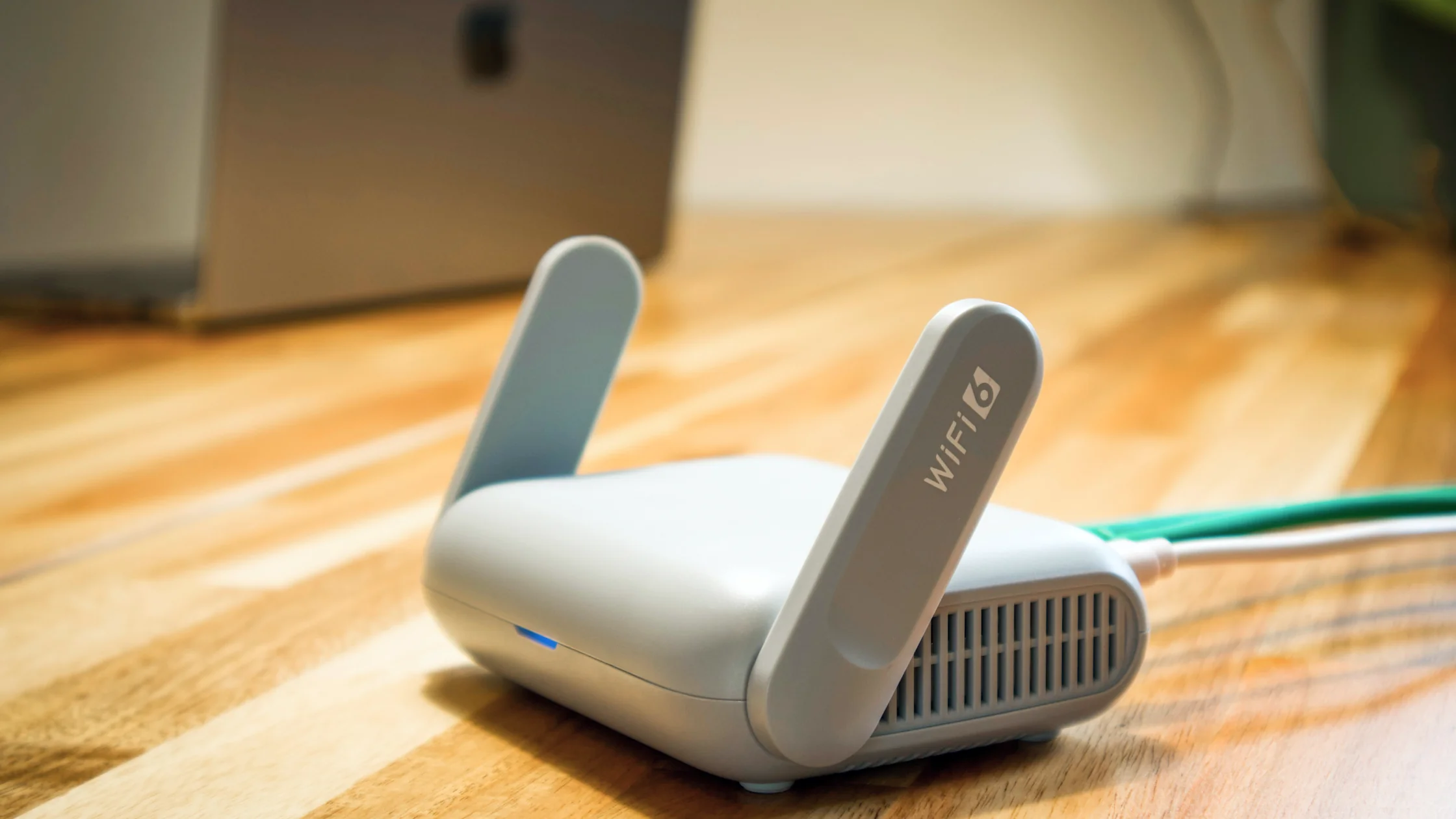

To protect Wi-Fi from neighbors, first check your router's connected-device list, then change both the Wi-Fi password and the router admin password, switch to WPA3 (or WPA2), turn off WPS, update firmware, and give visitors a guest network instead of your main password. One password change on its own is rarely enough. CISA, FTC, and Apple guidance all point in the same direction: old defaults and forgotten router settings are often the weak point in home Wi-Fi security.[1][2][3]
Use the digital privacy guide as the wider checklist: it connects this issue to accounts, devices, identifiers, and data-broker exposure.
This guide focuses on one specific situation: you suspect a neighbor, visitor, or other unauthorized device has joined your network, and you want the cleanest response order.
For the broader setup, read how to secure your home Wi-Fi: key router and IoT settings. If your router already looks suspicious, also see how to tell if your router was hacked: 7 common warning signs.
Key Takeaways
- The most reliable evidence is usually the connected-device list in your router dashboard.[1][2]
- Slow speed alone does not prove a neighbor is using your Wi-Fi; interference, old devices, or ISP congestion can look similar.
- Prioritize the router admin password, WPA3/WPA2, WPS, firmware updates, and guest networking.[1][2][3]
- The real issue is not one neighbor; it is any unauthorized device inside your home network.
- Home Wi-Fi protects the entry point. Public Wi-Fi protection is a separate transport-layer problem.
The common mistake is treating “my internet is slow” as proof that a neighbor is stealing Wi-Fi. Use a cleaner sequence:
If the list is normal and the network only slows down occasionally, congestion or interference is more likely than a neighbor.
Do not reboot immediately. Save the device names, connection times, device count, and unusual entries so you can confirm whether the fix worked.
This is basic, but it is not the whole fix. Use a long password and avoid birthdays, apartment numbers, or the last digits of a phone number.
Many people change the Wi-Fi password but leave the router dashboard password at its default. That can let someone change settings again later.[1][2]
If your router and devices support WPA3, use it. If some older devices cannot join, Apple suggests the WPA2/WPA3 transitional mode; otherwise use WPA2 reliably. Do not leave outdated security modes as the long-term default.[1][3]
WPS is not “always evil,” but it is another entry point. For a home network, fewer entry points usually means fewer problems.[1][2]
Firmware updates patch known issues. A guest network separates visitor devices from your main network and keeps your primary password private.[2] If you need to share Wi-Fi, share the Wi-Fi guest network instead of the primary password, and protect it with its own strong password and WPA3/WPA2 rather than leaving it open.
Hiding the SSID does not prevent network discovery or unauthorized access. Apple recommends leaving this setting disabled; use modern encryption and a strong network password instead.[3]
MAC addresses can be copied, spoofed, or changed, so filtering them is not a reliable access-security boundary. Apple recommends leaving MAC filtering disabled; do not rely on a device name or MAC address alone to identify a person.[3]
The useful goal is not identifying the person. It is removing unauthorized access.
No. Channel interference, too many home devices, ISP issues, or an underpowered router can also slow your network.
Check the router dashboard’s connected-device list and compare it with your real devices.[1][2]
Usually not. Check the router admin password, WPS, encryption mode, and firmware too.
Yes, but use WPA3 first if your devices support it.[1][3]
Yes, nearby networks on the same channel can slow each other down even when nobody has joined yours. Leave channel selection on automatic, enable the 5 GHz and 6 GHz bands your router supports, and keep 2.4 GHz at a 20 MHz channel width, since that band picks up more interference.[3]
Not directly. A VPN protects the connection path; it does not replace router passwords or home network settings.
Disclaimer: This article is for general home network security education only. It is not technical support for a specific router model, vendor dashboard, or enterprise network. AethoVPN can protect a device's VPN traffic, but it cannot stop a neighbor joining an open or weakly secured Wi‑Fi network; fix router security first.
Sources:
Sources checked 4 October 2026.
Related Articles:
Sign up to experience all premium features at no cost.
*Available only to new users. Each user is limited to one trial.