Start your 3-day free trial
Sign up to experience all premium features at no cost.
*Available only to new users. Each user is limited to one trial.
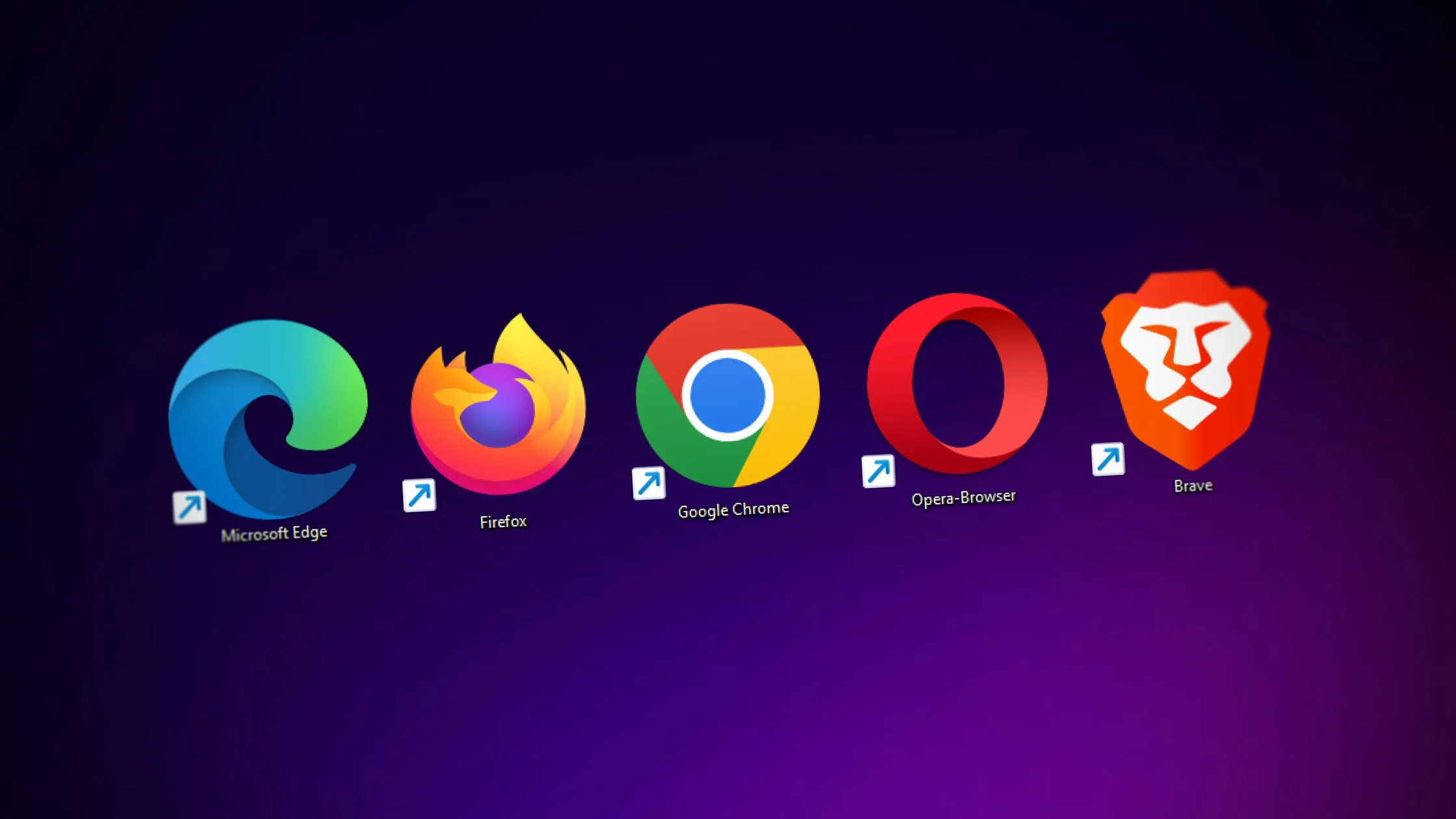

types of browsers are not just a list of names like Chrome, Safari, and Firefox. A more useful way to compare browsers is to look at the engine they use, who they are built for, how much tracking they block by default, and whether their main job is convenience or reducing exposure.[1][2]
The short version: most browsers can open modern websites, but they differ sharply in cross-site tracking protection, fingerprinting resistance, compatibility, and anonymity boundaries. Safari, Firefox, Edge, Brave, and Tor Browser are all browsers, but they solve different problems.[3][4][5][6][7]
Key Takeaways
- The best way to understand
types of browsersis by engine, purpose, and default privacy policy, not by logo.[1][8]- Modern browsing is mostly built around Blink, Gecko, and WebKit, so many different browser brands share the same foundation.[11][12][13]
- As of March 2026, Chrome still leads global browser usage, followed by Safari, Edge, and Firefox.[2]
- Private browsers can reduce third-party cookies and trackers, but they do not make you automatically anonymous. Logins, forms, browser fingerprints, and extensions can still expose you.[4][7][8][9]
- For most people, the question is not "which browser is strongest?" but "do I care more about compatibility or ongoing tracking?"
Brand-by-brand lists get confusing fast. It is cleaner to classify browsers by the problem they solve.
| Classification | What to look at | Common types |
|---|---|---|
| Presentation | Graphical interface or text-only access | Graphical browsers, text browsers |
| Engine | Who parses and renders the page | Blink, Gecko, WebKit |
| Use case | Compatibility, privacy, anonymity, or lightweight use | Mainstream browsers, private browsers, anonymity browsers, lightweight/special-purpose browsers |
These categories overlap. Brave is a graphical browser and a privacy-oriented Blink browser. Tor Browser is also graphical, but it prioritizes anonymity boundaries over everyday compatibility.[1][6][7]
If a browser displays images, video, buttons, scripts, and complex interactions, it is a graphical browser. MDN defines a browser around retrieving and displaying web pages with a rendering engine. Chrome, Safari, Firefox, Edge, Brave, and Tor Browser all fit this everyday category.[1]
The advantage is compatibility: office tools, payments, streaming, and regular logins generally expect a graphical browser.
Text browsers are closer to command-line access tools. The w3m manual describes w3m as a text-based WWW browser focused on terminal use.[10] They are not obsolete, but they are built for different constraints. Most modern websites depend on graphics, scripts, and interactive UI, so a text browser is rarely the main browser for ordinary users.[1][10]
The engines you will most often meet are Blink, Gecko, and WebKit. Understanding these names explains why some browsers look different but behave similarly on websites.[11][12][13]
| Engine | Common examples | What to know |
|---|---|---|
| Blink | Chrome, Edge, Brave, Opera, Vivaldi | Blink is the core rendering engine in the Chromium ecosystem, so many browsers share it[11] |
| Gecko | Firefox | Gecko powers Firefox and remains one of the clearest non-Chromium routes among mainstream browsers[12] |
| WebKit | Safari | Safari relies on WebKit, and many mobile browsers are also built on WebKit[13] |
Chrome, Edge, and Brave are all in the Blink family, but their default privacy policies are different. MDN's third-party cookie guidance notes that browsers handle cross-site cookies and trackers differently.[8]
That means switching to another Chromium browser is not the same as lowering tracking risk. If this is your concern, read What are online trackers?.
Firefox is not just another brand; it represents a different implementation path from Chromium. Safari is similar in that it integrates closely with Apple device privacy controls. If you do not want the browser ecosystem to depend on one underlying stack, that difference matters.[3][4][12][13]
If you care most about website compatibility, extensions, sync, and everyday workflow, Chrome, Safari, and Edge are usually the easiest options. StatCounter's global data also shows most users still cluster around these products.[2]
They are convenient, but "popular" does not automatically mean "private by default." Products differ in cross-site tracking protection, third-party cookie handling, and local privacy controls.[3][5][8]
These browsers are about reducing common tracking, not guaranteeing anonymity.
If you already care about permission exposure, this class gives you a stronger baseline than an untouched default browser. See also What do app permissions expose?.
Tor Browser is closer to an anonymity tool than a daily browser. The Tor Project is clear that Tor Browser has many privacy protections, but cannot guarantee perfect anonymity.[7]
This category is for reducing direct links between identity and location. It is not meant to behave like a normal daily browser. Safer use often means more restrictions and more careful habits, so speed, compatibility, and convenience trade-offs are part of the design.[7]
These browsers may focus on low resource use, simplified interfaces, mobile constraints, or specific devices. The trap is assuming "lightweight" means "more private." Privacy depends on how the browser handles trackers, cookies, fingerprints, and account sync, not only on install size.[3][4][5][6][8][9]
MDN explains that third-party cookies can link your browsing across sites, and browsers do not handle them the same way by default.[8] This is why private browsing alone is often not enough.
Firefox isolates cross-site cookies more strictly, Safari includes cross-site tracking prevention, and Edge and Brave both include tracking protection.[3][4][5][6] At the same time, MDN's fingerprinting definition reminds us that sites can still recognize you through device characteristics.[9]
When comparing browsers, ask:
This is the same logic as the complete digital privacy guide: reduce exposure in layers instead of trusting one switch.
A browser opens and displays web pages. A search engine collects, indexes, and returns web results. Chrome, Safari, Firefox, Edge, Brave, and Tor Browser are browsers; Google, Bing, and DuckDuckGo are search engines. You can change the search engine inside one browser or use the same search engine in different browsers.[1][14]
This matters because many people assume switching to a private browser automatically disconnects their search history. Not necessarily. If you stay signed in and use the same search service, browser-level and search-service-level signals can still connect you.[9][14]
Use this decision path:
| Your priority | Better direction |
|---|---|
| Minimal friction and maximum compatibility | Mainstream general-purpose browser |
| Less ad tracking and cross-site profiling | Private browser |
| Stronger anonymity and willingness to accept friction | Anonymity browser |
| Older device or lightweight browsing | Lightweight or special-purpose browser |
For office work, banking, forms, and video calls, compatibility matters. If ad profiles and cross-site tracking are your bigger concern, look at Safari, Firefox, Brave, or Edge privacy controls. If keeping identity and location from being directly linked is the top goal, study Tor Browser, but do not treat it as a magic anonymity button.[7]
The practical categories are graphical versus text browsers, Blink/Gecko/WebKit by engine, and mainstream, private, anonymity-focused, or lightweight browsers by purpose.[1]
They all belong to the Blink/Chromium family, so much of their underlying compatibility is similar. Differences come from defaults, sync systems, privacy policy, and extra features.[1][5][6]
No. A private browser reduces trackers and cross-site links. An anonymity browser focuses more on reducing direct identity-location links. Tor Browser itself says it cannot guarantee perfect anonymity.[7]
Private browsing mainly reduces local history. It does not automatically solve account login, cross-site tracking, or browser fingerprinting.[8][9]
Start with default cross-site tracking protection, then strict mode, then whether stricter settings break your usual sites. Stronger blocking often brings more compatibility side effects.[3][4][5][6]
Usually not. It is better for high-privacy or anonymity scenarios, where speed, extensions, downloads, and logins require more caution.[7]
Yes, but it is incomplete. Browsers reduce trackers and cookie exposure. VPNs help with connection encryption and real IP exposure. They solve different layers. See Can you be tracked with a VPN?.
Disclaimer: This article is for digital privacy and browser selection education only. It does not constitute legal, compliance, or personalized security advice. Browser defaults change by version; refer to official documentation and current release notes.
A VPN cannot change a browser engine, extension model, or its built-in privacy controls.
Sources:
Sources checked 8 May 2026.
Related Articles:
Sign up to experience all premium features at no cost.
*Available only to new users. Each user is limited to one trial.