Start your 3-day free trial
Sign up to experience all premium features at no cost.
*Available only to new users. Each user is limited to one trial.
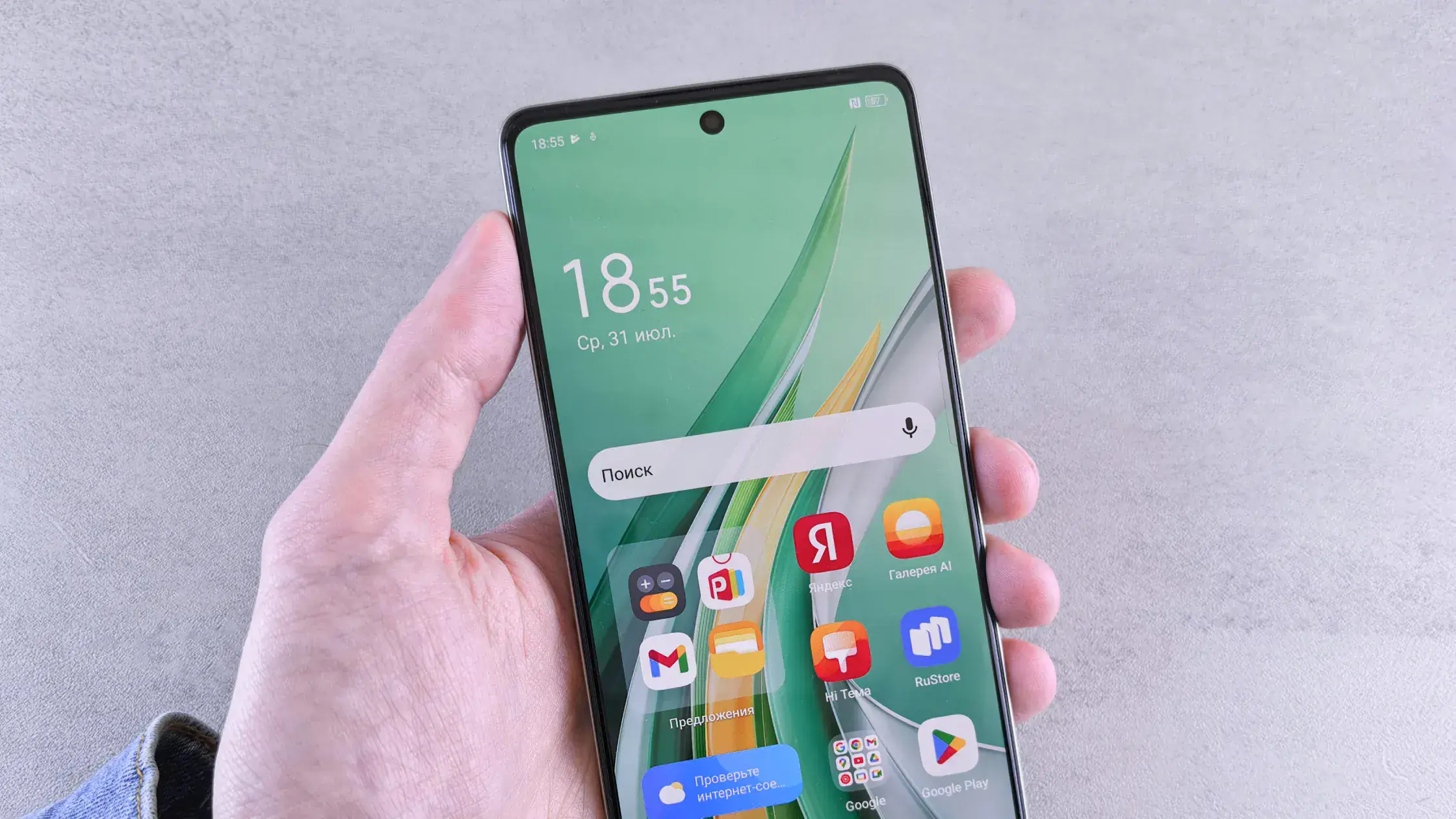

If you want to change your IP address on Android, do not rush straight into the settings screen. The IP address you can change on Android often falls into two categories: the local private IP your phone uses on a Wi‑Fi network, and the public exit IP websites see. They serve different purposes and require different steps.[1][2][3]
For most everyday users, the real goal is usually not changing the phone's 192.168.x.x address behind a router. It is making websites see a different public IP, region, or network exit. That is closer to changing your internet exit, and it usually requires a VPN, a different network, or a change on the ISP side.[2][4]
Key Takeaways
- The biggest confusion on Android is whether you are changing the Wi‑Fi private IP or the public IP seen by websites.[1][2]
- Manually entering a static IP usually affects only the local network address. It does not directly change the public exit IP.[1][3]
- To make websites see another IP, the most common options are connecting to a VPN or switching networks.[2][4]
- Android
Private DNSprotects DNS queries only. It does not encrypt or reroute the entire connection.[1]- After changing anything, verify it: check whether the public IP changed and whether the target service recognizes the new region.
This step matters more than the menu path. Different goals need completely different methods.
| Your goal | IP you are actually changing | Better method |
|---|---|---|
| Give your phone a fixed address on one Wi‑Fi network | Private IP | Change that Wi‑Fi network to a static IP in advanced settings[1] |
| Make websites see a different region or exit | Public IP | Connect to a VPN or switch Wi‑Fi/mobile networks[2][4] |
| Give your home router a long-term fixed public address | Router WAN IP | Ask your ISP or configure the router side; the phone cannot do this alone[3] |
If you want the broader basics first, read how to change your IP address: 6 methods and when to use them.
If your real question is “how do I make websites see me from somewhere else?”, you are dealing with the public exit IP.
This is the simplest option for most users. Android supports adding a VPN in system settings, and VPN apps can also handle configuration and connection directly. Once connected, websites usually see the VPN server's exit address instead of your original network exit.[2]
With AethoVPN, note the address the IP lookup shows, install the APK from the official downloads page (the same APK runs on HarmonyOS), sign in with the email code, approve Android's VPN request, pick a location, and run the lookup again without touching the Wi‑Fi IP setting, so local readdressing is not mistaken for the VPN exit. The connected VPN changes the IP websites see, not the phone's local Wi‑Fi address, carrier allocation, or location settings. Download AethoVPN for Android.
If you have not set one up before, read how to install and set up a VPN.
Changing from home Wi‑Fi to mobile data, or from one Wi‑Fi network to another, often changes the public exit. Websites see the network behind your current connection, not a fixed address attached to the phone itself.
If you need a long-term stable public address for remote access, allowlisting, or server use, that should usually be handled by your router or ISP, not by the phone alone. Google Nest documentation also separates a device's local static address from the router's WAN address facing the internet.[3]
This is most useful for local network management, such as printers, NAS devices, port forwarding, or home lab setups. It does not directly change the public address websites see.[3]
Open Android Settings, go to Network & internet or WLAN / Wi‑Fi, and connect to the network you want to edit. The exact names vary by brand, but the setting is usually in this area.[1]
Tap the connected Wi‑Fi details page and look for fields such as Advanced options, IP settings, or DHCP. Some devices hide this under an edit or pencil icon.[1]
When you change IP settings from DHCP to Static, you will usually see fields such as:
Fill these according to your current network range. Random values may look like the change worked, but they often break connectivity.
After saving, confirm the phone can still access the internet. Then check whether the local device you care about is reachable. If you are configuring a router, NAS, or camera, a stable private IP is the real value of this approach.[3]
No. Android's official documentation is clear that Private DNS helps protect DNS queries and responses, but it does not protect other traffic.[1]
That means:
For a deeper protocol explanation, read what encrypted DNS traffic is.
Do not skip this step.
Open the current Wi‑Fi details page and confirm the phone now has the new address you entered. Then check whether local network access still works.
Do two quick checks:
If you used a VPN, you can also verify it with how to test whether your VPN connection is working.
If you want websites to see another exit IP, start with a VPN or a network switch. If you only want your phone to have a fixed address behind your home router, then use Wi‑Fi static IP settings.
Put more directly:
Change IP address on Android is easy to confuse because private IP and public IP are different things.Private DNS protects DNS only. It does not reroute all phone traffic or provide full-connection encryption.[1]You probably changed the private IP on Wi‑Fi, not the public exit IP. Websites usually still see the public address exposed by your current network.[3]
Yes. Android supports adding and connecting to VPNs under Network & internet. If you use a VPN app, the system can hand setup over to that app.[2]
No. It helps protect DNS queries and responses, but it does not change the public IP websites see.[1]
Usually yes, because websites see the public exit of your current network, and that exit often changes when you switch networks.
It makes sense for local network management, such as port forwarding, fixed access to a NAS, printers, or home servers.[3]
Disclaimer
This article is for general network setup and privacy education only. Android brands, system versions, and carrier-customized menus may differ, so follow the actual menus on your device.
Sources
Sources checked 8 May 2026.
Related Articles:
Sign up to experience all premium features at no cost.
*Available only to new users. Each user is limited to one trial.