Start your 3-day free trial
Sign up to experience all premium features at no cost.
*Available only to new users. Each user is limited to one trial.
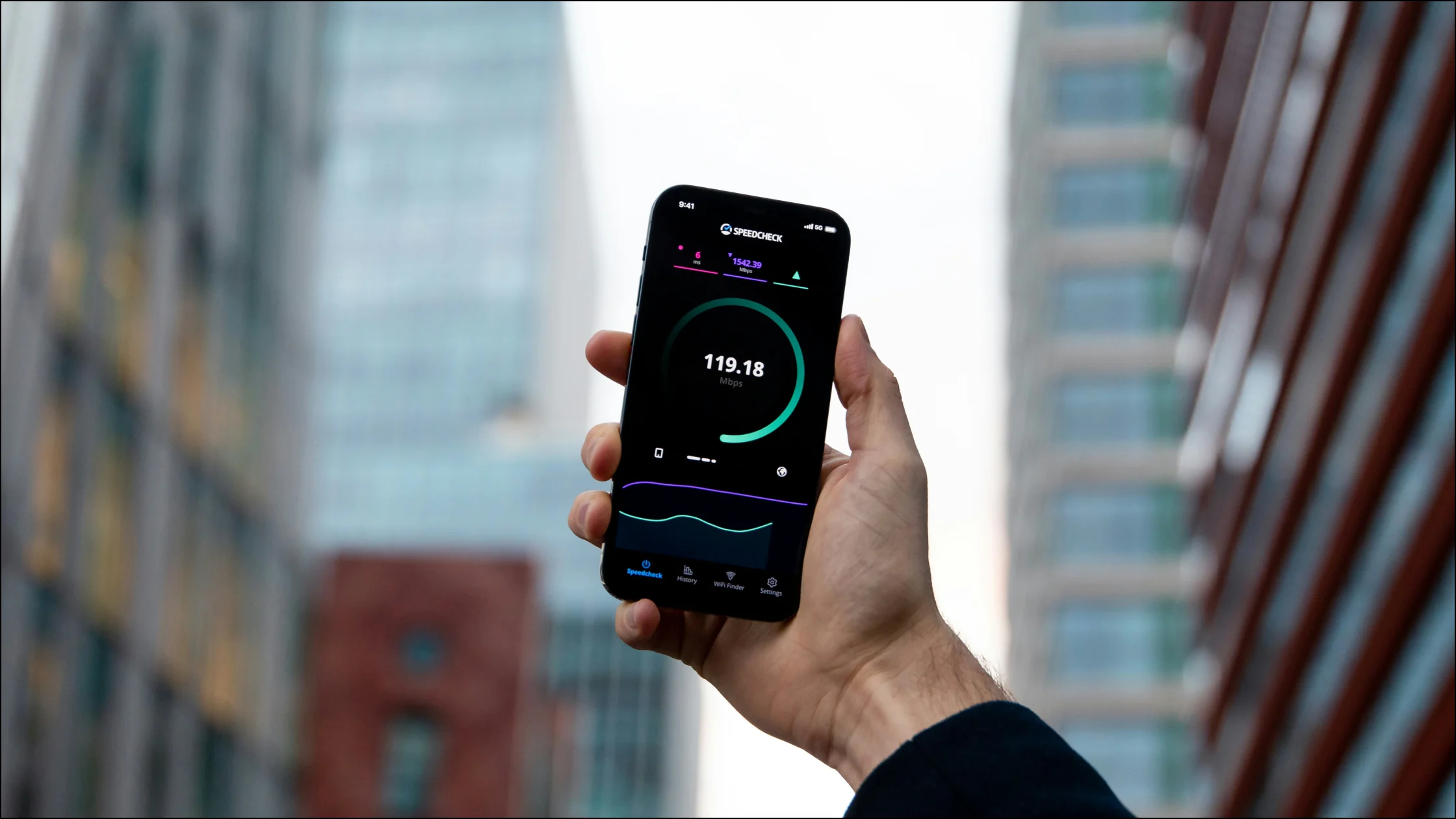

Running a VPN speed test does not require complex tools. The practical method is to test your baseline connection first, connect to the VPN on the same device and the same speed-test server and mode, then compare download, upload, and latency together. That tells you not only whether the VPN slowed the connection, but whether the difference affects streaming, meetings, or gaming.
The quick rule: some speed loss is normal with a good VPN. But if latency spikes, download speed is nearly cut in half, and switching servers does not help, you should troubleshoot protocol choice, server load, or the local network.[1][2]
If you want the VPN fundamentals first, read our complete VPN beginner's guide.
Key Takeaways:
- Measure a baseline without the VPN first, then retest with the VPN on using the same device, actual speed-test server, and test mode.
- Read download, upload, and latency together rather than relying on one number.
- Whether a result is fast enough depends on the task: streaming, meetings, and gaming stress different metrics.
- If results look poor, try a nearer server, another protocol, or another time before replacing the service.
The safest VPN speed test takes three steps.
| Step | What to do | Why it matters |
|---|---|---|
| 1 | Disconnect the VPN and test baseline speed | Creates the original network reference |
| 2 | Connect the VPN and retest with the same test server and mode | Keeps the measurement target comparable |
| 3 | Record download, upload, and latency | Shows whether real usage is affected |
Disconnect the VPN, then pause cloud sync, game downloads, online video, and large file transfers. The numbers you get are your baseline.
Record at least three metrics:
Choose and record the actual speed-test server, not just the website. Keep its name or ID, location and connection mode fixed for the baseline and VPN runs; automatic selection may choose another destination after your exit IP changes. If the tool cannot keep a target fixed, label those results as different routes rather than attributing their difference entirely to the VPN. Ookla allows tests to the same server or a different location.[5]
Record the device, Wi-Fi or wired interface, time, background traffic and selected VPN location alongside download, upload and latency. This is a reader's measurement method, not an end-to-end test performed for this article. Do not record a client protocol unless the client actually exposes that setting.
After connecting, do not test just one server and call it done. Test at least:
VPN speed depends on protocol, distance, server load, and congestion. WireGuard treats performance as a design goal, but its benchmark page warns that the results are old and the tests have methodological limits. Treat them as historical context, not a forecast for your connection.[1][2]
When you assess AethoVPN with this test, keep the device, test destination, and baseline network constant. Compare repeated download, upload, and latency readings; a fast test does not establish privacy protection or guarantee the same performance tomorrow. Put your no-VPN baseline in the first row of a results sheet, then start the 3-day free trial and fill the rows below it with AethoVPN runs from one location, taken a few minutes apart.
Do not only ask how many Mbps remain after connecting. Compare it with the baseline:
Speed loss = (baseline download speed - VPN download speed) / baseline download speed × 100%
As an arithmetic example, a 200 Mbps baseline and 160 Mbps VPN result give a 20% loss; these are not measurements from this article. If the baseline is zero, missing or failed, do not calculate the percentage: resolve or repeat the baseline first. A negative result means the VPN measurement was higher for that sample, not that the service always improves speed.
Many people only look at download speed and miss half the problem. A complete test should include at least three metrics.
For web browsing, streaming, and file downloads, download speed is the key number. Netflix recommends at least 3 Mbps for HD, 5 Mbps for full HD, and 15 Mbps for 4K Ultra HD.[3]
So if you still have 50 Mbps after connecting to the VPN, browsing and 4K streaming are usually fine. If you only have 8 Mbps, 1080p may work, but 4K is likely to buffer.
If you use video calls, large uploads, or livestreaming, upload speed matters. Zoom's Web App bandwidth guidance lists about 1.2 Mbps up/down for 1:1 720p calls and about 3.8 Mbps upload and 3.0 Mbps download for 1080p.[4]
That explains a common case: download speed looks fine, but meetings are blurry, choppy, or delayed. The issue is often upload or latency.
High latency affects interaction first. Games feel delayed, meetings get awkward pauses, and remote desktop feels sluggish.
For interactive tasks, measure latency and its variation on your own route. WireGuard’s old benchmark cannot establish which current client, protocol, or provider will give you the lowest delay.[2]
No fixed percentage defines a healthy VPN. Compare remaining bandwidth with your applications’ needs, test upload and latency when calls break up, and inspect Wi-Fi or competing traffic if both baseline and VPN measurements fluctuate. If only one VPN route is slow, try another nearby server while keeping the other variables fixed.
The practical question is not "is this number high?" It is "is this enough for what I am doing?" Streaming mostly needs download; meetings need upload and stability; games need low latency.[3][4]
If the slow tunnel is a server you run yourself, the self-hosted VPN speed checklist separates VPS, tunnel and client bottlenecks.
Your traffic does not go straight to the site. It first goes to the VPN server. The farther the server, the longer the round trip, and the higher the latency usually becomes.
If you only need encryption on public Wi-Fi, a nearby server is usually fastest. If you need a specific region, accept some cross-region delay. For the underlying concept, read What is a VPN tunnel?.
WireGuard, OpenVPN, and IKEv2 can perform differently depending on implementation and configuration. WireGuard’s performance goal does not prove it wins every comparison; its benchmark page cautions about old results. Change one setting at a time and measure again.[1][2]
If your VPN app supports protocol switching, record the protocol during tests. For more context, read our comparison of VPN protocol trade-offs.
Two servers in the same region can perform differently. The reason is usually not that the country is slow. One server may simply be more crowded.
If Wi-Fi is unstable, background sync is active, or the router is overloaded, the VPN may amplify an existing problem. Check the non-VPN baseline first. If the baseline is unstable, the VPN is usually not the root cause.
Run at least three baseline measurements and three VPN measurements in a nearby time window, alternating the two conditions where practical. Keep the same test server and mode for each pair, and do not run tests concurrently. Use the median for each condition and keep the individual readings; fluctuating baselines make a clean VPN comparison difficult.
A single site can automatically select different servers. Keep the actual server and connection mode fixed; switching either changes the comparison.
If your signal is fluctuating, you cannot judge the VPN fairly. Use Ethernet on desktop when possible, and make sure phone Wi-Fi is stable.
A speed test samples one route and time window; it does not guarantee download, meeting or long-term performance. Check the actual task by opening pages, watching video, joining calls or launching games.
Do not switch providers immediately. Troubleshoot in this order:
If you have not checked for VPN leaks or connection problems, read Check tunnel operation and leaks.
If your remaining question is who should maintain the internet exit, compare VPS and VPN responsibilities; without comparable measurements, neither renting a server nor choosing a hosted service establishes that it will be faster.
If you rely on a VPN daily, test when you change networks, switch protocols, or notice obvious lag. If everything feels fine, every few weeks is enough.
It depends. Video needs download, calls need upload and stability, and gaming cares most about latency.
Common reasons include server load, ISP route changes, peak-hour congestion, and switching protocols or servers.
Not by itself. A 30% drop from a fast baseline and the same drop from a slow line have different practical effects. Compare remaining bandwidth, latency, and real use before deciding there is a fault.
Upload speed or latency is usually the problem. High download speed does not guarantee smooth video calls.[4]
No protocol is always fastest. Hardware, implementation, routing, and load affect the result, and WireGuard’s old benchmark cannot rank current services or devices. Compare supported options on your own connection.[1][2]
Not fully. Phone Wi-Fi, cellular networks, chip performance, and background tasks differ from a computer. Test them separately.
Disclaimer Speed test results vary with device performance, network environment, time of day, and server load. This article provides general testing methods and does not guarantee fixed speeds on any specific node or third-party network.
Sources
Sources checked 9 October 2026.
Related Articles:
Sign up to experience all premium features at no cost.
*Available only to new users. Each user is limited to one trial.