Start your 3-day free trial
Sign up to experience all premium features at no cost.
*Available only to new users. Each user is limited to one trial.
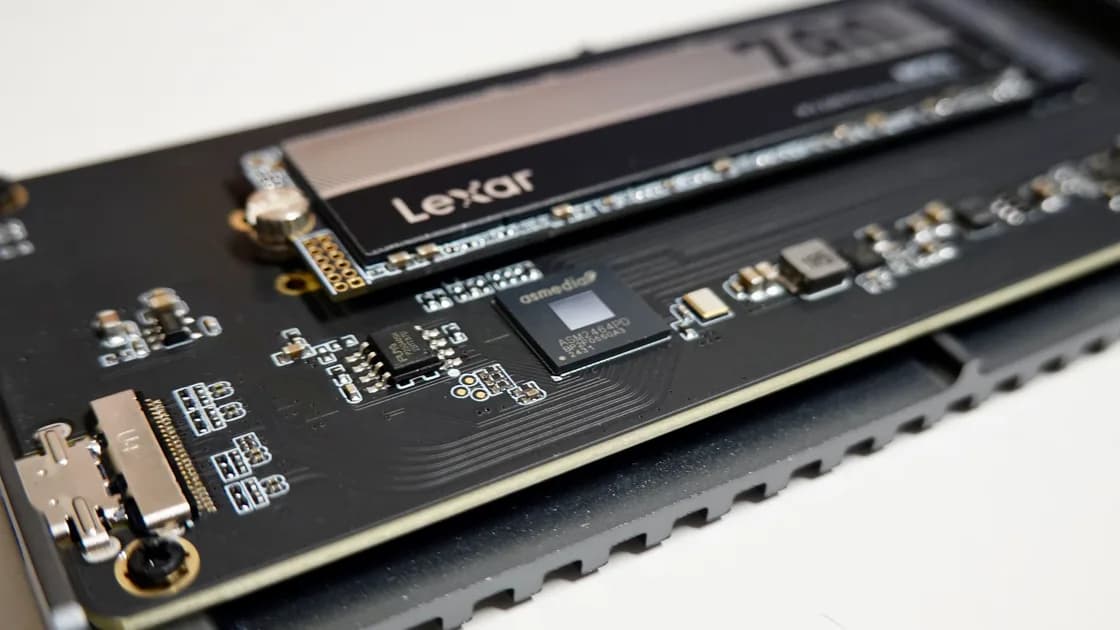

To check SSD health, first make sure irreplaceable data exists on another device, then identify the exact physical drive and read the operating system’s health status plus any model-supported SMART, NVMe, or manufacturer diagnostics. Treat those values as evidence, not a promise: a drive can report healthy immediately before an abrupt controller, power, firmware, or NAND failure.
Key Takeaways
- Backup comes before benchmarking, repair, firmware work, or repeated scans.
- Record the exact model, serial suffix, capacity, connection, and volume before reading a status.
- Combine health fields with I/O errors, disconnects, read-only changes, temperature, and trend.
- USB enclosures may hide or translate SMART and NVMe telemetry.
- A healthy indicator reduces uncertainty; it never replaces a tested backup.
Use the device and app troubleshooting guide to identify the failing layer. This guide checks an SSD that the system can still enumerate. A disk that never appears belongs in the external-drive visibility guide.
If the SSD contains the only copy of important files, do not begin with a full-surface scan, sustained benchmark, firmware update, repair utility, or repeated power cycle. Copy the highest-value readable data to separate storage and open a representative sample there. When reads are unstable or the data is irreplaceable, stop and consider professional recovery instead of consuming the remaining stable time.
Identify the physical device rather than trusting a familiar volume name. Record:
This prevents a common mistake: reading the health of the computer’s internal SSD while troubleshooting an external disk, or running a command against a similarly sized backup drive.
Start with read-only information already exposed by the operating system. On macOS, Disk Utility’s information panel can show a device’s SMART status when the storage path supplies it. Apple says a “failing” SMART status means the disk should be backed up and replaced.[1] A status may be absent for an external enclosure, and absence does not mean failure or health.
On Windows, the Storage PowerShell module can list physical disks and fields such as health status, operational status, media type, and size.[2] Use an elevated shell only if the supported command requires it, and begin with listing commands rather than repair or reset operations. Graphical storage settings or the device manufacturer’s official utility may provide the same information more safely for a nontechnical user.
Linux tools vary by distribution, kernel, controller, and transport. Use the distribution’s maintained package and the drive or enclosure maker’s documentation. Do not paste a destructive command from a forum because it contains the word “SMART.” Confirm that the command is read-only and targets the correct device.
For all platforms, save the complete output with a date, model, connection path, and workload state. A single green badge is less useful than a comparable record taken again after a symptom.
Field names and thresholds are vendor-specific. NVMe defines a SMART / Health Information log with critical warnings and values such as temperature, available spare, percentage used, data units, power-on hours, unsafe shutdowns, media and data integrity errors, and error-log entry counts.[3] Not every number is a failure prediction.
| Evidence | What it can tell you | What it cannot prove |
|---|---|---|
| Critical warning | Controller has raised a defined health condition | Exact remaining life |
| Available spare | Spare capacity relative to the vendor threshold | That all existing data is readable |
| Percentage used | Vendor estimate of endurance consumed | A precise failure date |
| Media/data-integrity errors | Controller recorded uncorrected data events | Which file is affected without further evidence |
| Temperature | Current or recorded thermal condition | That heat caused every observed error |
| Unsafe shutdowns | Power was lost without a clean shutdown | That the SSD itself caused the loss |
| Error-log entries | Commands generated logged errors | Severity without the command and status context |
For SATA SSDs, attributes such as reallocated or uncorrectable errors, wear indicators, CRC errors, and temperature may be useful, but raw values and normalized scales differ. Interpret them with the exact manufacturer’s documentation. A generic program that labels every nonzero raw value “bad” can create false alarms.
USB-to-SATA and USB-to-NVMe bridges may block, translate, or incompletely expose telemetry. Compare the enclosure’s supported features before concluding that an empty SMART page proves the drive is healthy. Do not remove an SSD from a sealed or hardware-encrypted enclosure unless the vendor supports it and data is backed up.
Health telemetry matters most when tied to an observable event. Create a short timeline with the action, file direction, elapsed time, temperature, connection path, system message, and whether the device or only the volume disappeared.
Escalate the situation when you see any of these patterns:
A steadily increasing error count is more concerning than a stable historical count, but only compare equivalent readings from the same model, tool version, and connection. Resetting logs, changing enclosures, or switching drivers can break the trend.
If an external SSD disconnects under load, follow the transfer-disconnection guide. It separates cable, port, power, enclosure, heat, sleep, filesystem, and media evidence. Health data alone cannot isolate those layers.
Not as the first health check. A full write benchmark changes data and adds wear. A sustained read scan adds heat and load and may be the wrong choice when the device is already unstable. Filesystem repair changes metadata but does not test every flash cell or controller path.
After data is safe, a short read-only manufacturer self-test or supported diagnostic can add evidence. Read its documentation first: confirm whether it writes data, how long it runs, whether stable external power is required, and whether it supports the exact model and enclosure.
If performance is the only concern, establish a small, disposable workload and compare it with the manufacturer’s conditions. Nearly full capacity, thermal throttling, background indexing, encryption, small random files, a slow USB bridge, and operating-system caching can all change speed without proving imminent failure.
Do not use repeated benchmarks to “see whether it gets worse.” One reproducible failure plus protected data is more useful than ten uncontrolled stress runs.
Replace the SSD after backing up when the system or manufacturer reports a critical failure, integrity errors rise, ordinary reads fail, the disk becomes unexpectedly read-only, or the same device fails through independent known-good paths. Preserve purchase details and a minimal non-sensitive reproduction for warranty support.
Monitor rather than immediately replace when the only observation is an unchanged historical counter, the manufacturer documents it as normal, and files, self-tests, system logs, temperature, and connections show no related symptoms. Record a new baseline and shorten the interval until the trend is understood.
Seek recovery help before further testing when the only copy is valuable and reads are unstable, the device disappears repeatedly, capacity changes, hardware is damaged, or encryption depends on the original controller or enclosure. Do not initialize, secure-erase, update firmware, or open sealed hardware first.
The data-corruption guide explains why redundancy, verification, and recovery planning matter beyond one health reading. A backup is only useful if its files and credentials can actually be restored.
Yes. Telemetry can reveal known conditions, but sudden controller, firmware, power, connector, or flash failures may occur without a useful warning. Keep a tested backup.
There is no universal percentage. Use the exact manufacturer’s meaning, threshold, warranty terms, and associated warning fields rather than applying one number to every model.
No. It is generally an endurance estimate, not a countdown to failure. Consider critical warnings, integrity errors, spare capacity, symptoms, and backup status together.
The USB or Thunderbolt enclosure, bridge, driver, or operating system may not pass the command through. Check the enclosure and SSD maker’s supported diagnostic method.
No. Free space, heat, interface speed, encryption, background work, file size, and cache behavior affect performance. Errors and repeatable abnormal changes provide stronger evidence.
Only after important data is safe and the exact supported tool and risk are understood. A full scan adds load and may be harmful when the device is unstable.
Filesystem repair can address logical metadata inconsistencies; it cannot repair worn flash, a failing controller, unstable power, or a damaged connector. It also writes metadata.
Check after a new warning or symptom and periodically according to the device’s importance and vendor guidance. Automated alerts and verified backups are more useful than obsessive manual checks.
Sources checked 6 September 2026.
Sign up to experience all premium features at no cost.
*Available only to new users. Each user is limited to one trial.