Start your 3-day free trial
Sign up to experience all premium features at no cost.
*Available only to new users. Each user is limited to one trial.


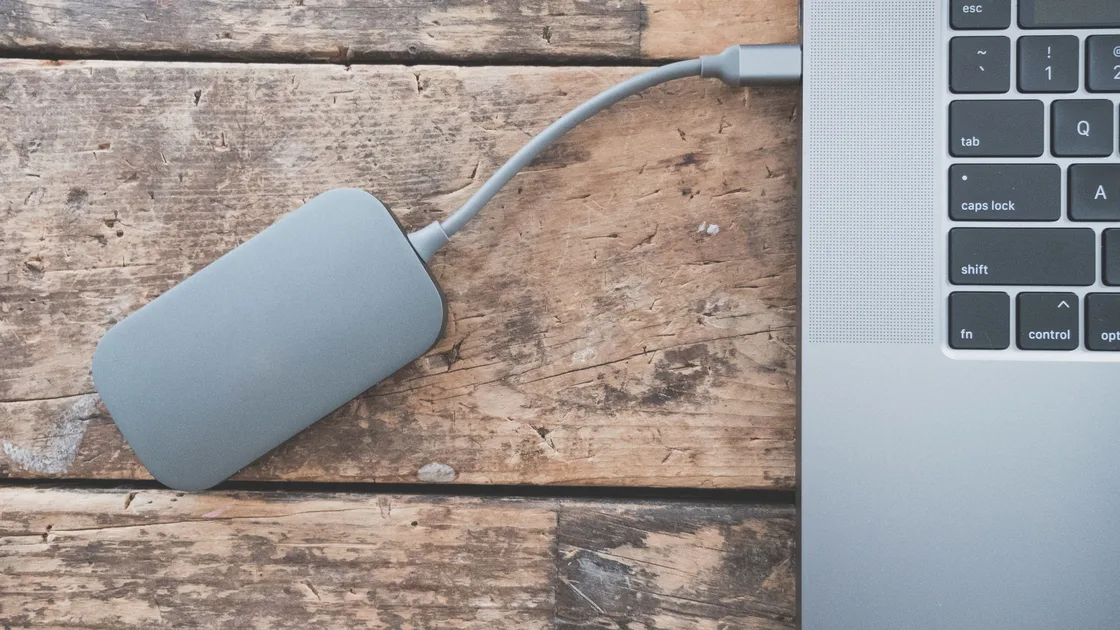
If your USB-C portable SSD or other external SSD keeps disconnecting during file transfers, stop active writes and protect any unique data first, then check the connection chain before blaming the drive: a known-good data cable, a built-in port, and enough power. Next, distinguish a vanished physical device, an unmounted volume, a failed copy while the disk remains mounted, and a computer that slept. Test one cable, port, power, thermal, enclosure, or host variable at a time.
Key Takeaways
- Do not keep stress-testing a drive that holds the only copy of important files.
- Record whether the device disappears, the volume unmounts, or only the copy fails.
- Direct connection and a known-good data-rated cable are the highest-value comparisons.
- Heat, bus power, hubs, enclosures, sleep, filesystems, and media faults can look similar.
- Repair, firmware changes, formatting, and erasure come only after verified backup.
For a general layer-by-layer method, begin with the device and app troubleshooting guide. This article assumes the SSD initially mounts and can be read; a disk that never appears belongs in the external-drive visibility guide.
The phrase “SSD disconnected” can describe several different events. Preserve the exact error and observe the system immediately after it occurs.
| Observation | Layer to investigate first |
|---|---|
| Physical device vanishes from disk or USB tools | Cable, connector, port, power, enclosure, controller, or drive |
| Device remains visible but the volume unmounts | Filesystem, I/O error, unsafe removal, or media health |
| Volume remains mounted but one copy fails | Source file, destination space, permissions, application, or filesystem |
| Transfer pauses when the computer sleeps | Power and sleep behavior |
| Connection drops only through a dock or hub | Dock, hub, upstream cable, shared power, or compatibility |
| Drive becomes unusually hot before every drop | Thermal path, enclosure, sustained workload, or hardware fault |
If the SSD reconnects automatically, do not immediately resume the interrupted write. Verify that the expected volume is mounted, that the directory is the correct one, and that a completed destination file is not merely a partial copy with a familiar name.
Stop completely if you smell burning, see a damaged connector, hear repeated electrical clicking from an enclosure, or cannot comfortably touch the device. SSDs have no moving platters, but an enclosure, cable, adapter, or power component can still fail. Do not open a sealed drive or continue applying power to visibly damaged hardware.
Treat a repeatable disconnect as a data-integrity warning. If the SSD contains unique files, copy the most valuable readable items first using short, ordinary reads. Verify a sample at the destination, and avoid a full-disk benchmark or repair pass on the only copy.
Use a disposable test only after irreplaceable data is safe:
Microsoft recommends using the system's safe-removal controls to reduce the chance of data loss when disconnecting external hardware.[1] Apple likewise instructs users to eject external storage before physically removing it.[2] These steps cannot cure a failing link, but they prevent an intentional unplug from becoming another uncontrolled variable.
Do not use a valuable photo library, virtual machine, database, or active backup set as the test payload. Those workloads create many writes and may leave complex application state after an interruption.
Start with the shortest connection chain. Connect the SSD directly to a built-in computer port using one known-good cable that explicitly supports data at the required speed. A USB-C connector shape does not prove that a cable supports the same data rate or power profile; Apple documents that USB-C cables have different charging and data capabilities.[3]
Inspect without forcing anything. A loose plug, debris, bent shell, cable that works only at one angle, or heat-discolored connector is a reason to replace the questionable component. Do not wedge a connector or tape a cable into position for an important transfer.
Use this comparison order:
Apple advises connecting a USB device directly, trying another port, and using a self-powered hub when power may be insufficient.[4] If direct connection works but the dock path fails, use the USB-C dock guide and examine the dock's upstream cable, power adapter, firmware, and shared devices.
Avoid stacking adapters. Every extra connector adds mechanical and signal risk. Also disconnect unrelated high-power devices during a controlled test; a bus-powered SSD can be affected when a hub's power budget is shared.
Large transfers keep the SSD controller, flash memory, bridge chip, and cable active. Warmth alone is normal, but a consistent disconnect after a similar amount of time or data can reveal a thermal or power boundary.
Place the drive on a hard, open surface. Do not cover it with fabric, place it on a hot laptop exhaust, or enclose it under papers. Record room conditions, whether the enclosure feels merely warm or unusually hot, and whether the disconnect time changes after the device cools.
Do not put electronics in a refrigerator or freezer, use ice packs, spray coolant, or remove an enclosure without manufacturer instructions. Condensation and physical damage can turn an intermittent fault into permanent data loss.
Compare one small transfer and one moderately larger disposable transfer. If small files always finish but sustained sequential copies fail, document that boundary for the manufacturer. Do not keep increasing workload until failure; one repeatable threshold is enough evidence.
Manufacturer diagnostics or firmware may address a known bridge or controller issue, but only use the exact model's official tool and release notes. Confirm backup, stable power, and the correct device before any firmware operation. Never flash generic enclosure firmware from a forum.
Keep the computer awake for one controlled transfer using normal system settings. Do not install a permanent “keep awake” utility just for diagnosis. If the failure occurs exactly when the display sleeps or the laptop closes, repeat once with the computer connected to power and sleep temporarily postponed through supported settings.
Also separate the copy application from the device. Try the operating system's normal file manager with one disposable file. Pause backup, sync, antivirus, or media-catalog applications only when you understand their state and can resume them safely. Do not disable endpoint protection on a managed computer.
Inspect free space, filesystem type, and read-only state. A copy can fail because the destination is full, a file name is unsupported, permissions reject the write, or the filesystem reports an error while the device remains connected. If the volume is visible but refuses writes, use the write-protection guide rather than treating it as a disconnect.
Filesystem repair writes metadata and can make recovery harder on unstable media. Run it only after backup, exact volume identification, and review of the operating system's official instructions. Formatting and erasure destroy the existing filesystem; neither is an appropriate first diagnostic.
On a Mac, read the exact alert before changing anything. A “USB Devices Disabled” message points to a power problem: Apple's steps are to disconnect and reconnect the device, try a different port, connect directly instead of through a USB or Thunderbolt hub, and make sure any self-powered hub is connected to its AC adapter.[4] If the drive vanishes from the Finder sidebar and Disk Utility at the same moment, treat it as a physical drop and follow the cable and port order above.
If the drive stays listed but refuses to eject or a copy stalls, another app may still be using files on it, which Apple also gives as the reason an eject can fail.[2] Quit backup, indexing, or media apps that touch the drive, then eject from the Finder before unplugging.
A drive that disconnects and reconnects randomly while idle, not only during copies, points first to an intermittent connector, cable, or power path, or to the Mac's sleep schedule. Log the time of each drop and whether the Mac was asleep or on battery. For a branded portable SSD, such as a Samsung model, look for a diagnostic or firmware tool only on the maker's own support site, and use it only after backup.
Some external SSDs are sealed products; others combine a removable SSD with a separate USB enclosure. Do not assume yours is user-serviceable. Opening a sealed product can damage thermal pads, waterproofing, connectors, or warranty evidence.
For a removable, supported enclosure, model numbers matter. Record the SSD, bridge chipset or enclosure model, cable, computer, operating-system version, and negotiated connection speed if the system reports it. Search only the manufacturers' support pages for compatibility and firmware information.
Patterns help:
Swapping a removable SSD into another enclosure can change power, bridge, trim, sector-size, and encryption behavior. Do that only when the hardware vendor supports it and the data is backed up. Hardware-encrypted products may be unreadable outside their original enclosure.
Stop ordinary troubleshooting when the SSD disconnects on two trusted hosts with two known-good data cables, reports repeated I/O or filesystem errors, changes capacity, becomes abnormally hot, or contains data that cannot be replaced. More retries can consume the remaining stable read window.
For valuable data, a professional recovery service may be safer than repair software. Preserve the complete device, enclosure, cable, error messages, and a timeline. Do not initialize a volume because the operating system prompts you, and do not let a support tool erase diagnostic evidence before you understand its action.
If the data is backed up, replace a repeatedly unstable cable, enclosure, or SSD. For warranty support, provide a minimal reproduction using non-sensitive data, exact models, connection topology, and the first error. Avoid sending private filenames or screenshots that expose personal folders.
No. A cable, port, hub, power path, enclosure, sleep event, or filesystem error can cause similar symptoms. Cross-test one variable at a time before assigning the fault to the SSD.
Sustained load increases heat, power demand, controller activity, and the time available for a marginal connection to fail. Record the threshold once, then stop repeated stress tests and preserve the data.
Yes. USB-C describes the connector, while cables differ in supported data and power capabilities. Use a known-good data-rated cable appropriate for the drive rather than judging by connector shape.
A reputable self-powered hub can help when bus power is insufficient, but direct connection is the clearer first comparison. If only the hub path fails, troubleshoot the hub, upstream cable, and power adapter.
Repair changes metadata, so first back up readable data and identify the exact volume. On a drive that disconnects or has unstable reads, recovery may be safer than repair.
Formatting may address a filesystem problem but cannot fix a weak cable, unstable power, heat, enclosure, or failing hardware. It erases the current filesystem and should never be the first test.
There is no universal hand-test temperature. Unusual heat combined with repeatable drops, throttling, odor, discoloration, or a manufacturer warning is enough to stop and seek model-specific support.
Consider it when the SSD contains irreplaceable data and disconnects, produces I/O errors, changes capacity, or reads inconsistently. Avoid further writes, repair utilities, firmware changes, or initialization first.
Sources checked 4 October 2026.
Sign up to experience all premium features at no cost.
*Available only to new users. Each user is limited to one trial.