Start your 3-day free trial
Sign up to experience all premium features at no cost.
*Available only to new users. Each user is limited to one trial.
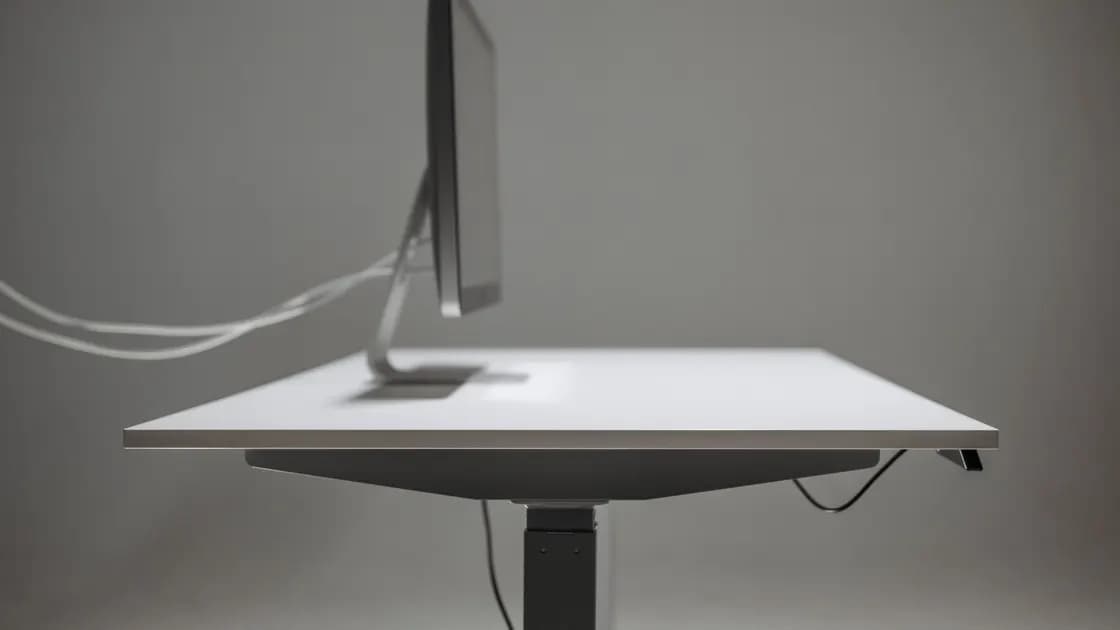

When a DisplayPort monitor keeps disconnecting, working and then disappearing intermittently, record whether the operating system removes the display, the monitor reports no signal, or the picture only blanks for a moment. Then establish a direct, known-good cable path and add back ports, docks, MST devices, sleep events, power changes, and high-bandwidth modes one at a time. The timing of the dropout is often more useful than repeatedly unplugging everything.
Key Takeaways
- Separate a true disconnect from flicker, black frames, and application blanking.
- Record whether the drop follows movement, load, sleep, hot-plugging, or another display.
- Test one certified, known-good cable directly between computer and monitor.
- Remove docks and MST branches before changing drivers or firmware.
- Stop using loose, damaged, sparking, discolored, or abnormally hot equipment.
The device and app troubleshooting guide provides the general comparison framework. This article assumes the monitor has worked on this path and later disconnects. A display that has never been detected belongs in the external-monitor detection guide. A stable screen that lacks the desired frequency belongs in the refresh-rate guide.
Write down the time and observable sequence. Does the monitor show “No Signal”? Does the operating system play a device-removal sound, rearrange windows, or remove the display from Settings? Does audio routed through the monitor vanish? Or does the picture return instantly while the desktop layout remains unchanged? A true disconnect changes device state; continuous sparkle, tearing, or rapid brightness variation is closer to flicker.
Note the trigger: moving the cable, touching the desk, waking from sleep, starting a game, selecting a higher refresh rate, connecting a second monitor, powering a USB device, or reaching a predictable interval. Preserve the computer, GPU, OS, driver, monitor, firmware, ports, cable length, adapter or dock, resolution, refresh rate, color depth, HDR, adaptive sync, and MST topology.
Microsoft recommends checking cables and adapters, trying another video output, disconnecting accessories, and using display detection and driver recovery steps for external-monitor problems.[1] These are useful only as controlled comparisons. If five variables change at once, a temporary recovery does not identify the cause.
Save work before testing. Frequent display removal can move windows, interrupt presentations, and disrupt monitor audio or USB hubs. Do not use a production-only session as the first diagnostic environment.
Shut down or power off equipment when the manufacturer instructs, then inspect both connector ends and ports. Look for a plug that does not seat fully, a damaged latch, bent shell, crushed cable, tight bend, discoloration, looseness, debris, or heat. A full-size DisplayPort plug may have a release latch; press it before removal. Never pull by the cable or force a latched connector.
Replace the path with one short, known-good cable documented for the desired DisplayPort mode and bandwidth. Certification and a traceable model are more useful than marketing terms alone. Avoid extension cables, couplers, right-angle adapters, wall plates, KVMs, and converters for the baseline. Route the cable away from strain and make sure its weight does not lever the port.
Test without moving the computer or monitor. Then gently reproduce ordinary desk movement without bending connectors. If movement alone causes device removal, stop repeated testing; the cable or port may be mechanically damaged. Compare another cable and another documented port to distinguish them.
Do not clean an energized port, insert metal tools, tape a loose plug in place, or keep using equipment that sparks or smells. A cable that carries a lower-resolution signal is not proof it can reliably carry the current link rate, color depth, and refresh rate.
Connect the monitor directly to a native computer or GPU output when possible. If the computer has USB-C rather than full-size DisplayPort, use one known-good adapter explicitly documented for DisplayPort Alt Mode and the target mode. The USB-C video-output guide can establish whether the host port carries video.
Microsoft's Surface guidance recommends confirming compatible adapters, checking connections, clearing the display cache in applicable cases, and keeping the device and dock updated.[2] For any platform, record the exact dock model, upstream cable, power supply, downstream port, and other attached devices. A dock can fail because of its cable, power budget, firmware, heat, or shared display bandwidth.
Disable the chain rather than guessing inside it. Remove the MST hub, turn off daisy chaining, and connect one monitor. If that is stable, add a second display at a conservative supported mode. Check whether the dock and GPU support the total resolution, refresh rate, color depth, and number of displays. An MST branch that exceeds capacity may retrain or drop when another screen wakes.
If a dock loses Ethernet, USB, charging, and video together, the issue is broader than DisplayPort downstream. Preserve system logs and the dock power state. Do not flash firmware from an unofficial package or interrupt an official firmware update.
Test three events separately: display sleep while the computer stays awake, full computer sleep and wake, and monitor power cycling. Wait long enough to reproduce the normal interval. Record whether the display remains listed during the black screen and whether reconnecting power, the video cable, or only the monitor input restores it.
Apple notes that a supported external display may remain dark or use a low resolution when the connection, cable, adapter, software, or display settings do not support the expected path, and recommends checking connections and software.[3] After sleep, the same layers must negotiate again. A failure only on wake points toward link retraining, dock state, firmware, or power sequencing rather than a permanently unsupported monitor.
Use normal operating-system and monitor power settings for the first baseline. Temporarily prevent only display sleep for a bounded test; do not disable all sleep and security controls as a permanent workaround. If the dropout vanishes, restore sleep and test official OS, GPU, dock, and monitor updates one at a time.
Connect the monitor and dock to their specified power supplies and a stable outlet. Avoid overloaded strips and unsupported power adapters. If a bus-powered adapter becomes very hot or drops only when USB devices draw power, remove those devices and compare a powered, supported configuration.
Set a standard resolution and 60 Hz refresh rate with HDR and adaptive sync off for one diagnostic run. If the direct path is stable, restore the desired resolution, then refresh rate, then HDR or higher color depth, and finally adaptive sync. This order shows which addition crosses a link, cable, dock, or GPU limit.
A lower mode is evidence, not a final fix. Consult published limits for the exact ports and topology. Do not create custom timings or increase link parameters beyond supported values. If only the higher refresh rate fails, preserve the stable matrix and continue with the monitor refresh-rate article.
Correlate the first dropout with recent OS, graphics-driver, dock-firmware, monitor-firmware, or application changes. Install only supported updates from official sources. If a vendor documents rollback and the problem began immediately after an update, follow that controlled process; do not use random driver-cleaner tools or unsigned packages.
On Windows, a documented graphics-driver reset can be a temporary observation, not proof that the driver is the root cause. If it restores the display, preserve event logs, driver version, and recurrence timing. On any platform, test a clean user session only if the symptom correlates with display-management software.
Build a matrix with two cables, two outputs if available, and either another monitor or another computer. Keep one known-good element fixed while changing one item. For example, test the original monitor and known-good cable on output A, then output B; next use the same output and cable with another monitor. Add the dock only after the direct cases are understood.
If one cable fails on multiple compatible ports, replace it. If one port fails with multiple known-good cables and monitors, stop stressing it and contact the computer or GPU vendor. If the monitor's input drops with multiple sources while another input remains stable, contact the display vendor. If only an intermediary path fails, its maker owns the next investigation.
Run the stable case long enough to cover the usual failure window and the sleep/wake cycle. A five-minute success does not close an hourly thermal or power problem. Record temperatures only through supported software; do not open equipment. Preserve logs and exact timestamps so support can match link or device events.
Seek service immediately for a loose mains inlet, cracked insulation, liquid, smoke, a burning smell, arcing, or abnormal heat. Otherwise send support the models and firmware, OS and driver, complete topology, cable identifiers, mode settings, trigger timing, device-removal behavior, and matrix results.
No. A disconnect usually removes the display, rearranges windows, or produces a no-signal state. Flicker may preserve device detection while the image varies or blanks briefly.
Yes. Mechanical strain or insufficient signal margin can fail only at certain modes, temperatures, or movements. Compare a short, known-good cable rated for the target path.
Follow the connector instructions and press its release before pulling the plug body. Never yank the cable or force a connector that remains latched.
The dock adds an upstream cable, power, firmware, shared bandwidth, and possibly MST. A stable direct path identifies that combined intermediary boundary.
Wake requires the link and display capabilities to negotiate again. A sleep-only failure can involve power sequencing, dock state, firmware, drivers, or monitor input behavior.
Use a lower supported rate as a diagnostic comparison. If it is stable, verify cable and topology bandwidth before choosing the final supported mode.
No. First preserve the trigger and test a direct cable path. Use only official supported driver actions after the hardware and topology comparison is clear.
Seek repair when one port or monitor input fails across known-good combinations, or immediately for looseness, liquid, smoke, odor, arcing, cracked insulation, or abnormal heat.
Sources checked 9 September 2026.
Sign up to experience all premium features at no cost.
*Available only to new users. Each user is limited to one trial.