Start your 3-day free trial
Sign up to experience all premium features at no cost.
*Available only to new users. Each user is limited to one trial.
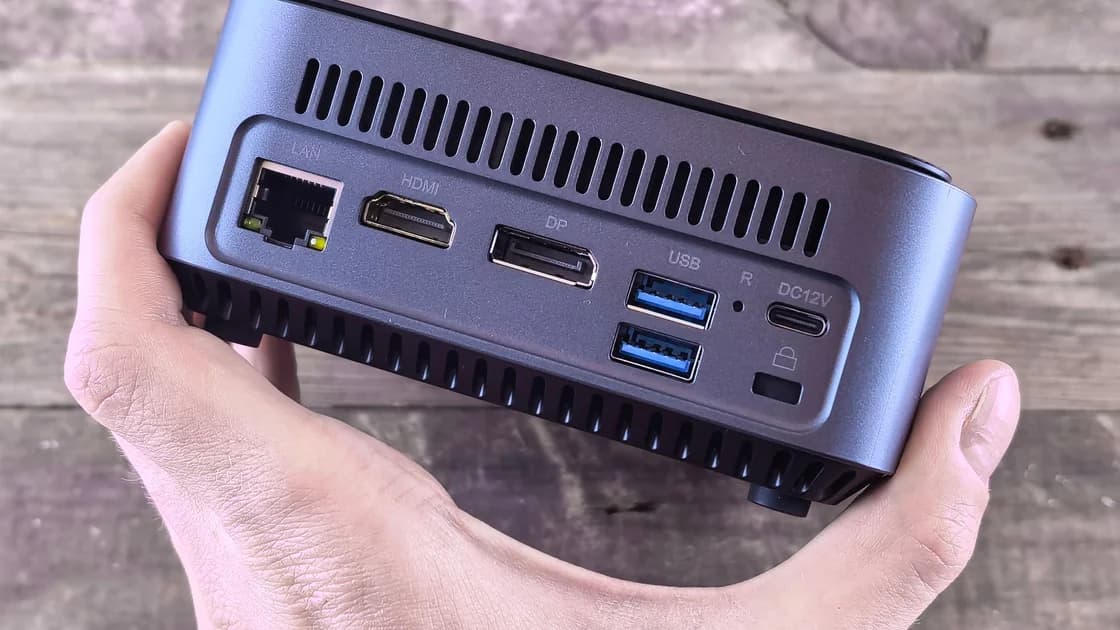

Does your USB-C port support video output? To find out, identify the exact device model and the exact port, then check the manufacturer's specification or manual for DisplayPort Alt Mode, Thunderbolt, USB4 display support, or an explicit external-display statement. The USB-C connector shape and a charging symbol are not enough to prove video capability.
Key Takeaways
- USB-C describes a connector, not one fixed set of functions.
- The exact model specification is stronger evidence than a port symbol.
- Data, charging input, charging output, and video are separate capabilities.
- Cable, adapter, dock, display input, and computer limits must all match.
- Confirm display count, resolution, and refresh-rate limits before buying accessories.
This article is a capability check to perform before purchasing an adapter or troubleshooting a connection. If a documented video-capable port is already connected but the screen is missing, use the external-monitor detection guide. The device and app troubleshooting guide provides the broader isolation method.
USB-C defines a small reversible connector. A manufacturer can wire a USB-C port for different data rates, power roles, optional alternate modes, or a combination of these. Two ports on the same laptop may look identical yet expose different features. A phone may charge through USB-C while offering data but no wired display output.
DisplayPort Alt Mode lets a compatible USB-C source use high-speed lanes for DisplayPort signals. USB-IF and VESA describe this alternate-mode relationship, but the existence of the standard does not mean every USB-C product implements it.[1] Thunderbolt and some USB4 implementations can also carry displays, subject to the host and device specifications.
Treat these as separate questions:
| Capability | What it means | What it does not prove |
|---|---|---|
| USB data | Peripherals can exchange data | Video or charging power |
| Power input | Device can charge through the port | Video output |
| Power output | Port can power an accessory | Host accepts charging or sends video |
| DisplayPort Alt Mode | Port can send a DisplayPort-based signal | Every resolution, rate, or adapter |
| Thunderbolt/USB4 display statement | A supported display path exists | Unlimited displays or identical ports |
Do not test by repeatedly buying random adapters. Establish what the source port can produce, then choose a compatible cable or adapter for the display's input.
Record the full product model, model year or hardware revision, operating system, and the physical location of the port. Marketing family names are often too broad: one laptop series can include several processors and port layouts. A work device may also be a region-specific or managed configuration.
Inspect labels in good light without inserting tools into the port. A DisplayPort icon, lightning-bolt Thunderbolt mark, or USB speed symbol can be a useful clue, but symbols vary by generation and vendor. Apple, for example, publishes a guide that maps ports on Mac models to the connections they support.[2] Use such a guide together with the exact model's technical specifications.
Follow this evidence order:
If the manual says only “USB-C data” or lists a USB data rate without display language, do not infer video. Ask the manufacturer with the full model and port location. A charging icon usually describes power behavior, not display output.
An explicit statement such as “DisplayPort over USB-C,” “DisplayPort Alt Mode,” “supports external display,” or a documented display resolution is clear evidence. A Thunderbolt port commonly supports compatible displays, but the supported number and modes still come from the host model. USB4 branding alone should not replace the product's display matrix.
Dell's model-specific guidance illustrates why the feature list must be checked: USB-C ports can support different combinations of data, Power Delivery, and DisplayPort functions on different laptops.[3] Read the exact manual rather than applying one Dell example—or one Apple example—to another device.
Be cautious with vague phrases such as “full-featured USB-C,” “multifunction,” or “supports docking.” Find the standards and limits behind them. Also distinguish output from input: a laptop USB-C port may send video, while a monitor's USB-C port may accept video and deliver power back to the laptop. Some desktop or display ports are data-only upstream connections.
For phones and tablets, check whether the vendor documents wired external displays, mirroring, desktop mode, or a particular adapter. Application-based wireless casting does not prove that the USB-C connector carries video.
A video-capable source port is only the first element. A USB-C-to-USB-C cable needs suitable high-speed wiring and must not be charge-only. A USB-C-to-HDMI or DisplayPort adapter must support the source mode, target input, resolution, refresh rate, color format, and any required active conversion.
Check the entire path:
Do not assume a USB-C charging cable carries high-speed data or video. Do not assume a dock's second video connector works simultaneously with the first. Some docks use native alternate-mode video; others use a separate graphics technology that requires supported software. Read the exact display matrix.
If the dock has broader power, network, storage, or peripheral faults, follow the USB-C dock troubleshooting guide. If the question is charging input rather than display output, use the USB-C laptop charging guide.
“Supports video” is not the same as “supports every monitor mode.” Specifications may cap one display at a stated resolution and refresh rate, reduce the limit when two screens are active, or vary by processor and port. A dock may divide one upstream link among several outputs and other data.
Read the conditions attached to the largest advertised number. Confirm whether it assumes one display, a particular cable, compression, lid state, operating system, or direct connection. For a high-refresh monitor, verify the resolution-rate pair; never infer it from a maximum resolution listed at an unspecified rate.
Examples of questions to answer before purchase:
Keep video and charging expectations separate. A monitor may display correctly but charge too slowly, or charge the laptop while receiving no video because the source port lacks output capability. These are distinct paths even when one cable carries both.
After documentation says the port supports video, use one known-good compatible display and cable. Save work, connect directly without a dock, select the correct display input, and allow the operating system to detect the screen. Do not force a connector, hold a loose plug at an angle, or repeatedly hot-plug equipment whose manual requires power-off connection.
If the direct test works, the source capability is confirmed for that tested mode. Add an adapter or dock one at a time. If the direct test fails, do not immediately conclude that the specification is wrong: verify cable direction, display input, supported mode, system updates, and whether the exact port was used.
A failed test cannot prove a port is data-only because the cable, display, or settings may be wrong. Conversely, a charging indicator cannot prove video. The reliable conclusion combines an explicit manufacturer statement with a controlled compatible test.
Stop if the port is bent, loose, contaminated, unusually hot, smells burnt, or sparks. Seek manufacturer or administrator support with the exact model, port location, specification link, cable and adapter models, monitor input, requested mode, and direct-test result.
No. USB-C ports can implement different combinations of data, power, and optional video. Check the exact device and port specification.
It is a useful Thunderbolt clue, but symbols can be unclear or model-specific. Confirm it in the manufacturer's port guide and display specifications.
No. It describes a power role and does not establish a display signal. Charging, data, and video must be verified separately.
No. A cable needs the required high-speed signal paths. Choose one documented for the connection and requested mode.
No. Host implementations, processors, port routing, cables, docks, and display limits vary. Use the exact product's external-display matrix.
Only if that phone model explicitly supports wired display output and the adapter is compatible. USB-C charging or file transfer alone does not prove it.
Ports on the same device can have different capabilities or share resources. Match each physical location to the manual instead of assuming symmetry.
No. The adapter, cable direction, display input, mode, or software may be responsible. Documentation plus a known-good direct test gives stronger evidence.
Sources checked 6 September 2026.
Sign up to experience all premium features at no cost.
*Available only to new users. Each user is limited to one trial.