Start your 3-day free trial
Sign up to experience all premium features at no cost.
*Available only to new users. Each user is limited to one trial.
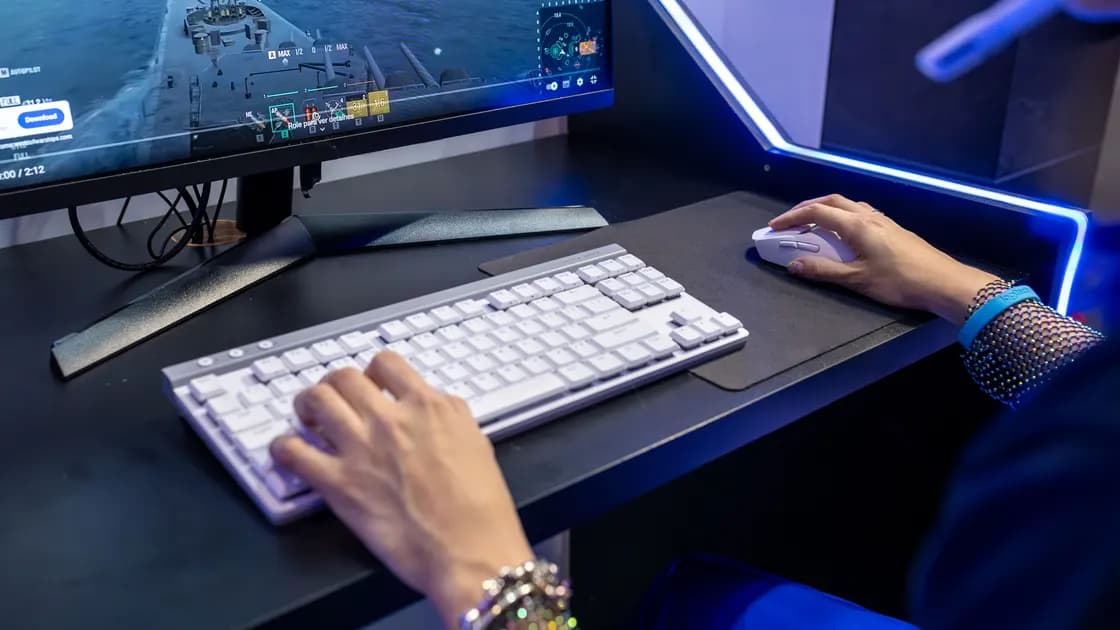

When the HDR option is missing on an external monitor or appears disabled, select that display explicitly and verify the entire path: supported computer and operating system, an HDR10-capable panel, an HDR-enabled input, sufficient cable or adapter bandwidth, and a resolution/refresh-rate combination that leaves room for HDR. If HDR can already be enabled but the picture looks washed out, dim, or incorrectly colored, use the color guide instead; that is a different symptom.
Key Takeaways
- Confirm the HDR control is missing for the selected external display, not the built-in panel.
- Verify HDR10 support at the computer, display, input, cable, adapter, and software layers.
- Enable the display's documented HDR or enhanced-input mode before retesting.
- Reduce the mode temporarily or connect directly to expose a bandwidth boundary.
- Do not use EDID overrides, registry patches, or custom timings to invent support.
The device and app troubleshooting guide explains the wider comparison method. If the expected refresh rate is the only missing choice, use the refresh-rate guide. If a USB-C port may not carry video at all, start with the USB-C video-output guide.
Open display settings and select the external monitor by name or arrangement position. Record the exact state: no HDR control, a disabled control, a message that HDR is unsupported, or a control that turns off immediately. Note whether the desktop is extended or mirrored. A laptop's built-in panel can support HDR while an external output does not, and the reverse is also possible.
Microsoft's HDR settings guidance tells users with multiple displays to choose the HDR-capable display before checking Use HDR. It also distinguishes HDR video streaming from broader HDR use.[1] Preserve the selected display, Windows edition and version, graphics adapter, driver version, resolution, refresh rate, and whether the HDR certification or capability appears in display information.
On a Mac, open the settings for the external display and check whether the High Dynamic Range option exists for that screen. Record the Mac model, macOS version, display model, input, cable, adapter or dock, resolution, and refresh rate. Mirroring can require a common mode, so test an extended desktop before deciding the external panel lacks HDR.
Do not diagnose appearance here. If HDR is present and stays enabled but standard content looks gray, blacks are raised, colors shift, or brightness changes, follow the monitor color guide. This article ends once the platform exposes and retains the supported HDR control.
Check the specifications for the exact computer or GPU output, operating-system version, display model, and chosen input. A label such as “HDR ready,” “wide color,” or a high peak-brightness number is not a substitute for documented HDR10 input support. Some displays accept HDR only on certain HDMI or DisplayPort inputs, or only after an enhanced format is enabled.
Apple states that supported Mac models can play HDR video on an HDR10-compatible display, television, or projector, and that the cable and adapter must support HDR.[2] The requirements vary by Mac generation and output path, so use the current support page and the specifications for the exact model. Do not infer capability from connector shape alone.
For Windows, inspect the selected display's HDR capability in Settings rather than relying only on a product name. Microsoft notes that the display, graphics hardware, drivers, and appropriate connection must support the feature.[1] If the panel is connected through an older integrated GPU, corporate dock, KVM, receiver, or capture device, every link must pass the required signal and metadata.
Update the operating system and supported graphics software through official channels. Do not install a monitor INF, GPU driver, EDID override, or registry file from an unknown source to make an HDR badge appear. A forced flag cannot add color depth, bandwidth, metadata transport, or panel capability.
Use the monitor or TV controls to inspect the active input. Manufacturers use names such as HDR, HDMI Enhanced, Input Signal Plus, Deep Color, UHD Color, or DisplayPort 1.4. The setting may be stored per input. Follow the manual, because an enhanced-input mode can change compatibility with older devices and names are not standardized.
After changing a documented input mode, disconnect and reconnect the display or restart it as the maker recommends. Reopen system settings and select the external display again. Confirm the screen reports the same input you changed. On televisions, labeling an input as PC may change picture processing; it does not universally enable HDR, so treat input label and enhanced signal mode as separate controls.
Check that the monitor is not in a power-saving, compatibility, picture-by-picture, or multi-input mode that disables HDR. Some displays divide internal bandwidth when two inputs are shown simultaneously. Record the working mode rather than resetting every picture control.
Do not enter a service menu or flash unofficial firmware. If the manual says HDR is supported on the chosen input but the documented toggle is absent, confirm the exact model suffix and regional version before contacting the display vendor.
Build a direct reference path from the computer's documented HDR output to the monitor's documented HDR input with one known-good cable rated for the required standard. Remove docks, hubs, KVM switches, splitters, receivers, converters, and capture devices. Connector labels such as USB-C, HDMI, or DisplayPort do not guarantee a particular protocol version or bandwidth.
If HDR appears directly, add intermediaries back one at a time. Check the dock or adapter specification for the exact resolution, refresh rate, color depth, chroma format, and HDR support when other displays are attached. A dock advertised for “4K” may support 4K only at a lower refresh rate or color format, and multi-display modes can divide bandwidth.
Temporarily choose a standard supported resolution and a lower refresh rate, then reopen HDR settings. This is a diagnostic comparison, not necessarily the final configuration. If HDR appears only at the lower mode, the current path cannot carry the original combination. Use the refresh-rate guide to document the tradeoff instead of forcing both settings.
Try another known-good cable and a different documented input or output. Inspect connectors for bent metal, looseness, discoloration, or heat. Power down when instructions require it. Do not force plugs, clean energized contacts, or keep using a cable that sparks, smells, or becomes abnormally hot.
Switch from mirroring to an extended desktop so each display can negotiate its own mode. In mirror mode, the system may choose a shared signal supported by the least capable display. Disconnect other external displays for one test, especially when they share a dock, MST hub, or GPU output group.
Close remote-desktop, screen-recording, game-streaming, or virtual-display software temporarily if the HDR control disappeared after it was installed or activated. Record the result before uninstalling anything. A remote session may expose a virtual display or change color handling, but do not weaken security software broadly just to obtain HDR.
Restart the graphics session through a normal sign-out or reboot after saving work. Re-detecting displays can clear a stale capability state, but repeated reconnects are not a substitute for finding the failing component. If the control returns after every reboot and later disappears, record the triggering sleep, dock, display, or application event.
Corporate policy, virtual machines, and managed graphics drivers can deliberately limit display features. Ask the administrator whether the configuration is supported. Do not bypass device management or install a personal driver on a managed computer.
Create a short matrix with computer output, operating system and driver, cable, intermediary, monitor input, monitor input mode, resolution, refresh rate, and HDR-control state. Start with one direct path. Change only one variable per row. A second HDR-capable source or display can locate the boundary without assuming which device is defective.
If the monitor exposes HDR from another known-good source on the same input and cable, focus on the original computer and its supported output. If the computer exposes HDR on another compatible display, focus on the first monitor's input mode or firmware. If HDR works directly but not through a dock, the dock, its upstream cable, multi-display allocation, or firmware owns the boundary.
Once HDR remains available, restore the desired refresh rate and other displays one at a time. If enabling HDR changes appearance, do not undo capability testing by mixing color calibration into the same matrix. Move to the color article with the now-stable HDR path.
Contact support with exact model numbers, OS and driver versions, input and cable specification, adapter or dock model, resolution, refresh rate, mirror state, display input mode, and matrix results. Seek service sooner for damaged connectors, liquid, smoke, a burning smell, arcing, or abnormal heat.
No. The exact panel and active input must accept a supported HDR format, while the computer, software, connection, cable, and any intermediary must carry it end to end.
HDR capability is evaluated per display path. Select the external display, then verify its input mode, connection, and the output capability of the computer.
Yes. Some monitors support HDR or enhanced bandwidth on only certain inputs, or require a per-input setting. Use the exact model's manual.
You need a known-good cable documented for the resolution, refresh rate, color depth, and protocol in use. Connector shape alone does not establish bandwidth or HDR support.
The original resolution, refresh rate, color depth, and HDR combination may exceed available bandwidth. Check every component's published limit rather than forcing a custom mode.
Yes. A dock or adapter can limit bandwidth, metadata, color depth, or multi-display allocation. Compare a direct connection and then restore one component at a time.
That proves the option exists, so it is outside this article. Preserve the working HDR path and use the monitor-colors guide for range, profile, brightness, and content checks.
Contact the component vendor when a documented direct HDR path still lacks the option. Stop immediately for damaged ports, liquid, smoke, odor, arcing, or abnormal heat.
Sources checked 9 September 2026.
Sign up to experience all premium features at no cost.
*Available only to new users. Each user is limited to one trial.