Start your 3-day free trial
Sign up to experience all premium features at no cost.
*Available only to new users. Each user is limited to one trial.
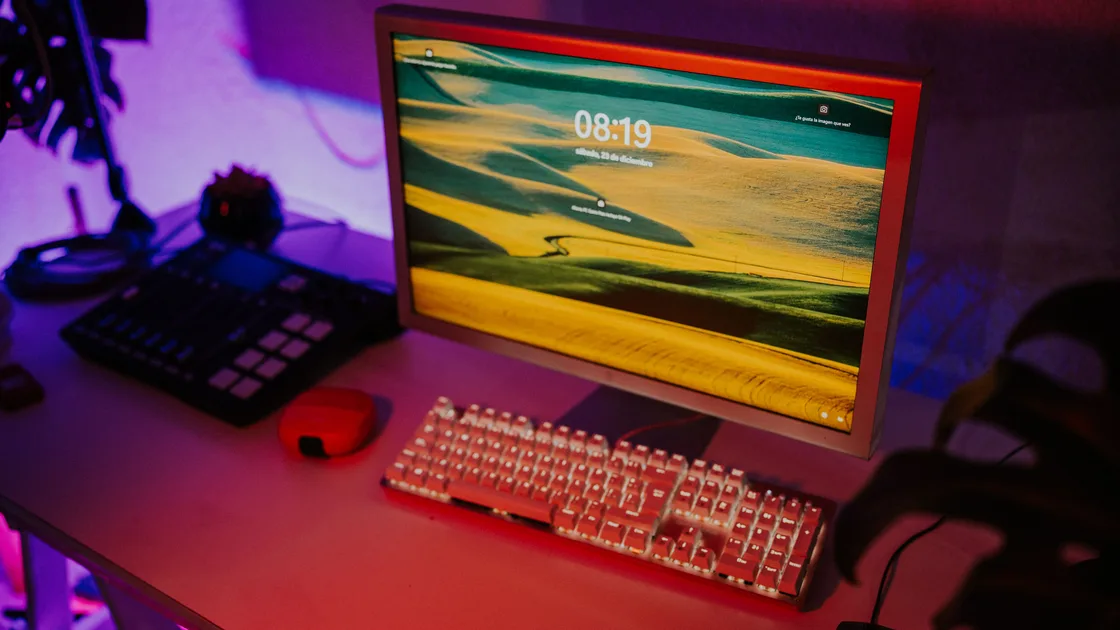

When monitor colors look wrong, most discoloration, such as a warm tint, a green or magenta cast, or gray blacks, comes from a setting or signal path you can test, so first decide whether the change appears in one app, in a screenshot, on one display, or on every display. A warm tint may come from a night filter, washed-out contrast may follow HDR or range negotiation, and a single-panel cast may come from the monitor preset, cable path, color profile, or hardware. Do not begin by downloading an unknown ICC profile or opening the monitor.
This guide assumes the monitor has a stable picture. A screen that is black or not detected belongs in the external-monitor guide, while flashing, lines, or an image that changes with hinge movement belongs in the flicker or hardware branch.
Key Takeaways
- Use a screenshot and a second display to separate rendered color from the physical display path.
- Disable Night Light, Night Shift, True Tone, accessibility filters, and app-specific modes one at a time.
- Compare HDR and SDR with known content; do not assume brighter means more accurate.
- Reset the monitor picture preset before installing a color profile or running calibration.
- Stop for impact damage, liquid, burning odor, swelling, unstable power, or persistent colored lines.
The device and app troubleshooting guide explains the same evidence-first method for other symptoms.
A monitor color test image is a visual check, not a measurement. Use a simple page or image with these areas, viewed at the display's native resolution with browser or app zoom at 100%:
| Test area | What it reveals |
|---|---|
| Solid white and mid-gray fields | Warm, blue, green, or magenta tint |
| Red, green, and blue patches | A missing or weak color channel |
| Grayscale ramp from black to white | Tint shifts between steps and visible banding |
| Near-black and near-white steps | Gray blacks or clipped whites, often a range or HDR mismatch |
Avoid relying on one edited photograph, because its intended appearance is unknown, and do not install a downloaded "color checker" program just to view a pattern; a static image or web page is enough. A hardware colorimeter measures color; the test image only tells you which layer to check next.
Open the test image in two ordinary apps, then capture a screenshot and view that screenshot on another trusted display or phone.
Use the result as a routing test:
| Observation | Likely layer to check next |
|---|---|
| Screenshot also looks wrong elsewhere | App, operating-system rendering, accessibility, or source content |
| Screenshot looks normal elsewhere | Monitor, cable, adapter, port, preset, or profile for that display |
| One app is wrong; others are normal | App color management, theme, video mode, or hardware acceleration |
| One monitor is wrong; another is normal | Per-display setting, profile, cable path, or panel |
| Every display changes at a scheduled time | Night filter, True Tone, automation, or accessibility setting |
Record the exact tint and timing: too warm, too blue, green or magenta cast, gray blacks, clipped whites, oversaturation, inversion, or missing color. A photograph of the screen can document a panel-level problem, but camera white balance and exposure make it unsuitable as a color-accuracy measurement.
If the monitor has no picture or disappears from display settings, use the external monitor detection guide. If it flashes, tears, shows intermittent lines, or changes when a laptop lid moves, use the screen flicker guide.
Check intentional software transforms before touching calibration. On Windows, temporarily turn off Night light, color filters, contrast themes, and any vendor eye-care mode. On macOS, compare with Night Shift and True Tone off, then check Accessibility display filters and inversion. Restore each setting after the test unless it caused the symptom.
Microsoft groups Night light, color profiles, HDR, and display calibration under Windows display and color settings.[1] Apple exposes a per-display color profile and, on supported displays, True Tone in Displays settings.[3] These features can be useful; the diagnostic step is to learn whether one of them explains the change, not to leave every comfort or accessibility feature disabled.
Also check scheduled automation. A screen that becomes amber every evening may be behaving as configured. A work profile or organization utility may enforce a display setting; do not remove management software to change it. Ask the administrator which policies apply.
If colors are inverted only in one browser page, document, game, or video player, inspect that app's theme, accessibility, color-management, HDR, and hardware-acceleration settings. Do not disable browser or system security controls as a color test.
HDR is a complete display path: content, app, operating system, graphics output, cable or adapter, and monitor all need compatible settings. Ordinary SDR content can look different when shown inside an HDR desktop, and an HDR video played through an SDR path can appear flat or clipped.
Use known content and compare deliberately:
Microsoft documents Windows HDR controls that include an HDR switch, an option to turn off HDR video streaming on battery, and a slider that balances SDR and HDR content brightness, and notes that the PC and display must meet hardware requirements.[2] Do not copy another monitor's settings or force an unsupported refresh-rate, bit-depth, or range combination.
A dock or adapter can change the negotiated signal. Connect the monitor directly with a known-good compatible cable if possible, then test a second port. Avoid buying a cable based only on connector shape; confirm the required resolution, refresh rate, color depth, and HDR capability. If changing the cable or direct path fixes the problem, the panel itself is less likely to be at fault.
Open the monitor's own on-screen menu and record the current preset, brightness, contrast, color temperature, gamma, black-level or range, HDR mode, and any dynamic-contrast or blue-light feature. Choose a neutral preset such as Standard or sRGB when available, or use the monitor's documented reset for picture settings. Do not perform a full service-menu reset.
Gaming, Cinema, Vivid, Reader, Eye Care, and Dynamic Contrast presets intentionally alter color and tone. A factory picture reset can be a useful comparison, but it may erase a carefully measured calibration. Photograph the settings first if the display belongs to a creator, workplace, or shared studio.
Next, check the operating system's profile for that exact display. Remove only a profile you can identify and restore; do not install an ICC file merely because it shares a model name. Panel revisions and measurement conditions can differ. In Windows 11, Calibrate display under Settings > System > Display > Color profile creates a new color profile for that display, and HDR external displays are directed to the Windows HDR Calibration app.[1] Apple allows choosing or customizing a color profile per display.[3]
For ordinary office use, the built-in workflow can correct an accidental setting. For print, grading, photography, medical, or other color-critical work, use a supported hardware colorimeter and the organization's target white point, luminance, gamma, gamut, and ambient-light procedure. A visual calibration by eye does not certify accuracy.
Use a known-good cable, another compatible port, and direct connection before replacing the panel. A missing color channel may create a strong tint, especially with a damaged connector, adapter, or loosely seated cable. Do not force a bent plug or continue using a cable that is hot, frayed, crushed, or discolored.
Cross-test carefully:
If the monitor's own menu has the same cast, the computer's screenshot looks normal elsewhere, and multiple cable/host combinations reproduce the problem, the panel, backlight, internal electronics, or power supply becomes more likely. Uniformity changes at viewing angles can be normal for some panels; a new fixed patch, missing channel, dark corner, or spreading discoloration is not solved by software calibration.
Stop and seek service for liquid exposure, cracked glass, impact, smoke, burning odor, sparking, unstable power, visible swelling, or color changes accompanied by severe flicker. Do not open a monitor enclosure: power-supply components can retain hazardous voltage.
Night Light, Night Shift, True Tone, an eye-care preset, or scheduled automation may be active. Disable one feature briefly and compare, then restore settings that you intentionally use.
The content may be SDR, or the app, operating system, adapter, cable, and display may not agree on the HDR path. Compare known SDR and HDR content before changing calibration.
Yes. Damage, poor seating, an incompatible adapter, or a signal-capability limit can alter or destabilize the output. Test a known-good supported cable and direct port.
The rendered pixels are probably correct, so focus on the affected monitor's preset, profile, cable path, port, or hardware. Camera photographs are not precise color measurements.
Only from a trusted source and only when it matches the exact display and intended workflow. A generic profile cannot account for every panel revision or individual unit.
It can remove an accidental preset, but it may also erase a measured calibration. Record the current settings first, especially on a managed or color-critical display.
Not for basic troubleshooting, but hardware measurement is the appropriate method for print, grading, photography, medical, or other accuracy-critical work.
Suspect hardware when the monitor menu itself is discolored, several hosts and cables reproduce the issue, or there is impact, liquid, odor, swelling, severe flicker, or a fixed spreading patch.
Separate color visible in a screenshot from a tint on the physical display, including the monitor's own menu. The latter needs display-side diagnosis; changing VPN routing cannot correct the monitor menu's color or substitute for panel calibration.
Sources checked 4 October 2026.
Sign up to experience all premium features at no cost.
*Available only to new users. Each user is limited to one trial.