Start your 3-day free trial
Sign up to experience all premium features at no cost.
*Available only to new users. Each user is limited to one trial.
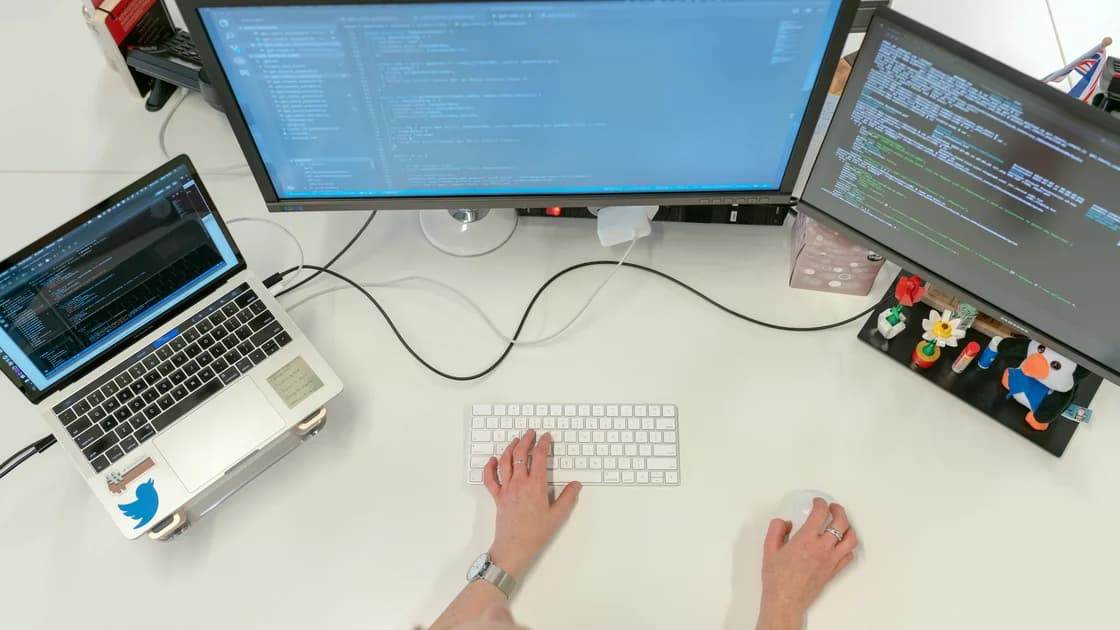

When text looks blurry on an external monitor, identify whether the whole desktop is soft, only one application is blurry, or the problem starts after moving a window between screens. Confirm the monitor's native or recommended resolution first, then check per-display scaling, application DPI awareness, browser zoom, monitor sharpness, and whether the connection is digital from end to end.
Key Takeaways
- Compare the entire desktop with one affected application before changing settings.
- Use native or recommended resolution and a supported per-display scale.
- Restart or sign out after changing scale when an application keeps stale DPI data.
- Reset browser and document zoom separately from operating-system scaling.
- Avoid using excessive monitor sharpness to disguise a resolution or signal problem.
Use the device and app troubleshooting guide to record one change at a time. If the external panel is not using its native mode, begin with the wrong-resolution guide; font tuning cannot recover detail that the computer did not send.
Open system settings, a browser, and a plain-text editor on the external monitor. Compare menu text, window titles, icons, and a high-resolution photograph. Then move the same windows to the built-in display and back. Record whether blur affects everything, one program, one document, or only a window that crossed between screens.
Whole-desktop softness usually points to resolution, scaling, signal conversion, or monitor processing. One blurry application suggests that the program did not respond correctly to the external screen's pixel density. Blur that appears only after moving a window suggests stale DPI information. Microsoft documents that Office applications can appear the wrong size or blurry when monitors use different resolutions and scaling, and recommends updating Windows and Office, then signing out when display configuration changes do not settle.[1]
Also distinguish blur from other symptoms. Colored fringes around letters, crushed blacks, or a tinted white point belong in the monitor color guide. Pulsing brightness, disappearing lines, or an image that breaks up belongs in the screen-flicker guide. Motion blur while scrolling is not the same as stationary text that never looks sharp.
Capture screenshots only as a comparison tool. If a screenshot looks sharp when viewed on another display while the physical monitor looks soft, the operating system rendered the text correctly and the panel, input, scaling hardware, or viewing conditions deserve attention. If the screenshot itself records an application's fuzzy text, investigate that application's rendering and DPI behavior.
Select the exact external monitor in display settings and compare its resolution with the manufacturer's native or recommended value. Do not select a larger number simply because it appears more detailed; a virtual or scaled mode may be downsampled. If the native mode is missing, solve that first rather than adding sharpness.
At a non-native resolution, an LCD must map the incoming pixels onto a different physical grid. Lines can fall between pixels, and letter edges become uneven or soft. A television can add overscan or image enhancement, while an adapter can present a reduced list of modes. Set the input to a documented PC, screen-fit, or 1:1 mode when available.
Confirm the monitor information page reports the same incoming resolution the computer claims to send. If it does not, remove docks, receivers, KVMs, or converters for a direct test. Keep a standard supported refresh rate while isolating sharpness. Once text is clear at native resolution, restore the required refresh rate and other devices one at a time.
Scaling controls how large interface elements appear without normally changing the panel's pixel grid. Two monitors with different size and density may need different scaling percentages. Forcing identical scale can make one screen uncomfortable, but unusual custom values can expose applications that do not handle DPI changes well.
Windows applications can declare different levels of DPI awareness. Microsoft's guidance explains that per-monitor-aware applications update when DPI changes, while older applications may be scaled by the system and can appear blurry.[2] Update the application from its publisher. Use compatibility overrides only when the publisher or administrator documents them, record the original value, and test menus, dialogs, print preview, and multiple monitors after any change.
On macOS, choose a supported Displays setting that balances text size and workspace. Apple explains that changing resolution affects the size of text and objects and may affect performance.[3] Do not install an unknown display override merely to expose additional scale choices.
Close the affected application completely—not just its last document window—then reopen it while the external monitor is connected. Some programs read display density only at launch. If the problem begins after docking, start the program after docking; if that helps, update it and report the repeatable sequence to the publisher.
Check the application's own zoom and rendering options. A document at 90%, a terminal using a bitmap font, a remote desktop session at a mismatched scale, or a design canvas previewed between integer zoom levels may look soft while the surrounding interface is crisp. Return content zoom to 100% for comparison, then choose the intended accessible size after confirming the cause.
For remote desktops and virtual machines, distinguish the local monitor scale from the remote session resolution. Reconnect the session after the external display is selected so it negotiates the intended dimensions. Do not disable security or management software to test text rendering. On a managed device, give support the app version, monitor arrangement, scaling values, and the exact docking or window-move sequence.
Reset browser page zoom for one trusted page and compare normal text with the browser interface. Site zoom changes page content, while operating-system scaling changes the entire application. Browser minimum-font settings, reader modes, extensions, forced contrast, and accessibility magnifiers can also change rendering. Use a private profile only as a controlled comparison; do not erase the main profile.
Test more than one font size. Very thin fonts can appear weak at a normal viewing distance even when edges are correctly rendered. Compare black text on a white background at 100% zoom, then use the system's text-size or accessibility control if larger text is needed. Accessibility is the goal; a technically native mode is not useful if it makes text unreadable.
Subpixel rendering differs by platform and panel orientation. Rotating a monitor can change how colored subpixels align with text smoothing, while screenshots do not reproduce that physical layout. Use grayscale smoothing or publisher-supported settings where available, but avoid third-party tools that patch system libraries.
Open the monitor's on-screen menu and record picture mode, sharpness, aspect ratio, overscan, noise reduction, and any super-resolution or edge-enhancement feature. Select the documented standard or computer mode. Excessive sharpness adds halos around letters; too little can blur edges. A factory reset is not the first step because it may erase calibration and input-specific settings.
Prefer a digital connection throughout. Analog VGA conversion can introduce phase, clock, and sampling errors that make fine text shimmer or smear. With HDMI, DisplayPort, USB-C, or Thunderbolt, verify the cable, adapter, dock, and input support the requested mode. A television may use chroma subsampling in a video mode, reducing color detail around text even though photographs seem acceptable; a documented PC input or compatible full-chroma mode can improve it.
Test a direct known-good cable, one external display, and a normal refresh rate. If text becomes sharp, restore components one by one. If another computer looks equally soft on the same input, inspect monitor settings and the panel. If the same computer looks sharp on another comparable monitor, the original panel, input, or processing is the stronger lead.
Clean the panel only with the manufacturer-approved method. A matte coating, privacy filter, protective film, glare, condensation, or incorrect viewing distance can reduce perceived clarity. Do not use solvents or press on the panel.
Contact the application publisher when only that application remains blurry at native resolution after restart, update, and sign-in refresh. Contact the monitor or computer manufacturer when the whole desktop is soft through a verified direct digital connection, the monitor cannot display its native mode, an input behaves differently without documentation, or the panel shows localized blur.
Provide the exact monitor and computer models, connection path, incoming resolution, refresh rate, scale values, application versions, screenshots plus a photo of the physical result, and the smallest repeatable sequence. This evidence separates software rendering from optical or signal-path faults.
Investigate application DPI awareness, panel pixel geometry, and monitor image processing as display-rendering issues. Changing VPN or network routing cannot alter those properties; bring the network path into the diagnosis only when the affected content appears exclusively inside a remote session.
Classify the blur before changing settings. Confirm native resolution, use a supported per-display scale, restart applications after DPI changes, and reset app or browser zoom independently. Then test a direct digital path and neutral monitor processing. Escalate with model numbers, settings, and a repeatable comparison when one app or one physical panel remains affected.
The application may be using older DPI behavior or may have cached the scale from another display. Update it, close it fully, reopen it on the external monitor, and sign out if the system scale recently changed.
The two displays probably use different densities or scaling. Per-monitor-aware software redraws for the new screen; older software may be bitmap-scaled until it restarts.
It can change edge contrast but cannot restore missing pixels. Confirm native resolution and the digital signal first; excessive sharpness creates bright or dark halos.
No. Supported per-display scaling can remain sharp while making controls readable. Use the recommended value and judge application behavior separately.
Page zoom, a site style, font settings, extensions, canvas scaling, or remote content may affect the page independently. Reset one page to 100% and compare another browser profile.
Yes, especially if a television input applies overscan, video processing, or reduced chroma detail. Use a documented PC mode and verify the exact resolution and signal format.
Not first. Such tools can become incompatible after updates. Use supported OS, application, and monitor controls after confirming native resolution and scale.
That suggests the application rendered a sharp image and the physical monitor, input processing, panel coating, or viewing conditions are making it appear soft.
Sources checked 8 September 2026.
Sign up to experience all premium features at no cost.
*Available only to new users. Each user is limited to one trial.