Start your 3-day free trial
Sign up to experience all premium features at no cost.
*Available only to new users. Each user is limited to one trial.


When you see an iPhone software update stuck or failing, find the stage first: a bar that is still moving needs time and power, while an alert at checking, downloading, or verifying usually means retrying on the same network, then on another network or a computer.[1] Do not repeatedly force-restart an iPhone while installation progress is changing. A download problem and a recovery-mode problem need different responses.
For symptoms that affect several unrelated device functions, use the device and app troubleshooting guide. For an isolated update, record the iPhone model, current software version, available storage, exact message, and last stage reached.
Key Takeaways
- Wait while the progress bar or installation state is still changing.
- Back up the iPhone before deleting an update, using a computer, or entering recovery.
- Confirm model compatibility, power, Wi-Fi, and storage before repeating the download.
- Delete only the downloaded update entry when Apple specifically offers that retry path.
- In recovery mode, choose Update before Restore; Restore erases the iPhone.
Write down the exact wording. Checking for Update, Downloading, Unable to Verify Update, Preparing Update, and an Apple logo with a progress bar are not interchangeable symptoms. If Settings is responsive, do not clear data yet. Record the requested version and take note of free storage.
During download, the iPhone remains usable and the time depends on update size and connection speed. During preparation, iOS validates and stages the package. During installation, the iPhone restarts and cannot be used normally. A progress bar can move slowly or appear static for a while; Apple notes that the time depends on the update's size and the device's storage, and that a phone that runs out of power mid-update should be connected to power and turned on so the update can complete.[1]
Keep the iPhone connected to power and leave it on a stable surface. Do not press buttons repeatedly or disconnect a cable because the bar pauses briefly. If the bar still moves, or the phone restarts and returns to the bar, installation is active.
If the iPhone returns to the Lock Screen or Settings with an error, save that error before retrying. If it repeatedly shows the Apple logo without reaching the Lock Screen, shows the connect-to-computer screen, or cannot be recognized normally, stop following ordinary over-the-air download steps and move to the supported computer or recovery path.
Confirm the exact model and current iOS version under Settings > General > About when the phone is usable. An older model may not support the newest major release but may receive a different compatible update. Do not install a profile or firmware file from a third party to make an unsupported release appear.
Make a current iCloud or computer backup and verify that it finished. If iCloud backup itself is stuck, resolve it with the iCloud backup guide or make an encrypted computer backup before advanced recovery. Syncing photos, contacts, or files is not the same as a complete device backup.
Connect the iPhone to power. Use a stable trusted Wi-Fi network without a captive-portal page. Apple lists compatibility, power, internet access, and enough storage among the basic requirements when an iPhone will not update.[1] If one network repeatedly fails to download or verify, try another trusted Wi-Fi network rather than disabling router security.
Check available iPhone storage, not only iCloud storage. The phone needs room for the download, preparation, and installation. Apple suggests Offload Unused Apps under Settings > General > iPhone Storage, which removes app data temporarily without deleting your personal information.[1] Use the iPhone storage guide to review large apps, downloads, and media. Do not delete the only copy of photos or messages just to make space.
If the iPhone belongs to an organization or participates in a beta program, check the responsible administrator or beta channel. Do not remove a management profile, install an unknown profile, or change supervision to bypass an update policy.
Save work and restart the iPhone normally if it is at a stable Lock Screen or Home Screen and no installation bar is active. Reconnect to power and trusted Wi-Fi, then return to Settings > General > Software Update. Try once and keep the exact error if it fails again.
Do not repeatedly switch networks while a download is progressing. If the phone hangs on Checking for Update or shows Unable to Check for Update, Apple's order is to try again on the same network, then another network or a computer, and to remove the downloaded update only if the problem repeats across several networks.[1] For any check or verify alert, first confirm that ordinary internet access works and the date and time are correct. A web page loading does not prove every Apple update service is reachable, so a second trusted network is a useful comparison.
If the update is already downloaded but cannot be installed, Apple provides a controlled retry: open iPhone Storage, locate the downloaded software update, delete that update entry, then return to Software Update and download it again.[1] Delete only the named update package. Do not clear other system data, erase the phone, or use a “cleaner” app.
If the update does not appear in iPhone Storage, do not hunt through the file system. Retry through Software Update or use a computer. Updating apps is a separate task: apps update through the App Store, where your account page lists pending updates, not through Software Update. If those App Store downloads fail while iOS Software Update works, use the separate iPhone app download guide.
Avoid third-party repair tools that promise to install unsigned firmware, exit every recovery state without risk, or preserve data in all circumstances. They can obscure the real device state, request account credentials, or install a build that is not supported for the model.
A computer is a supported alternative when over-the-air downloading or verification repeatedly fails. Update the Mac, Finder, Apple Devices app, or iTunes as appropriate before connecting the iPhone. Use a reliable cable and a direct USB port rather than an unstable hub.
Unlock the iPhone and trust the computer only if prompted and if it is your own or a managed computer you are authorized to use. In Finder on a current Mac, or Apple Devices on current Windows, select the iPhone, make a backup, and choose the option to check for an update. Keep the cable connected until the process and restart finish.
If the computer cannot see the iPhone, separate that USB, cable, trust, or driver problem from the software-update failure. Try another known-good data cable or direct port and use Apple's device-recognition guidance. Do not move to Restore merely because one cable or hub failed.
Before a computer update, confirm enough free space on both the iPhone and computer. Record any numeric error displayed by Finder, Apple Devices, or iTunes. That code is more useful to Apple Support than a general statement that the update stopped.
Recovery mode is appropriate when the iPhone cannot start normally, remains on the Apple logo for several minutes without a progress bar, shows the recovery screen, keeps starting up to a Recovery Assistant that cannot recover it, or still cannot start after a supported computer update.[2] It is not a routine first step for a slow download or a progress bar that is still changing.
Follow Apple's current button sequence for the exact iPhone model. Keep the device connected to the computer until Finder or Apple Devices offers Update or Restore. Apple's current steps say to try updating first if you have not already, and warn that Restore reinstalls iOS and erases all your data.[2] Update is the option meant to reinstall iOS while keeping your data.
If Finder or Apple Devices says it is downloading software for the iPhone while the phone shows no progress bar, the download is running on the computer. If it takes more than 15 minutes, the iPhone may leave the Connect to computer screen; let the download finish, then repeat the model-specific button sequence.[2] Treat a message that the computer is preparing to update the iPhone the same way and keep the cable connected. Do not disconnect the cable during software installation. Save every error code.
Restore erases the iPhone. Use it only after an Update attempt fails, the backup is verified, account recovery and Activation Lock credentials are available, and Apple Support or the exact recovery procedure indicates that erase is required. Do not describe Restore as a harmless reset.
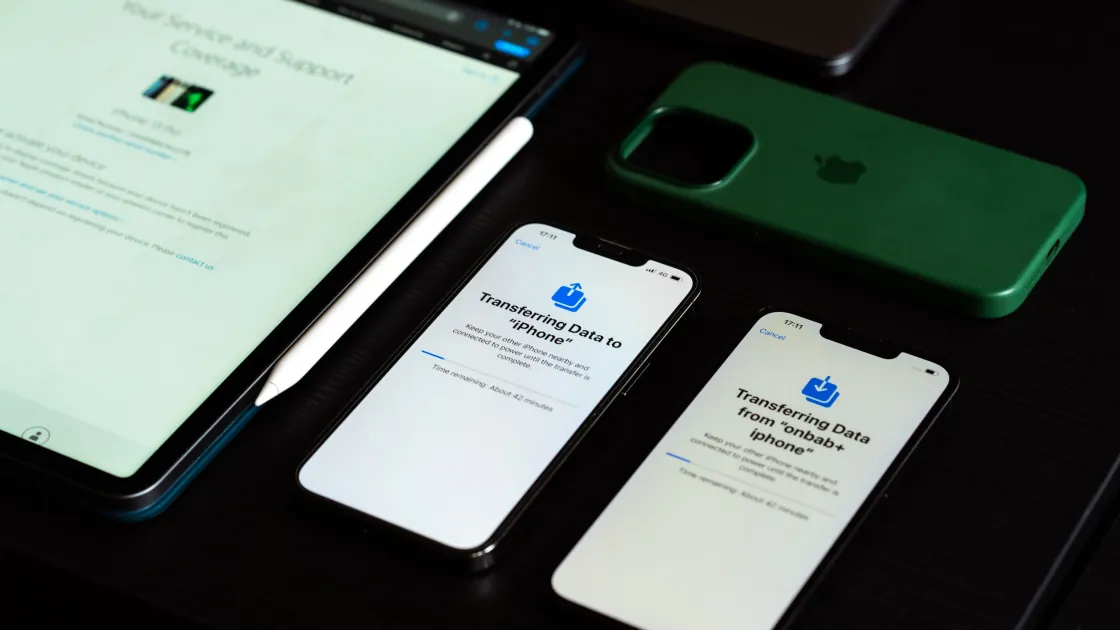
Setup may ask a new iPhone to install a software update, sometimes before it can transfer data from your old iPhone. The same stage rules apply: keep both phones on power and the same trusted Wi-Fi, and wait while the bar still moves.
If nothing changes for a long time, connect the new iPhone to a computer and use Update in Finder or Apple Devices; if it cannot start at all, follow the recovery steps above. A brand-new iPhone holds little or no personal data yet, so a computer update carries less risk than on your old phone. Keep the old iPhone and its backup untouched until the transfer finishes.
Contact Apple when the iPhone is not recognized on more than one known-good cable and computer, repeatedly exits installation with the same error, cannot complete recovery-mode Update, or remains in a boot loop. Hardware service is also appropriate after liquid exposure, impact, enclosure damage, battery swelling, abnormal heat, or a damaged connector.
Provide the iPhone model, current and target software versions, available storage, exact over-the-air message, computer error code, backup status, networks tested, and whether recovery-mode Update was attempted. This evidence helps separate an Apple service issue, storage or cable problem, unsupported version, and possible hardware failure.
Before service, follow Apple's current preparation instructions for backup, Find My, account access, and eSIM or SIM handling. Do not erase the iPhone solely to hide data until the backup and service handoff are understood. For a replacement or newly erased device, use the new iPhone setup checklist.
There is no fixed time for every model and data set. Wait while the bar, screen, or restart sequence changes. Seek model-specific help if it remains completely unchanged and unresponsive for an unusually long period.
Do not repeatedly force-restart while the installation bar is active. Use the model-specific forced-restart or recovery instruction only when the iPhone is genuinely unresponsive and Apple directs that step.
The package may not be verifiable over the current connection or may need to be downloaded again. Check trusted Wi-Fi and power, then use Apple's update-package deletion step if the named package appears in iPhone Storage.
No. An update needs free local space on the iPhone. Buying or freeing iCloud capacity does not automatically create local installation space.
Deleting the named software-update package from iPhone Storage removes that download, not your normal personal data. Make sure you selected the update entry, not an app or media library.
Availability varies by device, release, carrier, and current Apple behavior. Follow what Software Update offers; a trusted Wi-Fi network or supported computer remains the safest comparison when verification fails.
It is intended to reinstall software while keeping data, but no repair path is risk-free. Back up first whenever possible. The separate Restore option erases the iPhone.
Only after supported Update attempts fail and the exact Apple recovery path or support process requires an erase. Verify the backup, account recovery, and Activation Lock credentials first.
Sources checked 4 October 2026.
This article provides general troubleshooting information. Follow the current Apple, organization, backup, and service instructions for the exact iPhone before using recovery or erase options.
Sign up to experience all premium features at no cost.
*Available only to new users. Each user is limited to one trial.