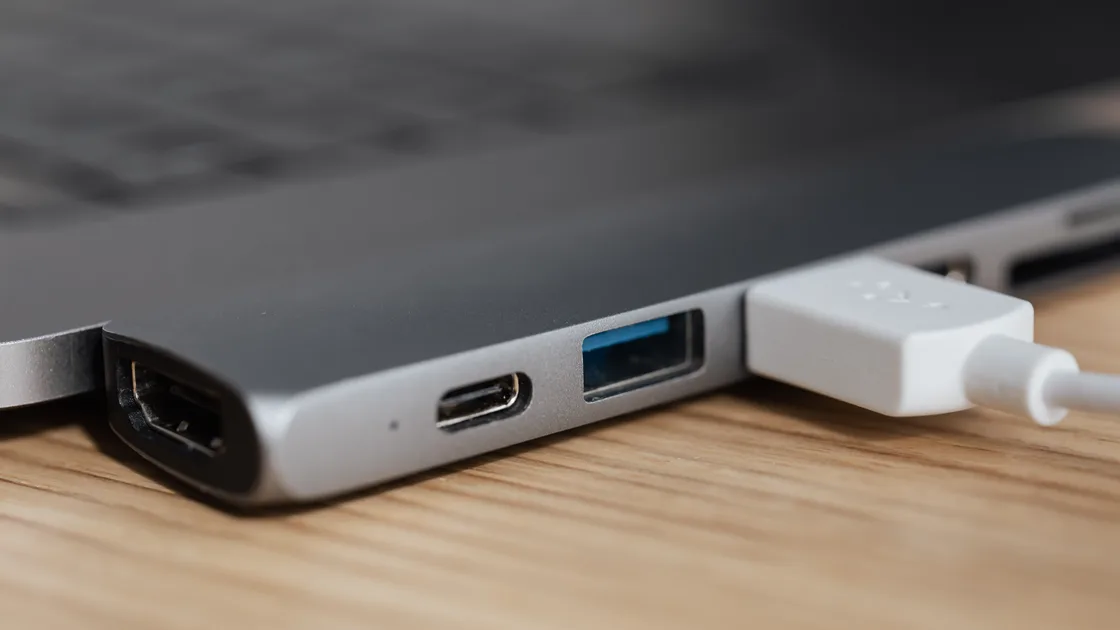
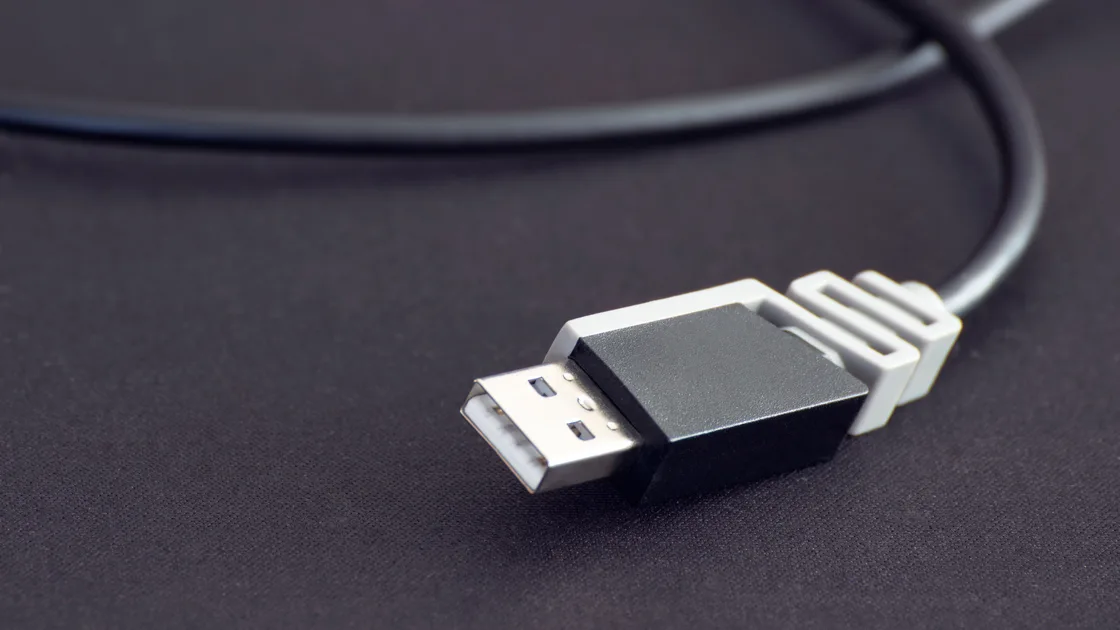
Start your 3-day free trial
Sign up to experience all premium features at no cost.
*Available only to new users. Each user is limited to one trial.
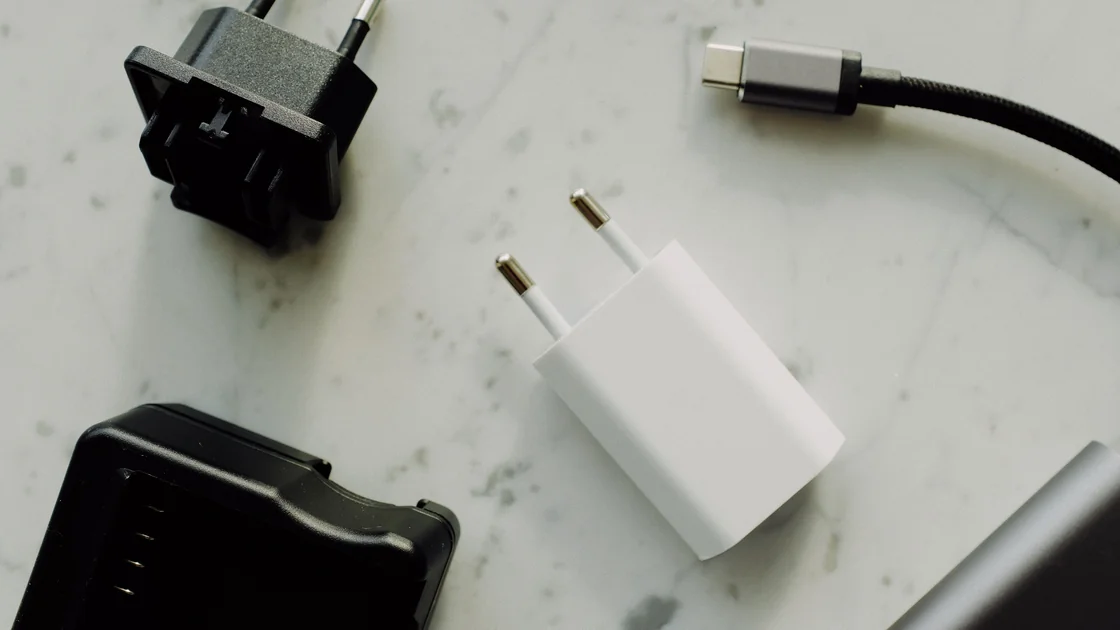

For a laptop not charging through USB-C, the cause is usually one weak link in the power path: a port that does not accept charging, an adapter with too little power, a data-only or low-rated cable, or a dock in between. Note whether the laptop gets no power, charges slowly, pauses at a battery limit, or drains only under heavy load, then test the outlet, adapter, cable, charging-capable port, and direct connection one variable at a time. A USB-C connector describes the shape; it does not guarantee that every port, cable, or charger supports laptop charging.
Stop using the equipment immediately if a cable is cut or frayed, a connector is loose or discolored, there is abnormal or repeated sparking, a burning smell, unusual heat, or a swollen battery. Disconnect power when it is safe to do so and arrange qualified service. Do not continue testing a damaged power path.
Key Takeaways
- Separate no charge, slow charge, charge hold, and battery drain under load.
- Confirm that the laptop port accepts charging and that the adapter and cable support the required USB Power Delivery level.
- Connect the charger directly to the laptop before blaming a dock.
- Use system power messages and manufacturer diagnostics for the exact model.
- Physical damage, overheating, swelling, abnormal or repeated sparks, or burning odor require immediate shutdown and service.
Use the device and app troubleshooting guide if power, USB devices, displays, and other functions all fail after a wider system change.
Observe the battery icon, charging LED, firmware message, and percentage for several minutes while the laptop is idle. Record the exact wording. “Plugged in,” “slow charger,” “not charging,” “charging on hold,” and a percentage that continues to fall describe different conditions.
| Symptom | What it may indicate |
|---|---|
| No power or charging indication | Outlet, adapter, cable, port, negotiation, or hardware failure |
| Charging appears but is unusually slow | Low available wattage, limited cable, dock sharing, temperature, or workload |
| Charging pauses near a set percentage | Battery-health limit, optimized charging, temperature, or policy |
| Percentage falls only during gaming or rendering | Input power lower than current system demand |
| Charging starts only at a certain connector angle | Damaged or contaminated connector; stop using it |
Reduce the workload for diagnosis: save work, pause a game or render, disconnect unnecessary accessories, and let the laptop idle. Do not use an unstable cable position as a workaround. Intermittent contact can create heat and damage the connector.
Some battery-health features intentionally pause charging or hold it below 100 percent. Check the laptop manufacturer's battery settings and the current battery temperature before treating that behavior as failure. Do not disable a health limit permanently merely to make the icon change during a short test.
Test the wall outlet with a known-safe, low-risk device, or move the charger to another known-good outlet. Bypass an overloaded power strip for the comparison. If the adapter has a removable mains cable, reseat it while unplugged and inspect both ends.
Read the adapter label and the laptop's specifications. Use the original or a reputable manufacturer-recommended adapter of sufficient power. A phone charger may fit but provide far less power than a laptop needs. Do not infer capability from connector shape, marketing words, or physical size.
Inspect the USB-C cable along its full length. A cable that carries basic USB data or low-power phone charging may not support the power required by a laptop. Use a cable rated for the needed power and supplied by a trustworthy manufacturer. Do not use an unmarked cable for high-power diagnosis.
Confirm which laptop ports accept power input. On some models, only one USB-C port charges; another may support data or display output only. Look for the model's manual, port markings, or official support page. Do not force the plug, insert foreign objects, or scrape a port. If loose debris is visible, power down and follow the manufacturer's safe cleaning instructions or seek service.
Microsoft notes that USB-C features vary by device and that Windows can show notifications such as “Slow charger,” “PC isn't charging,” or “Use different USB port” when the charger, cable, or port does not meet the PC's needs.[1] Preserve that exact wording because it distinguishes a negotiation or capability issue from a dead outlet. If Windows shows no message at all, check that USB connection notifications are turned on in Settings.
Apple's USB-C power-adapter guidance recommends checking the wall outlet, cable, ports, software, and whether the adapter stops because it is too warm; persistent failure can require service evaluation.[2] An occasional small spark at the wall-plug blades can occur when connecting to a live outlet, but sparking elsewhere, repeated sparking, damage, or discoloration requires disconnection and inspection. If an adapter repeatedly shuts down from heat, move it to a ventilated location and stop using it if abnormal heat continues.
USB Power Delivery allows compatible devices to negotiate voltage and current, but the result is limited by the weakest part of the chain: the charger's output profile, cable rating, laptop input capability, and any dock or hub between them. The largest number printed on a multiport charger may be its total output, not the power available to the laptop port while other devices are connected.
Compare the manufacturer's recommended wattage with the output available from the exact adapter port. If the charger has several USB-C sockets, consult its power-allocation table. Disconnect other devices for one controlled test. Do not assume that a 100 W charger supplies 100 W simultaneously to every port.
A sufficiently powerful adapter can still negotiate a lower level through an unsuitable cable. Conversely, a high-rated cable cannot make a low-power adapter stronger. Where the manufacturer provides a system information or firmware page that reports the detected adapter, record that value without changing firmware settings.
Apple explains that a Mac can use a higher- or lower-wattage USB-C power adapter, but the company recommends at least the wattage supplied with the Mac for the best charging experience.[3] The principle is useful across brands: use the exact model's requirement, not a universal guess.
If charging works while the laptop is shut down or idle but the percentage falls during a heavy workload, the path may provide real power that is still below peak demand. Confirm with the manufacturer's specifications before replacing the battery. A workload comparison does not prove the adapter is safe or correctly rated; inspect the hardware as well.
Disconnect the dock, hub, monitor, extension cable, magnetic tip, and USB-C switch. Connect the known-suitable adapter and cable directly to a charging-capable laptop port. This single change isolates the laptop charging input from dock power passthrough and accessory power sharing.
If direct charging works, reconnect only the dock and review its input-adapter requirement and advertised power delivered to the host. A dock can consume part of the adapter's capacity, reserve power for its ports, or support a lower host output than the attached charger. Some monitors supply USB-C power only from a specific port or setting.
Do not install random dock firmware as the first response. Use firmware only for the exact hardware revision, host model, operating system, and official vendor procedure. Keep the laptop on reliable power during any required update.
If the dock's displays, Ethernet, or USB peripherals also fail, use the separate USB-C dock troubleshooting guide. This article treats the dock only as a variable in the laptop's charging input; it does not replace diagnosis of every dock function.
Install normal operating-system and manufacturer updates after establishing a stable, safe power source. Updates can correct power-management or USB-C compatibility problems, but they cannot repair a burnt connector, split cable, or swollen battery.
Open the manufacturer's battery-health or hardware-diagnostics tool for the exact model. Record cycle count, health status, detected adapter, warnings, and test codes. Do not rely on an unknown “battery optimizer” or firmware package from a download site.
Check whether the system applies a battery conservation threshold, optimized charging schedule, or organization policy. A healthy battery held at 80 percent by design is different from a system that sees no adapter. Document the setting before changing it, and restore the intended policy after testing.
If the operating system no longer detects the battery, reports a service condition, or shuts down when the cable moves, stop software experimentation. Those signs require model-specific hardware diagnosis.
Shut down and disconnect the charger if you observe battery swelling, a lifted trackpad or case seam, smoke, abnormal or repeated sparks, burning odor, melting, discoloration, crackling, or a connector too hot to touch safely. Do not puncture, press, bend, or attempt to reseat a swollen battery. Keep the device away from flammable material and follow local manufacturer and battery-disposal guidance.
Service is also appropriate when multiple known-good, correctly rated adapters and cables fail on every charging-capable port; the connector is physically loose; liquid exposure is possible; firmware reports an adapter or battery error; or the laptop has suffered impact damage.
Provide the exact laptop model, charger model and rated profiles, cable rating, port used, direct-versus-dock result, operating-system message, battery-health result, and any diagnostic code. Do not send passwords, full serial numbers, or account data in a public post.
Avoid repeatedly buying random chargers. A controlled test with one known-compatible path gives better evidence and reduces electrical risk. If the model uses proprietary charging as well as USB-C, compare only through the manufacturer's supported procedure.
When a laptop will not charge through USB-C, classify the behavior before replacing parts. Verify a safe outlet, a charging-capable laptop port, a correctly rated adapter, a suitable cable, and a direct connection. Compare the negotiated power with the exact model's requirement, then isolate the dock and review system messages, updates, and battery diagnostics. Stop immediately for damage, swelling, abnormal or repeated sparks, burning odor, or abnormal heat.
Check the exact model's specifications or manual for a USB-C port listed for power input, charging, or USB Power Delivery; some manufacturers also mark it with a battery or power icon. Not every USB-C port charges, so test with a correctly rated charger in that port and watch for the charging indicator.
It may fit but often supplies too little power. Use the laptop manufacturer's recommended USB Power Delivery profiles and wattage rather than the connector alone.
The adapter, cable, dock, or selected port may negotiate less power than the laptop expects. Connect a correctly rated path directly and preserve the exact warning.
The laptop's workload can exceed available input power. Compare behavior at idle and under load, then verify the adapter, cable, dock output, and model requirement.
A battery-health limit, optimized schedule, temperature, or managed policy may intentionally pause charging. Check the manufacturer's setting before assuming failure.
Only if direct charging works and the exact dock vendor documents a relevant update for your hardware revision and system. Do not use unknown firmware.
Some warmth under load can be normal, but burning odor, discoloration, repeated thermal shutdown, or heat that makes safe handling difficult requires disconnection and inspection.
Arrange service for swelling, physical damage, liquid exposure, abnormal heat, abnormal or repeated sparks, burning odor, a loose port, diagnostic errors, or failure with multiple known-compatible direct power paths.
Sources checked 4 October 2026.
This article provides general troubleshooting information. Follow the current safety, power, and service instructions for the exact laptop, adapter, cable, and organization.
Sign up to experience all premium features at no cost.
*Available only to new users. Each user is limited to one trial.