Start your 3-day free trial
Sign up to experience all premium features at no cost.
*Available only to new users. Each user is limited to one trial.
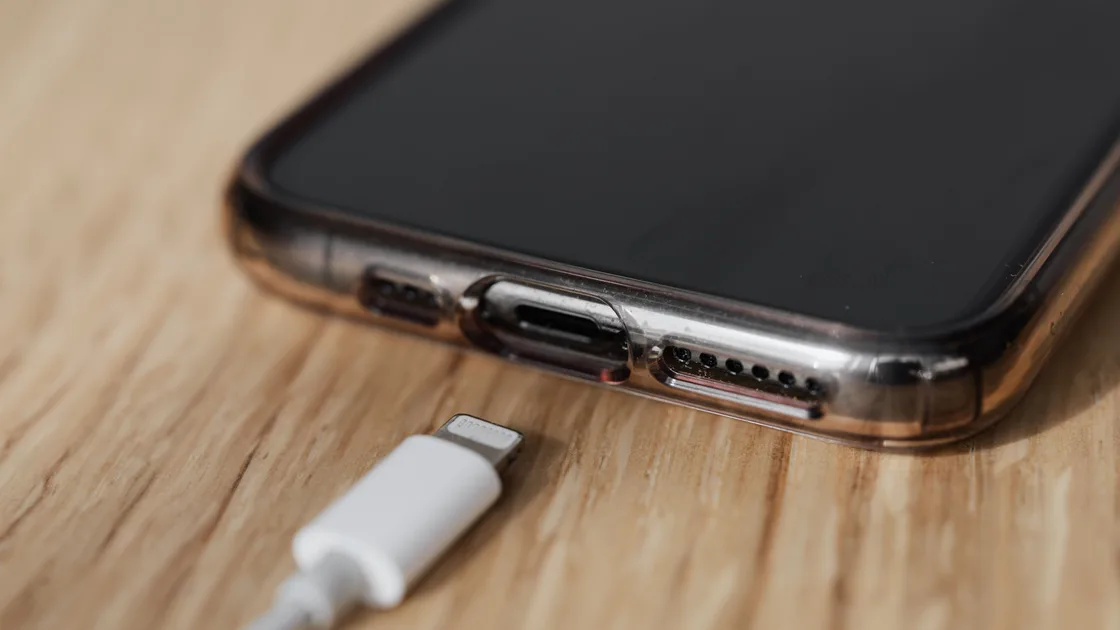

If your phone shows the “liquid detected in charging port” alert, unplug the cable from the phone and power source, then let the port dry in a dry place with gentle airflow: wait at least 30 minutes before one retry, and allow up to 24 hours for full drying.[1] Do not insert paper, cotton swabs, or tools; do not use compressed air, external heat, or rice. The warning is designed to prevent charging while moisture or conductive residue could damage the connector.
The alert can follow obvious water exposure, condensation, humidity, a damp cable, or residue in the port. Treat it as real until the connector and cable have had time to dry, even if the outside of the phone looks dry.
Key Takeaways
- Disconnect wired power and accessories as soon as the alert appears.
- Let the connector face downward in a dry, ventilated place; patience is safer than forced drying.
- Never put objects, rice, compressed air, or external heat into or around the port.
- Test only with a dry known-good cable after enough drying time.
- Use an emergency override only for a genuine emergency and only after accepting the damage risk.
For a general process that changes one variable at a time, see the device and app troubleshooting guide.
Disconnect the charging or accessory cable immediately. If the other end is connected to a power adapter, disconnect that too. Do not reconnect just to see whether the message returns; repeated tests while moisture remains can expose the connector to current.
Remove a wet case and wipe only the exterior with a soft, dry, lint-free cloth. Hold the phone with the connector facing down and tap it gently against your hand so excess liquid can leave. Place it somewhere dry with ordinary airflow. Do not shake it hard, and do not push anything into the connector.
Apple advises disconnecting the cable, allowing the phone and cable to dry, and waiting at least 30 minutes before an initial retry; complete drying can take up to 24 hours. It explicitly warns against external heat, compressed air, foreign objects, and rice.[1] Samsung's Galaxy support page likewise notes that moisture in the USB port can interrupt charging.[2]
If the phone is hot, swollen, smoking, smells chemical or burnt, or was exposed to salt water, pool chemicals, a sugary drink, or another contaminant, stop charging and follow the maker's safety or service advice. Plain evaporation may not remove conductive residue.
Drying should be passive and controlled. Put the phone on a stable surface where the port is not blocked and air can circulate. A fan providing cool room-temperature airflow across the connector can help; heat from a hair dryer, heater, oven, radiator, or direct intense sun can damage seals, adhesives, battery materials, and plastic parts.
Avoid these common mistakes:
| Action | Why not to do it |
|---|---|
| Insert a swab, tissue, pin, or brush | It can leave fibres, bend contacts, push liquid deeper, or short pins |
| Blow with compressed air | It can force moisture or debris farther inside and damage seals |
| Put the phone in rice | Rice does not safely clean the connector and particles can enter the port |
| Heat the phone | Heat can damage the battery, seals, display, and connector |
| Reconnect every few minutes | Current and repeated handling add risk before the port is dry |
Dry the cable separately. Moisture can remain inside a plug shell even when the phone port is dry. Do not use a cable with corrosion, bent contacts, discoloration, a loose connector, or damaged insulation.
Do not rely on sound-generating “water eject” websites for a charging port. Speaker vibration is not a supported way to dry connector pins. Likewise, do not pour alcohol or cleaner into the port unless the device maker or an authorized technician gives exact instructions for that model.
The sensor may still detect moisture, residue, or an abnormal electrical path. Condensation can form after moving a cold phone into a warm humid room. A damp or damaged cable can also reproduce the warning, so the connector on both sides matters.
After adequate drying time, inspect the port from outside under good light without inserting anything. Look for obvious droplets, lint near the opening, corrosion, damage, or a bent shell. If debris is visible inside, do not dig it out with metal or a household tool; ask an authorized service provider to clean and inspect it safely.
When you retest:
Install stable operating-system updates only after the phone can be powered safely. Restarting can clear a stale interface, but it does not make a wet port safe. Do not erase the phone, reset all settings, or disable a system service to suppress the warning.
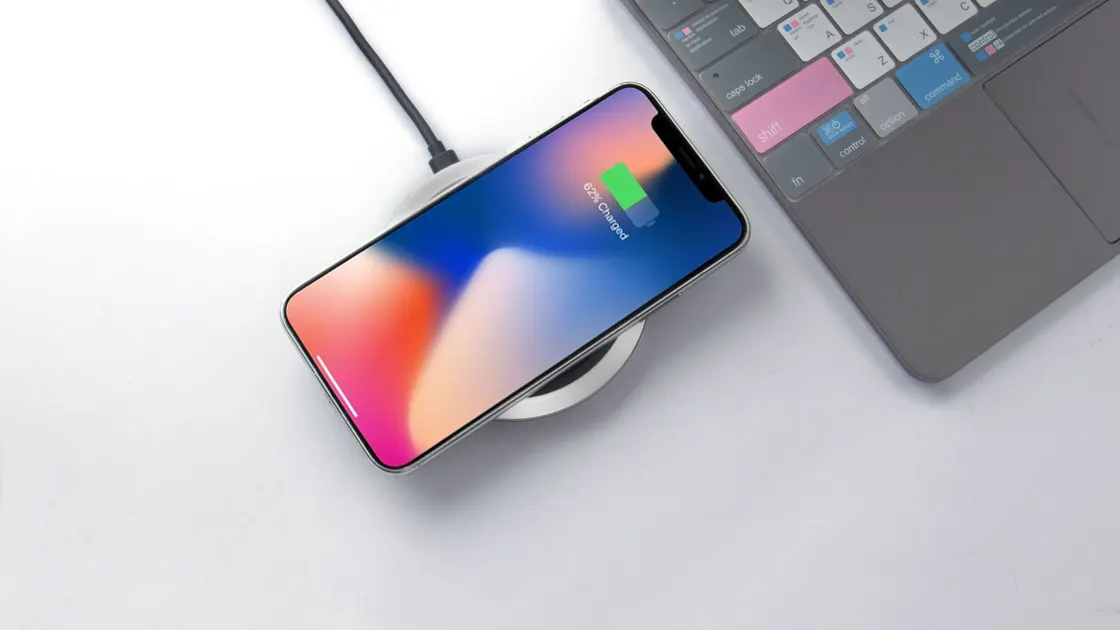
Wireless charging may be an option when the phone supports it and the back of the device is completely dry. Remove moisture from the case and charging pad first, and stop if the phone heats abnormally. The wireless charging guide covers alignment, cases, power adapters, and heat without using the wet wired connector.
Some phones offer an emergency override for wired charging. This is not a routine troubleshooting step. Charging through a wet connector can corrode or permanently damage the pins and cable, so use an override only when the situation is truly urgent, you understand the risk, and no safer power or communication option exists. Apple describes override as an emergency choice and warns that charging while wet can cause permanent damage.[1]
If the battery still has power, preserve important data through an already configured cloud or wireless path rather than connecting a data cable. Do not set up an unfamiliar computer trust relationship during a liquid incident. If wired transfer is the only path, wait until the connector is cleared for use; the USB transfer guide assumes a dry, safe connector.
Seek service when the warning remains after up to 24 hours in a dry ventilated place, occurs with several dry known-good cables, follows salt water or another contaminant, or appears alongside corrosion, bent pins, loose fit, heat, odor, swelling, or charging instability. Also seek help if the phone repeatedly connects and disconnects or if liquid entered through a cracked housing.
Before service, back up data wirelessly if the phone is safe to use. Record the liquid involved, approximate exposure time, whether the phone was powered or charging, drying time, cable tests, and any heat or odor. Do not conceal exposure; accurate information helps the technician handle the battery and connector safely.
Once the warning clears, verify ordinary charging with one known-good cable. If charging is merely slow, use the slow charging guide. A cleared alert does not prove the connector is free of corrosion, so watch for heat, discoloration, unstable contact, or a recurring alert.
An initial retry may be reasonable after at least 30 minutes, but complete drying can take up to 24 hours. If the warning returns, disconnect and wait longer.
No. External heat can damage the battery, seals, connector, display, and adhesives. Use ordinary cool airflow instead.
No. Rice does not safely clean or dry connector contacts, and particles can enter the port. Keep the phone in a dry ventilated place.
Yes. Dry the cable separately and replace it if the plug is corroded, bent, discolored, loose, or damaged.
It can be, if the phone supports it and the phone's back, case, and charging pad are fully dry. Stop if there is unusual heat or damage.
A restart may refresh the interface, but it cannot dry the connector. Never use a restart as permission to charge through suspected moisture.
It carries a real risk of connector and cable damage. Reserve it for a genuine emergency after considering safer options and accepting that risk.
Seek service after a full drying window if dry known-good cables still trigger the warning, or sooner for contaminated liquid, corrosion, damage, heat, odor, or swelling.
Treat a liquid-detection alert as a reason to unplug the charging connection. The immediate concern is moisture at the contacts, not network access: a VPN cannot dry the connector or make charging through wet contacts safe.
Sources checked 4 October 2026.
Sign up to experience all premium features at no cost.
*Available only to new users. Each user is limited to one trial.