Start your 3-day free trial
Sign up to experience all premium features at no cost.
*Available only to new users. Each user is limited to one trial.
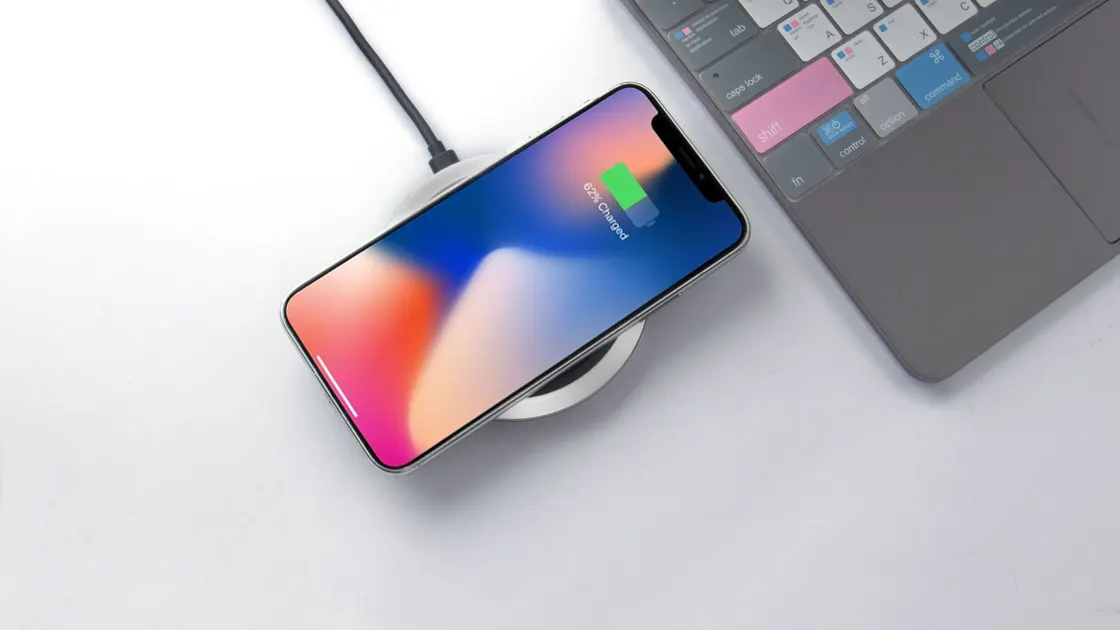

If you find wireless charging not working, the cause is usually a compatibility gap, weak power, poor coil alignment, a case or metal accessory in the way, or heat protection pausing the charge. Prove first that the phone and charger support the same charging method, then test the power source, alignment, case, and temperature separately. A phone that never starts charging needs a different investigation from one that starts and stops after a few minutes.
Stop immediately if the phone or charger is swollen, cracked, wet, unusually hot, smoking, or giving off a sharp chemical or burning smell. Do not place coins, keys, cards, or other metal objects between the phone and charging surface.
Key Takeaways
- Confirm that the exact phone model supports wireless charging before changing settings.
- Test the outlet, adapter, cable, charging pad, and phone as separate parts.
- Remove the case and accessories, then align the charging coils deliberately.
- Let an overheated phone cool naturally before testing again.
- Use a small comparison matrix to decide whether the phone, pad, or power source needs service.
The device and app troubleshooting guide explains the same evidence-first method for other hardware and software problems.
Check the manufacturer’s specifications for the exact model number, not just the product family. A standard model and a similarly named budget model may look alike while supporting different charging features. Google, for example, lists wireless charging for Pixel 3 and later except the Pixel 3a, 4a, 4a (5G), 5a, and 6a.[1] Wireless charging also cannot be added through an operating-system switch when the required receiving coil is absent.
Identify the charger standard and expected power source. The Wireless Power Consortium maintains a product database for certified wireless-power products, which can help distinguish a documented Qi product from an accessory that only uses similar marketing language.[3] Certification does not prove that two damaged or underpowered devices will work together, but it gives you a reliable compatibility starting point.
Record the symptom before changing anything:
This article covers charging that does not begin or repeatedly disconnects. If the battery percentage rises consistently but too slowly, keep that as a charging-speed problem rather than mixing it into this diagnosis.
A charging pad has its own power chain: wall outlet, power adapter, cable, connector, and pad. A light on the pad may show that it receives some power without proving that the adapter can deliver the profile the pad requires.
Use the charger maker’s supplied or specified adapter and cable where possible. Apple’s MagSafe guidance, for example, says to connect the MagSafe Charger to power with a compatible power adapter.[2] Google similarly tells Pixel users to plug the adapter into a working outlet, try a cable and charger that work with the phone, and keep the charger on a stable surface away from metal or magnets.[1] These are device-specific instructions, so follow the ratings and combinations documented for your own equipment.
Test the chain in this order:
Do not use an adapter with unknown ratings simply because its connector fits. Stop using a cable or adapter that sparks, crackles, smells hot, or has exposed conductors. Avoid chaining the pad through an unpowered hub or a crowded extension strip during the baseline test.
Wireless power transfer depends on the receiver and transmitter coils overlapping closely enough. A phone can look centered while its internal coil sits above or below the middle of the case. Camera bumps, folding hinges, raised stands, and multi-coil pads can also change the useful position.
Remove the phone, wait a few seconds, and place it flat in the orientation shown by the charger maker. Move it in small increments rather than sliding it continuously. Watch for one clear charging indication, then leave it still for two minutes and confirm that the battery percentage or charging status remains active.
Google tells Pixel users to confirm placement with the phone’s charging indicator and not to move or use the phone much while it charges wirelessly, because movement can break the connection.[1] Apple places non-MagSafe iPhone models face up in the center of the charger and relies on magnets only on supported models.[2] Do not assume magnets make every accessory compatible.
For a stand, test both portrait and landscape only if the maker supports both. For a foldable phone, use the documented panel and orientation. If a pad contains several charging zones, mark which zone works with a second compatible device instead of guessing from its outer shape.
A magnetic charger aligns itself only when the phone or its case has a matching magnet ring. Apple says MagSafe chargers snap into place on supported iPhone models or their MagSafe cases, while other iPhone models charge without magnetic alignment; it also says to remove an attached iPhone Leather Wallet before charging.[2]
On Android, check the exact model and standard. Google says Pixel 10 and later, except Pixel 10a, support magnetic Qi2 charging but will not charge on the Pixel Stand 1st or 2nd gen, and MagSafe chargers do not work with Pixel 9a and earlier.[1] Google also says a Qi2 product’s version number in the certification database starts with 2, and a case that does not support Qi2 should come off because it can affect charging.[1]
If you are instead trying to charge earbuds or another phone from a Pixel with Battery Share, Google limits that feature to listed models from Pixel 5 to Pixel 9 Pro XL, and the Pixel needs enough battery left.[1] That is reverse charging, not a fault in the pad.
Remove the case for one controlled test. Also remove magnetic rings, adhesive plates, wallets, grip accessories, pop sockets, card holders, and anything stored between the phone and pad. Metal can interrupt charging and may heat; magnetic accessories can shift alignment even when they were sold for mounting rather than charging.
Inspect the back of the phone and the charging surface under good light. Wipe dry dust with a soft cloth. Do not pour cleaner into seams or use a metal tool to scrape the pad. A thick, uneven, damaged, or heat-trapping case can create distance or prevent the phone from resting flat.
If charging works bare but fails with the case, verify that the case maker explicitly supports the exact phone and charging system. Test with no cards or attachments before replacing the pad. If charging fails bare as well, keep the case off while you test power, temperature, and cross-device behavior.
The table below keeps the observations separate:
| Result | Most useful next check |
|---|---|
| Works bare, fails in case | Case thickness, metal, magnets, or fit |
| Works only in one position | Coil alignment or stand orientation |
| Starts, then stops warm | Temperature, ventilation, or foreign object |
| No phone works on pad | Pad power chain or failed charger |
| Phone fails on several known-good pads | Phone support, receiver, software, or hardware |
Charging creates heat, and wireless charging can pause when the phone protects its battery. Let the phone and pad return to room temperature naturally. Move them out of direct sun, remove a heat-trapping case, stop demanding games or navigation, and test again on a hard ventilated surface.
Do not cool a phone in a refrigerator, freezer, or against ice. Condensation can add moisture to the ports and internal surfaces. If the phone reports a temperature or moisture warning, follow the manufacturer’s instructions and wait; do not dismiss the warning or force charging.
Google notes that a Pixel may pause charging when it is too warm, resumes once it cools down, and should not charge in very hot places such as direct sunlight.[1] The detailed thermal diagnosis belongs in the iPhone overheating guide or Android overheating guide; here, temperature is one branch of a charging comparison.
Look across a five-minute test rather than checking every few seconds. Record the starting percentage, charging indication, temperature warning, and whether the interruption repeats at roughly the same point. Stop if the device becomes painful to touch, deforms, smells unusual, or shows battery swelling.
Use only equipment that is known to be compatible and physically sound. One careful matrix is more useful than repeated random resets:
If two compatible phones fail on one pad, focus on that pad, its adapter, cable, and outlet. If one phone fails on several known-good pads but wired charging works, the phone’s wireless receiver, alignment hardware, or model compatibility becomes more likely. If both wired and wireless charging fail, broaden the diagnosis to the phone, battery, port, power controller, or software.
Wired USB-C power negotiation is a separate path. The laptop USB-C charging guide is useful for understanding why connector fit alone does not prove compatible power, but it is not a repair guide for a phone’s wireless receiver.
Restart the phone once and install stable manufacturer updates after preserving the evidence. Do not factory-reset a phone for a wireless-charging fault unless the manufacturer specifically requests it after backup. Seek authorized service when impact, liquid exposure, swelling, repeated overheat warnings, or failure across several verified chargers points to hardware.
The case may add too much distance, prevent the phone from lying flat, or contain metal or magnets that interfere with alignment. Confirm compatibility for the exact phone and charger before replacing either device.
Common branches are heat protection, movement, poor coil alignment, an underpowered adapter, a loose cable, or a foreign object. Record whether the phone shows a temperature or accessory warning when it stops.
Yes. A plate, ring, wallet, or magnet intended for mounting can sit between the charging coils or change their alignment. Remove the entire accessory for the baseline test.
No during troubleshooting. Remove payment, access, and identity cards as well as the wallet so there is no metal or magnetic layer between the phone and charger.
The light may show only that the pad receives power. Check adapter compatibility, cable condition, phone support, alignment, case, temperature, and whether another compatible phone charges.
It can fix some device-control or compatibility faults, but it cannot add missing charging hardware or repair physical damage. Install stable official updates after completing the simple hardware comparisons.
No. Stop charging, move the equipment away from heat and flammable materials, and let it cool naturally. Swelling, smell, smoke, liquid, or persistent excessive heat requires service.
Replace a charger that fails with multiple compatible phones or has physical damage. Service the phone when it fails on several verified pads, especially after impact, liquid exposure, swelling, or repeated temperature warnings.
Sources checked 4 October 2026.
Sign up to experience all premium features at no cost.
*Available only to new users. Each user is limited to one trial.