Start your 3-day free trial
Sign up to experience all premium features at no cost.
*Available only to new users. Each user is limited to one trial.
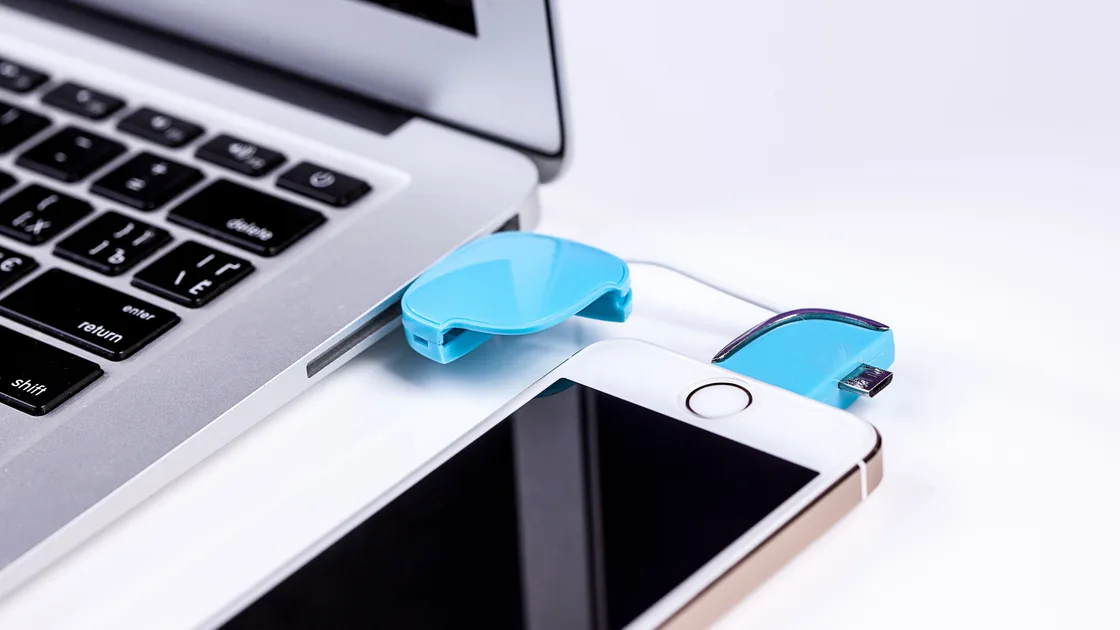

Phone USB file transfer not working? Unlock the phone, use a data cable, then pick File transfer on Android or tap Trust on iPhone.
Key Takeaways
- Confirm whether you need photos or general app-supported files and which direction they must move.
- Use a known data-capable cable and a direct computer port before changing software.
- Keep the phone unlocked and approve only a computer you recognize and control.
- Select File transfer on Android; use Finder or Apple Devices for supported iPhone access.
- Test one small, non-sensitive file and verify the destination copy before deleting the original.
Write down the source device, destination device, file type, file location, direction, and expected computer application. A camera photo in local phone storage differs from an image optimized into cloud storage. A document inside an app's private storage differs from a file in Android's Downloads folder. Importing media into a photo library differs from browsing folders.
This guide covers direct wired USB only; for wireless sharing or other device faults, start from the layered device and app troubleshooting guide. If the real goal is phone-to-phone migration rather than a computer copy, use the Android-to-iPhone transfer guide or iPhone-to-Android transfer guide instead.
Use this controlled sequence before deleting, resetting, or formatting anything:
Start with a small, non-sensitive test file that is stored locally and opens on the phone. Do not use the only copy of a family photo, work document, password export, authentication backup, or legal record. After transfer, open the destination file and compare its size or contents before treating the process as reliable.
An iPhone is not a general-purpose USB disk. Windows can import accessible photos and videos, while arbitrary documents are normally exchanged through apps that support File Sharing. Apple's Windows guide states that the Apple Devices app shows files only for apps that support File Sharing.[2] Files held by another app or stored only in iCloud may not appear as a normal drive.
Android generally exposes shared storage through a media-transfer protocol after the user selects File transfer. It does not necessarily expose protected app data, system folders, adopted storage, or work-profile content. Lack of access to a protected folder is not evidence that the whole USB connection failed.
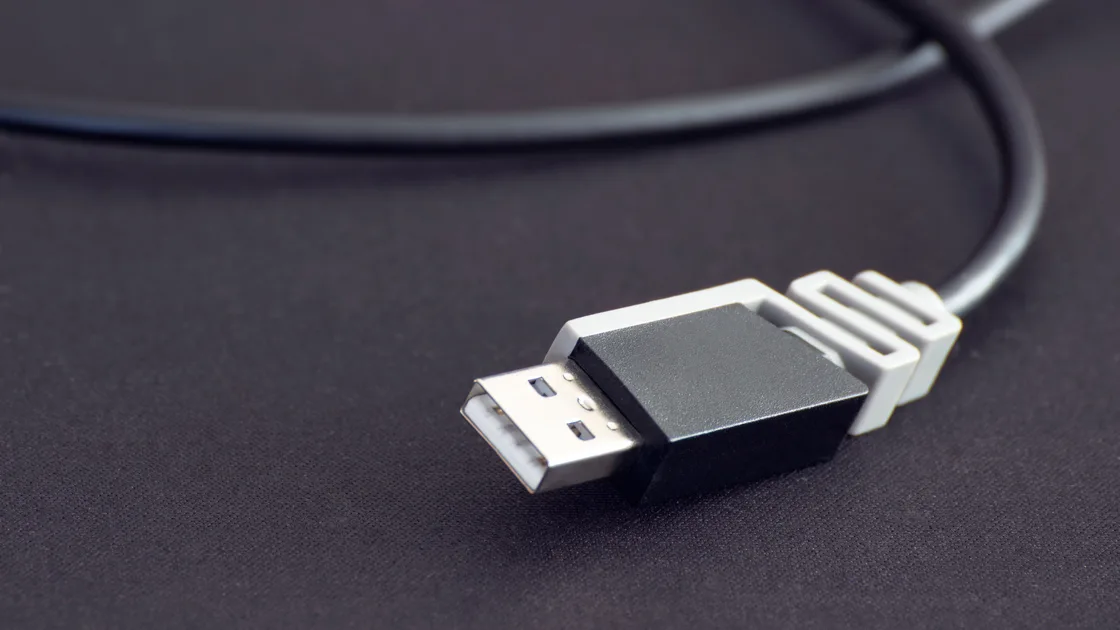
Use the phone maker's cable or another short, undamaged cable that is explicitly rated for data. Google specifically notes that not all USB cables can transfer files.[1] Others have worn connectors, intermittent conductors, or low-quality adapters that supply power while data negotiation fails.
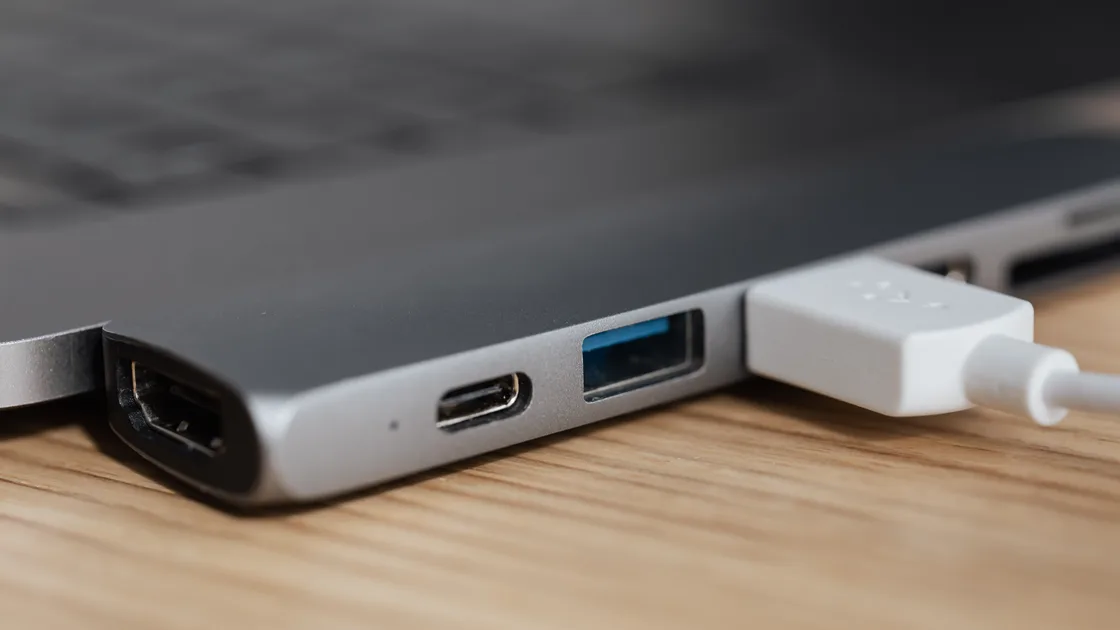
Connect directly to a known working port on the computer. Temporarily bypass a monitor, keyboard, unpowered hub, dock, extension, and stack of adapters. A USB-C connector describes its shape, not guaranteed data speed, protocol, video capability, or power direction. If another direct port works, inspect the original port, hub, or dock rather than resetting the phone.
Look for lint, moisture, bending, looseness, discoloration, or heat at both connectors. Power off the device before cleaning only as the manufacturer instructs. Do not insert metal tools, pour liquid, or force a connector. Stop if there is sparking, a burning smell, melting, unusual heat, battery swelling, or a damaged port.
Use controlled swaps: the same phone and computer with a second known data cable; then the same cable and phone on another trusted computer if available. Do not trust a public kiosk, hotel computer, borrowed work machine, or unknown repair terminal merely to test detection. A data connection can expose more than charging does.
Unlock the phone before and after connecting it. Keep the screen awake long enough to respond to prompts. On Android, tap the USB notification and select File transfer or Transferring files / Android Auto, depending on the model. Do not enable USB debugging; it is unrelated to ordinary media transfer and expands the computer's potential control.
On iPhone, respond to Trust This Computer? only when the cable is attached to a computer you own or explicitly trust. Apple explains that a trusted computer can access information on the device, and the user confirms trust after unlocking and entering the passcode.[3] Choose Don't Trust for an unfamiliar computer. Never type the phone passcode into a computer application or website; enter it only on the phone.
If a prompt does not appear, disconnect, unlock, reconnect, and inspect the phone notification area. A managed phone may block USB data while locked or entirely. Do not remove a work or school profile. Ask the administrator whether USB file transfer is allowed and what approved software must be used.
Some phones default to charging for safety every time they connect. Selecting File transfer for one session may not create a permanent default. Avoid developer settings that force a default USB configuration; session-by-session approval is a useful security boundary.
Google's steps are to tap the “Charging this device via USB” notification and select File Transfer under “Use USB for.”[1] That notification usually appears only after the phone is unlocked and detects a data connection. If it never shows, unlock the phone, pull down the notification shade again, or search Settings for “USB” to open the same preferences.
A missing or greyed-out option often means the phone has not detected a data connection yet. Microsoft notes that a PC can't find a locked device and that not every cable transfers files, so swap to a known data cable and a direct port before changing settings.[4] A work profile, parental controls, or device-management policy can also disable USB data; ask the administrator rather than removing the profile. Do not turn on Developer options or USB debugging to force the menu to appear.
For Android, after choosing File transfer, open the computer's file manager and select the phone. Browse only shared folders you recognize, such as DCIM, Pictures, Movies, Music, or Downloads. Allow large folders time to enumerate. Copy rather than move for the first test, then verify the destination before deleting anything.
On macOS, Android support depends on the phone manufacturer and the supported transfer application for that model. Do not download a random “Android assistant,” driver bundle, or unsigned file-transfer tool from an advertisement. Use the phone maker's current documentation and official download source. If no supported wired tool exists for the combination, use a manufacturer-supported network or cloud method.
For iPhone on macOS, use Finder on supported macOS versions for device management, Photos or Image Capture for media import, and the app's File Sharing section for supported documents. For iPhone on Windows, install or update Apple Devices from an official Microsoft or Apple source, then use Photos for media or Apple Devices for files exposed by compatible apps.
Microsoft's photo-import guidance says to connect with a cable capable of transferring files, unlock the phone, and use the Photos import workflow. It also warns that cloud-only iCloud items may not be available on the device for import.[4] Download required originals to the phone through the supported service first, or import them from the cloud on the computer.
Separate these observations: no connect sound or system event; the phone appears as hardware but not in the file manager; it appears in Finder or Apple Devices but no files are listed; folders appear but one copy fails. Each points to a different layer.
Restart the phone and computer after saving work. Install stable operating-system updates and the official Apple or manufacturer application. On Windows, check Device Manager for an error associated with the connected phone, but obtain drivers only through Windows Update, Apple, or the phone/computer maker. Do not use random driver-updater sites.
On macOS, review Finder sidebar settings, Photos, Image Capture, or the supported Android tool. Quit other device-management or photo applications that may hold the session, then reconnect. A virtual machine can also capture a USB device away from the host; disconnect it from the guest before retesting on the host.
Security software or an organization policy may block removable media or mobile devices. Do not disable endpoint protection globally. Record the exact block message and ask the administrator for an approved transfer method.
Check free space on both devices. A transfer may need temporary working space in addition to the final file size. Confirm that the source file opens fully while the phone is offline from the cloud, if appropriate. A thumbnail or placeholder is not necessarily a local original.
Keep the phone unlocked during enumeration and transfer. Very large media libraries can take time to index. Test one recent, local photo or a small text document before moving a long video. If only one file fails, check its name, size, format, app ownership, and whether another app is still writing it.
On iPhone, a document inside an app appears in File Sharing only if that app supports the feature. Export it from the app to Files or use the app's documented transfer method. On Android, an app's private folder may be intentionally inaccessible over USB. Do not root the phone, enable USB debugging, or install a file extractor to bypass that boundary.
Copy to a simple user folder you can write, not a protected system directory. Preserve timestamps and metadata only when the supported tool offers that guarantee. A photo library import may rename, organize, or convert items differently from a raw file copy; verify the result that matters to your workflow.
Transfer a copy first. Wait until progress completes, then open the destination file independently. For a set of photos, compare the item count and spot-check full-resolution originals.
For documents, verify file size and open the content. Do not rely on thumbnails alone.
Use the operating system's eject control when the phone or storage is presented as ejectable, then wait for confirmation before unplugging. Apple's supported Windows workflow includes ejecting the device from the Apple Devices sidebar. If no eject control exists, wait until all progress indicators and writes finish, close the transfer app, and disconnect normally.
Delete originals only after the destination has been verified and, for important data, backed up separately. Never format a phone, reset it, erase the original, or accept a “repair drive” prompt before confirming a backup. A computer that suggests formatting may not understand the phone's interface; formatting is not an ordinary phone-transfer fix.
If wired transfer remains unavailable, choose an approved alternative appropriate to the devices: AirDrop, Quick Share, Universal Clipboard, a local network share, the app's export, or cloud synchronization. Treat that as a different transfer path and verify its privacy, account, storage, and destination behavior separately.
USB file transfer depends on more than charging. Define the file and direction, use a data-capable cable and direct port, unlock and authorize the phone, select Android File transfer or the correct Apple workflow, and isolate computer recognition from file-level access. Test a small non-sensitive copy, verify it, and eject safely. Never enable USB debugging, trust an unknown computer, install random drivers, or erase originals to troubleshoot.
The cable may carry power only, the phone may be locked, Android may be in charging mode, or the computer may lack authorization or supported software.
Choose File transfer or Transferring files for ordinary shared-storage access. USB tethering, MIDI, photo-only modes, and USB debugging serve different purposes.
iPhone does not expose a general USB disk. Use Photos for accessible media and Finder or Apple Devices for files from apps that support File Sharing.
Only for a computer you own or deliberately trust. A trusted computer can access device information, so choose Don't Trust on public or unfamiliar machines.
They may be optimized cloud placeholders rather than local originals. Download them through the supported iCloud workflow or import from the cloud on the computer.
No random utility is needed. Use Windows Update, Apple, the phone maker, or the computer maker as the official source for required software.
No. Ordinary file transfer does not require it, and debugging grants a trusted computer broader capabilities than a normal media session.
Only after the destination copies open correctly, counts or sizes are checked, and important files have an independent backup.
USB file access depends on a data-capable cable and the phone's authorization; a VPN cannot supply either. Before deleting any original files, connect a known-good cable, unlock and authorize the phone, and verify a small copied file.
Sources checked 4 October 2026.
This article provides general troubleshooting information. Follow the current instructions for your phone and computer, and verify every destination copy before deleting source data.
Sign up to experience all premium features at no cost.
*Available only to new users. Each user is limited to one trial.