Start your 3-day free trial
Sign up to experience all premium features at no cost.
*Available only to new users. Each user is limited to one trial.

When a phone charges slowly, first confirm that it is gaining power but at a lower rate than expected. This is different from a phone that will not charge, a battery that drains quickly after unplugging, a charging limit near 80%, or a wireless charger that fails to connect. Use a repeatable wired test so that the result is meaningful.
Stop immediately if the battery is swollen, the phone or charger is dangerously hot, liquid is present, insulation is damaged, or you smell burning or chemicals. Disconnect power without handling exposed conductors and seek qualified service. Never insert metal into a charging port.
Key Takeaways
- Measure from a fixed battery level with the screen off for a fixed period.
- Test a wall outlet, compatible adapter, known-good cable, clean dry port, and direct connection.
- Separate wireless-charging faults, background workload, temperature protection, and charging optimization.
- Use dry, non-metal cleaning methods only when the manufacturer permits them.
- Escalate swelling, liquid, heat, odor, damaged parts, or repeatably slow charging with known-good equipment.
For a general evidence-first sequence, see the device and app troubleshooting guide.
Battery percentage alone is a rough measurement, but a controlled session can reveal whether the issue is repeatable. Let the battery reach a safe fixed starting point such as 30% to 40%. Record the percentage, time, phone temperature, adapter and cable used, and whether a slow-charger message appears.
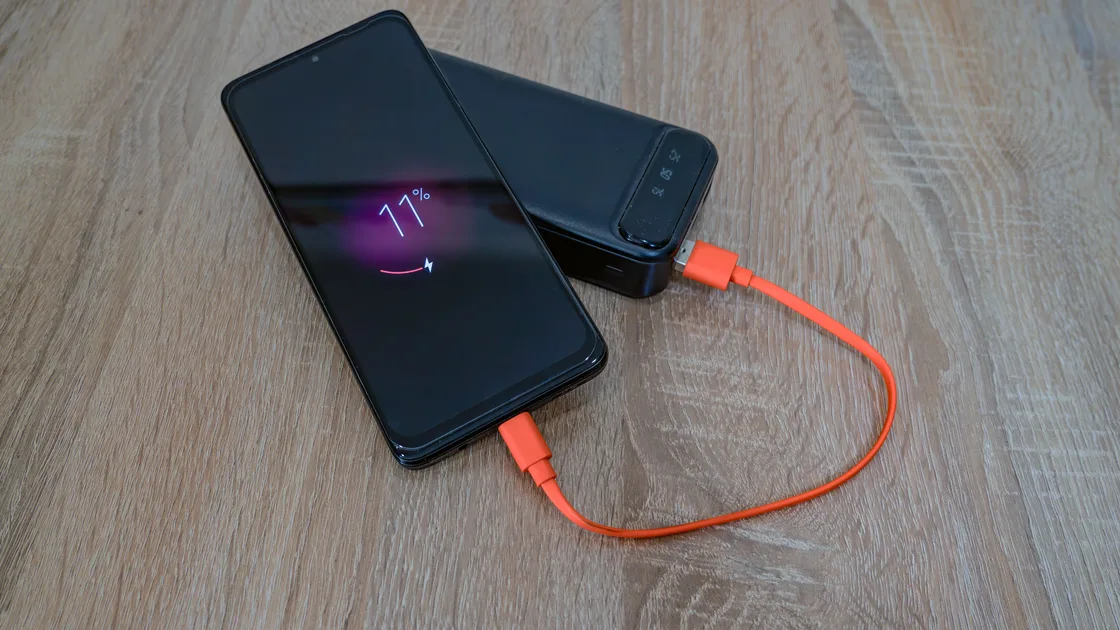
Connect directly to a wall outlet, lock the screen, and leave the phone idle for 20 to 30 minutes. Do not play games, navigate, stream video, install updates, restore a backup, or use the phone as a hotspot during the window. Record the ending percentage and any warning.
Repeat only after changing one component, such as the cable. Do not compare a 10-minute screen-off test with an hour of navigation and call that an adapter comparison. Charging naturally slows as the battery becomes fuller, so compare sessions that start in a similar range.
Apple explains that charging time varies with adapter capacity and other conditions, and recommends a compatible USB-C power adapter for faster wired charging on supported devices.[1] Google advises using a working outlet, compatible adapter, and cable, and notes that charging from sources such as a laptop can be slower.[3]
If the battery percentage falls even while connected, reduce the workload and repeat. A high active load can consume most or all incoming power. If it still falls while cool, idle, and connected to known-good equipment, stop the test and move toward service.
Work from the power source toward the phone:
An adapter and cable negotiate power together. A high-rated adapter cannot compensate for a damaged or low-capability cable, and a capable cable does not make an incompatible source charge quickly. Apple notes that a wired connection to a low-power adapter can take longer and that a computer port or multiport hub may provide less power.[1]
Check for bent pins, corrosion, dark marks, loose fit, torn insulation, or a connector that becomes hot. Stop using a damaged accessory. Do not keep wiggling the plug; intermittent contact can generate heat and damage the port.
If lint is visible, first consult the manufacturer’s cleaning guidance. Power the phone off and keep the port dry. Use only a non-metal, nonconductive method specifically permitted for the device; do not use a pin, paper clip, knife, wet cleaner, compressed air at close range, or force. If debris is compacted or the port is damaged, use professional service.
Apple’s charging troubleshooting guidance tells users to check the cable and adapter for damage, use a wall socket, remove debris from the charging port, allow the device to charge, restart, and try another cable or charger.[2] These steps are best performed one at a time so the failed component is identifiable.
Charging systems reduce power when the phone, battery, or environment is too hot or too cold. Remove a case only if it traps heat and the phone maker permits charging without it. Move the phone out of direct sun, a hot car, bedding, or an enclosed bag. Let it return to a normal room temperature before retesting; do not cool it in a refrigerator or with ice.
For platform-specific heat checks, use the iPhone overheating guide or Android overheating guide. If heat persists while the phone is idle, disconnect it and seek support.
Review battery usage for apps that ran during the test. Navigation, camera use, games, video calls, hotspot service, backup restoration, photo indexing, system updates, and weak-signal searching can consume substantial power. Pause optional work and repeat with the screen locked. Do not force-stop core system processes or install an untrusted “battery optimizer.”
Restart once if a process appears stuck, then install stable system updates through the official updater. If the problem started after an update, allow documented post-update indexing to finish and record how long the behavior persists. A factory reset is not an early charging diagnostic.
If the phone loses charge unusually fast after unplugging, slow charging may only be half the symptom. Compare with the iPhone battery-drain guide or Android battery-drain guide.
A slow-charger warning usually means the phone negotiated less power than expected or detected an incompatible source, cable, port, or connection. Capture the exact wording. Test the original supported combination and then one known-good replacement at a time. Do not buy an adapter based only on a large wattage number; verify the required charging protocol and connector.
Charging controls are different from hardware faults. Apple explains that an iPhone may charge toward a configured charge limit and that a Slow Charger message does not by itself mean the phone or charger is faulty.[1] Google says some Pixel phones may automatically adjust charging to manage device and battery temperatures, which can make charging slower.[3] Check the battery settings, displayed charge-time estimate, and configured charge limit before blaming the adapter.
If charging is normal below the configured limit and pauses exactly at that limit, the system is probably following the selected policy. Disable it only for a controlled test if you understand the battery-health tradeoff; restore the preferred setting afterward.
This guide uses wired charging as the baseline. If the cable test is normal but only a charging pad is slow or disconnects, inspect case thickness, coil alignment, foreign objects, pad power, and the charger maker’s compatibility information. Do not place metal objects between the phone and pad.
Moisture-detection warnings are safety controls, not speed settings. Disconnect the cable and let the device dry according to official instructions. Do not bypass the warning, heat the port, or put the phone in rice.
Open the platform’s battery-health or diagnostics page if available. A significantly aged battery may accept less power, run hotter, or report service status. Battery percentage calibration and advertised “maximum capacity” are not precise laboratory measurements, but a service warning is useful evidence.
Compare at least two known-good compatible cables and adapters with the same direct wall outlet and controlled session. If only one accessory is slow, replace that accessory with a supported product. If every combination is slow only on one phone, the port, battery, charging controller, temperature sensor, or software state may need diagnosis.
Arrange qualified service when:
Back up the phone before service if it is safe to operate. Do not continue charging a swollen or damaged battery just to complete a backup. Use the maker’s repair channel and disclose any liquid, impact, or third-party repair history.
Network settings reset does not repair a charging circuit. A full-device erase is justified only when support has isolated a software cause and you have a verified backup. Preserve test times, starting and ending percentages, accessory models, warnings, and temperature observations for the technician.
The display and active apps consume power. With the screen off and workload paused, more incoming power can charge the battery instead of running the phone.
Yes. Damage, poor contact, or limited power capability can reduce negotiated power. Compare one known-good compatible cable while keeping the adapter and outlet unchanged.
Many computer and hub ports supply less power than a compatible wall adapter, especially when they share power with other devices.
No. Charging naturally slows at higher levels, and an optimization or user-selected limit may pause charging. Check the battery settings and on-screen message.
No. Metal can short or damage contacts. Power off the phone and follow the manufacturer’s dry, non-metal cleaning guidance, or use qualified service.
The charging system may reduce or pause power to protect the battery. Move it to a normal room temperature and stop using it if abnormal heat persists.
No. The phone, adapter, cable, and protocol must all support the negotiated rate. The phone draws only a supported amount.
Seek diagnosis when battery health reports service, runtime has degraded substantially, or known-good equipment remains slow. Swelling, odor, liquid, or heat requires immediate disconnection and service.
Compare compatible chargers and cables while the phone is at a safe temperature. Charging power depends on the supported combination and its negotiated limit; changing VPN settings cannot raise that limit or remove the phone's temperature protection.
Sources checked 5 September 2026.
Sign up to experience all premium features at no cost.
*Available only to new users. Each user is limited to one trial.