Start your 3-day free trial
Sign up to experience all premium features at no cost.
*Available only to new users. Each user is limited to one trial.
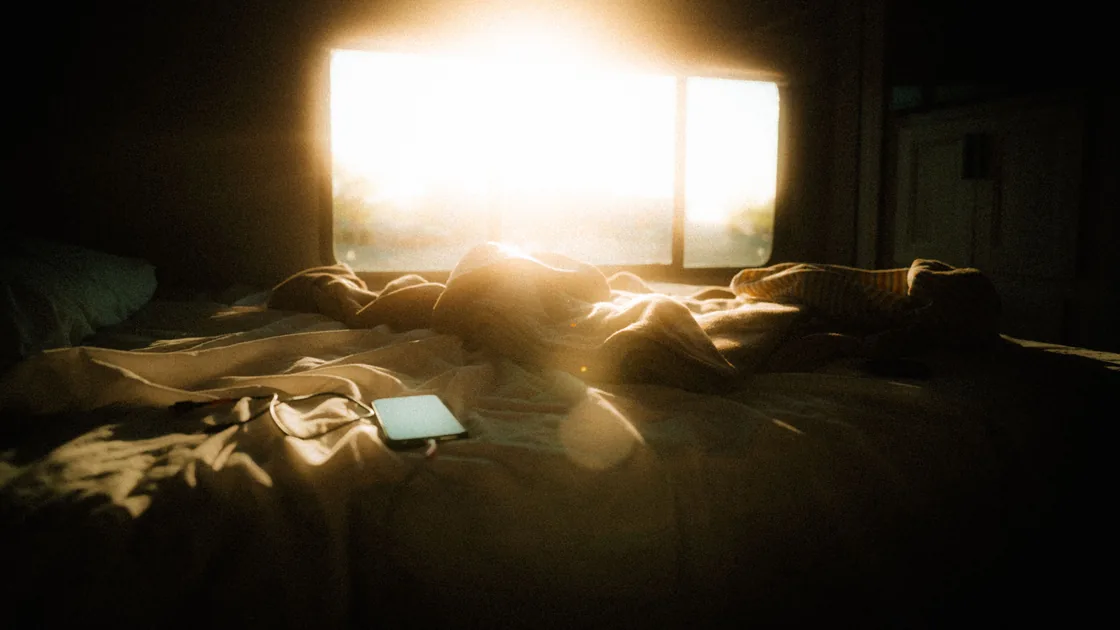

Phone screen brightness keeps changing because adaptive brightness, power saving, heat limits, or color features adjust it. Find which one applies.
Key Takeaways
- Compare brightness in stable lighting before calling adaptive behavior a fault.
- Separate brightness from True Tone, Night Shift, Adaptive Tone, eye-comfort, and HDR effects.
- Check power-saving state and phone temperature without bypassing protection.
- Use the same app, content, angle, and lighting for a controlled test.
- Stop aggressive troubleshooting if the phone overheats, swells, flickers, or develops black spots.
Brightness is the amount of light emitted by the display. A screen can appear warmer, cooler, more saturated, or higher in contrast without the brightness slider moving. Night modes reduce blue light and make whites amber.
Automatic tone features adapt white balance to room lighting. HDR video may brighten highlights while menus remain ordinary. An always-on display or screen timeout can dim before turning off.
If several display behaviors are unclear, the device and app troubleshooting guide provides a broader app-versus-system comparison.
Open a static page with a white background and a few dark elements. Note the brightness slider position, then observe whether the slider itself moves when the display changes. If colors shift at sunset but the slider stays put, inspect color-temperature schedules.
If only a video or photo changes, compare standard content. If the entire display steps down while the phone is hot, treat temperature as the leading clue.
Apple distinguishes brightness controls from True Tone, which adapts display color and intensity to ambient light, and Night Shift, which makes colors warmer on a schedule.[1] Android manufacturers use names such as Adaptive brightness, Extra dim, Eye comfort shield, Adaptive color tone, Bedtime mode, and Night Light. Do not switch all of them at once; change one known variable and record the result.
Also check whether the screen is merely approaching its timeout. Many phones dim briefly before sleeping. Increase the timeout temporarily for a test, then restore a reasonable value. A timeout change does not diagnose ambient-light behavior and should not be left excessively long on an unattended unlocked phone.
Automatic brightness is expected to change the display as ambient light changes. Moving from a shaded room to direct sunlight, covering the sensor area, turning on a lamp, or placing the phone near a bright window can trigger an adjustment. The response may be gradual and may not return to precisely the same slider position because some systems learn manual preferences.
On iPhone, Auto-Brightness is available in Accessibility display settings; on Android, Adaptive brightness is normally under Display. Google's Pixel display guidance describes Adaptive brightness as automatically adjusting the screen to available light.[2] Menu names vary, so use search inside Settings if the documented path differs from your software version.
Clean the upper front area of the phone with a dry, nonabrasive cloth. A case lip, opaque screen protector, dirt, or a hand can cover the ambient-light sensor. Do not insert tools into the speaker or sensor openings. If the change happens only during calls, the proximity sensor may be turning the display off to prevent accidental touches; that is not a brightness fault.
To test adaptive behavior, choose an indoor place with steady lighting. Put the phone at a fixed angle, disable only Auto-Brightness or Adaptive brightness, set a moderate manual level, and watch the same static page for several minutes. Re-enable the feature after the test. If the display is stable manually but changes predictably when lighting changes, the system is probably working as designed.
Turning off Auto-Brightness or Adaptive brightness stops only the light-sensor adjustment. True Tone still adapts display intensity as well as color, and the system can still lower brightness when the battery is very low or the phone overheats.[1][3] Samsung lists ambient light, device temperature, and battery level as reasons a Galaxy screen may change brightness by itself.[3]
Watch the Settings slider when the change happens. If it stays where you left it, check True Tone or Adaptive Tone, power-saving modes, heat, and the app on screen. If the slider itself moves, look for a shortcut, routine, or device-management profile that sets brightness before suspecting hardware.
Review scheduled features one at a time. True Tone or Adaptive Tone can change apparent intensity as well as color. Night Shift, Night Light, Eye comfort, Bedtime mode, and accessibility color filters can make the display look dimmer.
Extra Dim intentionally reduces output below the normal slider range. Reduce White Point on iPhone lowers bright-color intensity. Restore each setting to its original state after the comparison.
Power-saving modes may reduce brightness, limit high refresh rates, shorten timeout, or change always-on display behavior. Check whether the symptom begins at a particular battery percentage or when Low Power Mode, Battery Saver, or an automation starts. Charging may disable some restrictions, which can make the screen appear to brighten suddenly. Do not assume the charger repaired the display.
Apps can request special display behavior. Camera viewfinders, navigation, readers, games, video players, and payment screens may temporarily prevent sleep or change brightness. HDR photos and videos can make highlights noticeably brighter on compatible displays.
Compare the home settings screen and the same non-HDR page. If one app alone changes the display, review its brightness, video, accessibility, or playback settings and update it.
Samsung notes that automatic brightness changes can reflect ambient light, battery state, or device temperature, not necessarily a defect.[3] This reinforces the value of noting the trigger rather than describing every automatic change as random.
Phones generate heat during fast charging, gaming, navigation, camera use, video calls, large downloads, and direct sun exposure. The operating system may reduce maximum display brightness until the device cools. The slider can remain high even though actual output is capped. That protection should not be bypassed.
Move the phone out of direct sunlight, stop demanding tasks, unplug it if safe, remove an insulating case only if the manufacturer permits it, and let it cool naturally in a dry, ventilated room. Do not place it against ice, in water, in a refrigerator, or directly in front of condensation-producing cold air. Do not continue a benchmark merely to reproduce dimming.
Check for a hot car, covered bed, damaged cable, unsuitable charger, or background task that keeps the device warm. A mildly warm phone under load can be normal; a phone too hot to hold comfortably, showing a temperature warning, smelling unusual, or repeatedly shutting down needs attention.
Stop using and charging the phone if the battery is swollen, the display is lifting, the enclosure separates, or there is smoke, hissing, or a chemical smell. Move away from flammable materials without bending or puncturing the device and follow local battery-safety guidance. Brightness troubleshooting is no longer the priority.
Use a short, reproducible comparison:
Record whether the slider moves, whether the screen is hot, which app is foregrounded, and whether the change follows light, battery percentage, time, charging, or content. A video of the symptom may be misleading because another camera changes exposure, so pair it with written observations.
If manual brightness remains stable in controlled conditions but adaptive mode behaves erratically, reset only the adaptive-brightness learning data when the phone maker documents that option. Do not clear all settings, accessibility preferences, or app data as a substitute. On a managed phone, an administrator may enforce power or display behavior; ask before removing management.
Arrange service when brightness jumps or pulses under stable conditions with adaptive and scheduled features off, especially if the effect appears on the boot logo or system recovery screen. Persistent flicker, colored lines, black spots, touch problems, image retention, a lifted panel, or a symptom that changes when the enclosure is pressed points beyond a normal setting.
Before service, back up the phone, note the exact test conditions, and capture whether the issue appears at multiple brightness levels. Do not press black spots, flex the phone, or repeatedly run full-brightness tests. If the symptom follows a drop, liquid exposure, screen replacement, or battery swelling, tell the repair provider.
A factory reset is not an appropriate first display test. It erases data, removes the context that helps diagnosis, and cannot repair a damaged panel, loose connector, light sensor, or swollen battery. Follow official support for the exact model after preserving a verified backup.
Brightness changes are often normal responses to light, color schedules, power saving, heat, or HDR content. Identify whether emitted light or color is changing, then test one variable at a time in stable conditions. Never bypass thermal dimming or force maximum brightness. Unexpected pulsing, overheating, swelling, flicker, lines, or black areas deserves prompt inspection rather than more aggressive settings changes.
Direct sun can heat the phone enough to trigger a protective brightness cap. Move it to shade and let it cool naturally; do not try to override the limit.
A scheduled Night Shift, Night Light, Eye comfort, or Bedtime feature probably changes color temperature. It is separate from the brightness slider.
Yes. Some systems move the displayed slider or learn your adjustments as ambient light changes. Predictable movement with light is not automatically a fault.
It may be HDR content or an app-specific playback behavior. Compare standard dynamic range content and the system Settings screen.
That is a preference, but a fixed high level can increase power use, heat, and eye discomfort. A temporary manual test is more useful than immediately locking maximum brightness.
An opaque, misaligned, or dirty protector can obstruct the ambient-light sensor. Inspect the sensor area without prying into openings.
The phone commonly dims shortly before the configured screen timeout. Change the timeout briefly to confirm, then restore a secure, practical duration.
Seek inspection for unexplained pulsing in steady conditions, persistent flicker, lines, black spots, touch failure, overheating, a lifted screen, or a swollen battery.
Sources checked 4 October 2026.
This article provides general troubleshooting information. Follow the current safety and display guidance for your phone model before changing settings or arranging repair.
Sign up to experience all premium features at no cost.
*Available only to new users. Each user is limited to one trial.