Start your 3-day free trial
Sign up to experience all premium features at no cost.
*Available only to new users. Each user is limited to one trial.
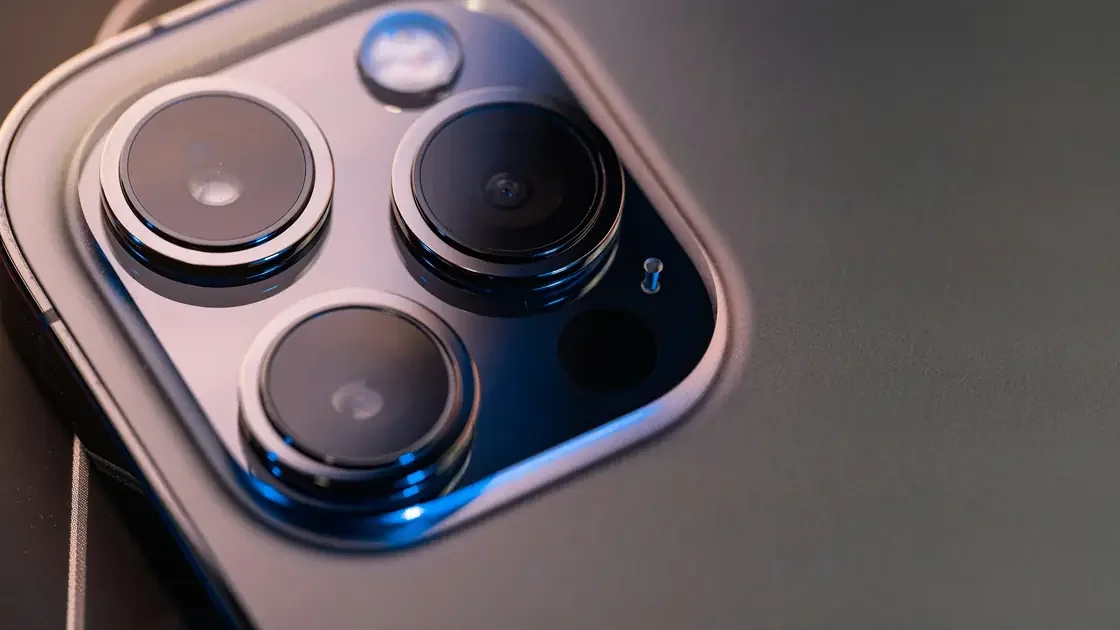

Your phone camera shows a black screen when something covers the lens, another app or a permission blocks camera access, the camera software stalls, or a camera module is damaged. To tell which, check whether the live preview, the saved photo, or only one lens, mode, or app is black. Remove covers and magnetic accessories, close other camera apps, and compare front and rear lenses in the built-in Camera app. Restart and update before clearing data; failure across every lens and app, especially after impact or liquid, may require service.
Key Takeaways
- Separate a black preview from a black saved image and a frozen interface.
- Test front and rear cameras, ordinary Photo mode, and another trusted app.
- Remove cases, lens covers, mounts, and magnetic accessories for the comparison.
- Check permission and privacy indicators without weakening privacy controls broadly.
- Back up before destructive steps and seek service after damage or cross-app failure.
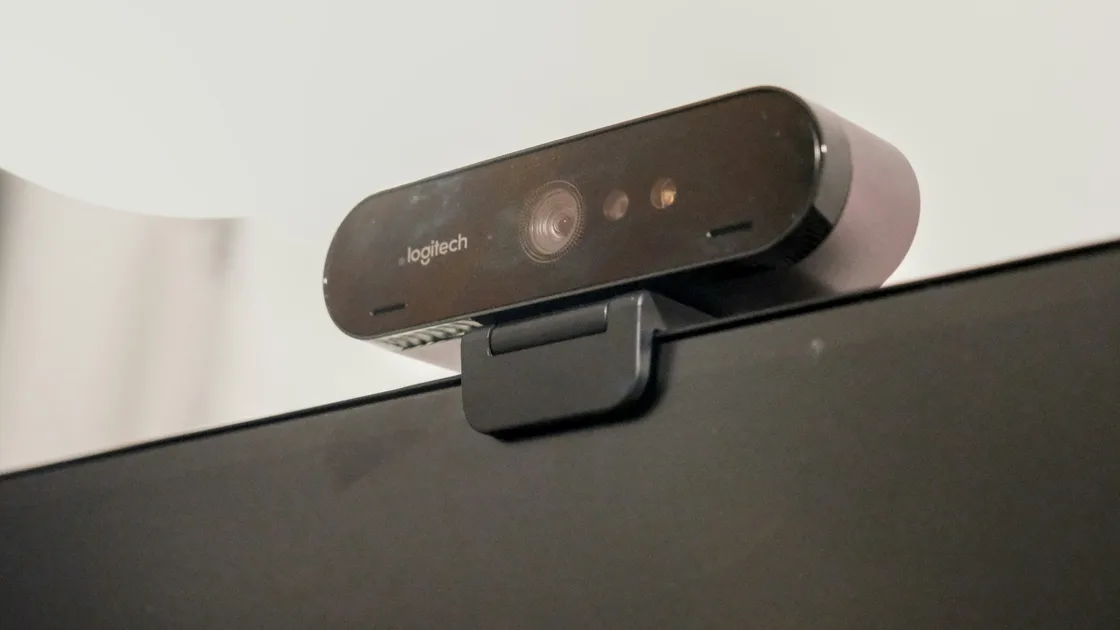
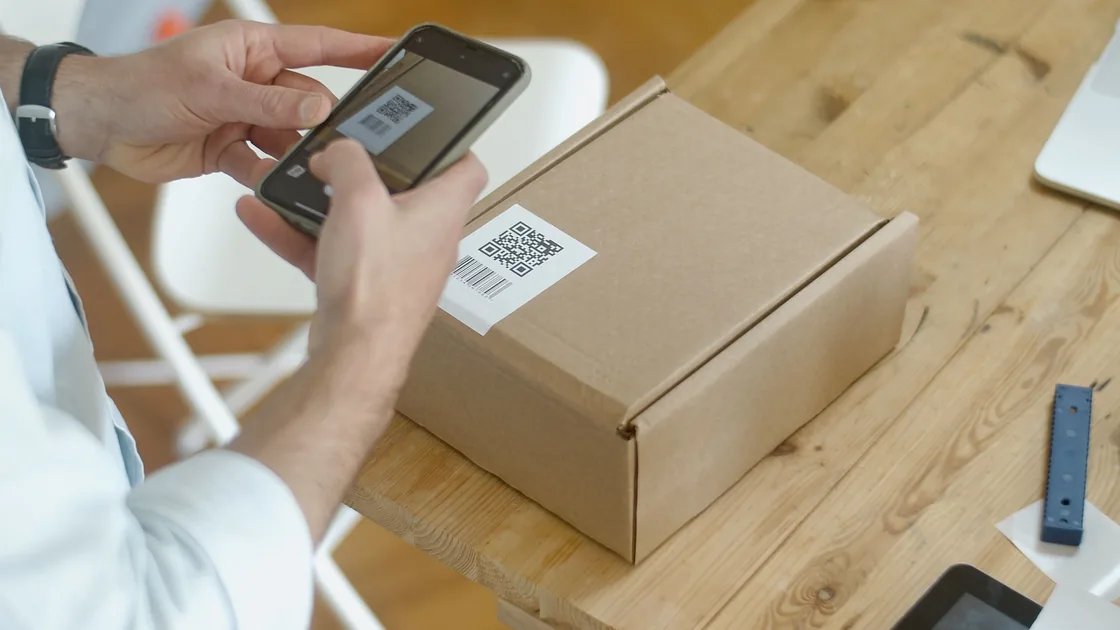
This article starts with a phone whose display works normally but whose camera view is black. For a computer camera, use the webcam troubleshooting guide. If the camera shows an image but cannot read a code, use the QR scanning guide. For a fault that spans several devices or apps, start with the general device and app troubleshooting order.
Open the built-in Camera app and wait a few seconds without switching modes repeatedly. Observe the controls as well as the picture area.
| Observation | What it narrows down |
|---|---|
| Controls work but preview is completely black | A lens, camera service, obstruction, or another app may be involved |
| Preview works but the saved image is black | Processing, storage, app, or file-viewing behavior may be involved |
| Preview is frozen on one frame | The camera service or app may have stopped rather than receiving darkness |
| Front camera works but rear does not | The problem may be limited to a lens group or rear-camera hardware |
| Photo works but Portrait, Video, or high-resolution mode does not | A specific sensor, mode, storage requirement, or software path may be failing |
| Only one messaging or social app is black | That app’s permission, session, or camera integration is the first suspect |
Take one ordinary photo only if the shutter control responds. Then open it from the system Photos or Gallery app. Do not take many private test images or upload them to a support forum. A blank preview with a normal saved photo points to a display or app-preview path; a normal preview with a black file points elsewhere.
Switch once between front and rear cameras. If the phone has multiple rear zoom choices, test the default 1× view first, then other optical choices in good light. Digital zoom does not prove that a different physical camera is working.
Do not use the flashlight as proof that the camera module is healthy. A flashlight LED and an image sensor are different components, and some phones deliberately disable flash when the device is hot or battery conditions are unsuitable.
Remove the case, lens protector, adhesive privacy cover, magnetic wallet, mount, ring, and clip-on lens. Apple specifically advises removing cases, accessories, or films that might block the camera or flash, and checking whether a magnet is near the camera.[1]
Clean the lens glass gently with a soft, dry, lint-free cloth. Do not insert tools around the lens, polish away a coating, or pour liquid onto the camera bump. Check both the obvious lens and nearby sensors without assuming every dark circle is a camera.
Move to a well-lit room and point the phone at a normal scene. Covering a lens with a finger, testing in a dark bag, or aiming at a uniformly black surface can produce an accurate black preview. Remove that possibility before changing software.
Look for condensation under the lens glass, a cracked cover, a shifted protector, dirt at the edge, or a case cutout that is too small. Condensation inside the camera area after liquid or rapid temperature change is not something to dry with high heat. Power the phone down when safe and follow the maker’s liquid-exposure guidance.
If the view turns black only on a vehicle mount or accessory, test away from it. A magnetic accessory can affect stabilization or autofocus hardware on some phones. Do not glue, bend, or force the camera assembly to compensate.
Close video calling, barcode scanning, document scanning, social, browser, and augmented-reality apps that may have an active camera session. Then reopen only the built-in Camera app. A status indicator showing current camera use can help identify the competing app, but indicator appearance varies by system version.
If the built-in app works and one third-party app remains black, check that app’s camera permission in system settings. Grant the permission only if taking a photo or video is expected for that feature. The app permission guide explains how to review access without granting unrelated permissions.
Do not turn off global privacy protections or grant Camera, Microphone, Photos, Location, Contacts, and Accessibility access together. Camera access may be necessary; the rest depends on the feature. On a managed phone, an organization may disable the camera or restrict selected apps, so contact the administrator rather than removing management.
On iPhone, Screen Time content and privacy restrictions can affect allowed apps or features. On Android, system privacy controls can disable camera access globally on supported versions. Change only a setting whose current state explains the symptom, record the original value, and turn it back on after the comparison when appropriate.
Browser camera behavior belongs to both the operating system and the individual site permission. If only one website is black, do not reset the entire phone; review that site’s permission and test a trusted site or app without exposing private video.
Close the Camera app and open it once. If it remains black, restart the phone normally. Apple’s official sequence includes testing front and rear cameras, restarting, and updating iOS.[1] Google’s Pixel guidance likewise starts with app and phone restarts, updates, and checks across apps.[2]
After restart, open the built-in Camera app before a video call, scanner, or social app. Test ordinary Photo mode at 1×, then the front camera, then video. Keep the sequence consistent so you can identify which change matters.
Install stable system and camera-app updates through supported stores and settings. Back up important files and keep enough power and free storage for the update. Do not download a replacement camera APK, unofficial firmware, or a “camera repair” utility from an unknown source.
On supported Android or Pixel devices, force stopping the Camera app and clearing its cache can reset temporary files without intentionally deleting personal photos. Google documents cache clearing as one troubleshooting step.[2] Menu names vary, so use the exact device instructions. Clear storage or app data only after checking what settings, modes, or local app content will be reset.
Safe mode on supported Android phones can help reveal interference from a downloaded app. It does not repair hardware, and widgets or settings may be affected. Follow the manufacturer’s exact entry and exit process. iPhone does not offer a general equivalent for this test.
Do not factory-reset the phone merely because the camera preview is black. Erasure is justified only after you have evidence of a software cause, a verified backup, activation credentials, and a plan to test before restoring every app. A reset cannot repair a damaged sensor, connector, stabilization mechanism, or lens cover.
Record which combinations work: front or rear, 1× or another optical choice, Photo or Video, built-in or third-party app. The pattern is more useful than saying “the camera is broken.”
If every app fails on one physical lens group but other cameras work, a lens-specific hardware or driver path becomes more likely. If every lens works in the built-in Camera app but one app remains black, focus on that app’s permission, update, and support process.
If the preview briefly appears and then becomes black when switching lenses, avoid rapid repeated switching. Let the phone cool, restart, and test one choice at a time. Mechanical clicking, constant shaking, or an image that jumps without settling can indicate stabilization or autofocus trouble.
Low storage may prevent capture or processing even when the preview works, but it does not normally explain a completely black live view in every app. Preserve irreplaceable files and free space through the system’s supported storage tools rather than installing a broad-access cleaner.
When the issue began immediately after a system update, document the version and exact working/failing modes. Do not downgrade with unofficial tools. Check the manufacturer’s support notices and install the next supported update when offered.
Service is appropriate when all trusted apps show black on the same lens after a restart and update, when the camera fails an official diagnostic, or when the problem began after impact, bending, liquid exposure, overheating, or repair. A cracked lens cover, internal condensation, loose camera area, or persistent mechanical noise also warrants inspection.
Stop using the phone if it is swollen, separating, smoking, leaking, producing an unusual odor, or dangerously hot. A raised camera area may be cosmetic, but a lifting screen or case can indicate a battery hazard. Do not press it flat or continue charging to test the camera.
Before service, back up data, note the phone model and system version, list working and failing lenses and modes, and remove private photos from any demonstration album. Use a manufacturer service mode or backup-and-erase process where supported; do not disclose your account password.
If the camera is important for authentication, tickets, work, or medical access, preserve an alternative approved method before handing over the phone. A black camera can break QR scanning or video verification, but bypassing an identity control is not a repair.
The front camera may be obstructed by a protector or dirt, disabled in one app, or affected by a component fault. Compare it in the built-in Camera app and another trusted app after removing the case and protector.
That pattern suggests the capture path may work while the preview, app interface, or display composition fails. Restart, update, and compare another mode or trusted app before considering erasure.
A magnet near some camera systems can affect autofocus or stabilization. Remove the case, wallet, mount, ring, and clip-on lens for a controlled test.
No. The flashlight LED and camera sensor are separate parts, and software can also disable flash under some temperature or battery conditions.
Try restart, updates, and cache clearing where officially supported first. Clearing storage or data can reset modes and local settings, so understand the impact before doing it.
Low storage can block capture or processing, but a completely black preview across every app deserves checks for obstruction, competing apps, software, and hardware too.
It may address a software configuration problem, but it cannot repair a damaged sensor, connector, stabilization system, or lens. Use it only with evidence, a verified backup, and activation credentials.
Seek service for persistent failure across apps, one lens that always fails, diagnostic errors, mechanical noise, internal condensation, cracked lens glass, or trouble that began after impact, liquid, heat, or repair.
Sources checked 4 October 2026.
Sign up to experience all premium features at no cost.
*Available only to new users. Each user is limited to one trial.