Start your 3-day free trial
Sign up to experience all premium features at no cost.
*Available only to new users. Each user is limited to one trial.
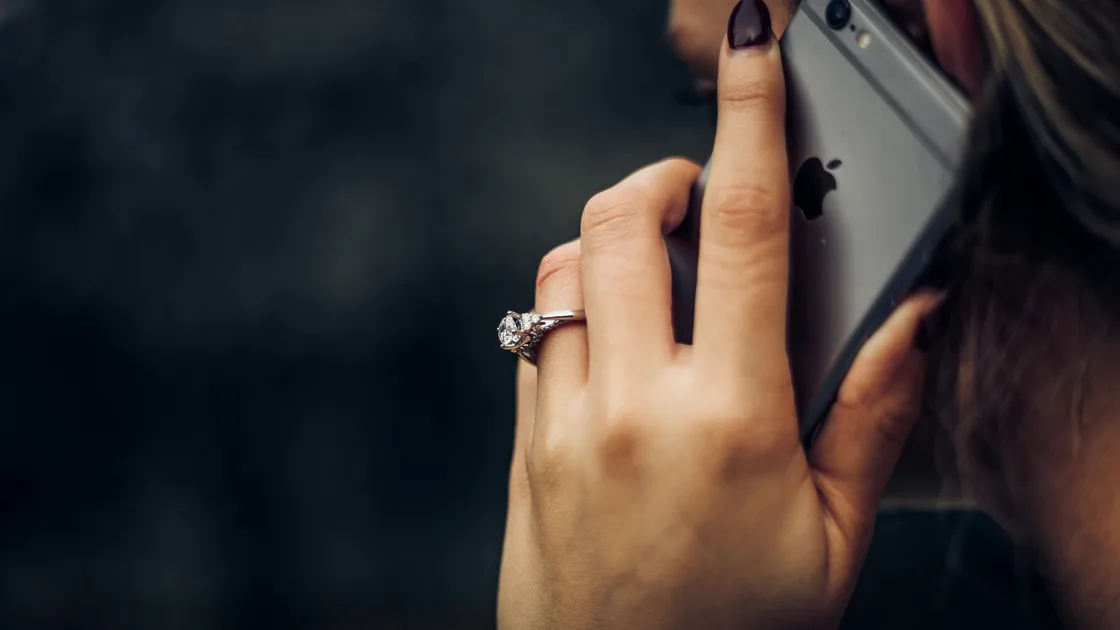

A phone's proximity sensor sits near the top of the front and detects when something, usually your ear, is close to the screen. When a phone proximity sensor turns the screen off during a call, that is normal while the phone is near your face.
The problem is when the display goes dark too early, remains dark after you move the phone away, or prevents you from ending a call. Define exactly when it happens, clear the sensor area, and compare call routes before changing settings.
Key Takeaways
- Normal proximity behavior prevents accidental touches during a call.
- Timing matters: note whether darkness begins before answering, near your face, or after the call.
- Cases, protectors, stickers, dirt, and moisture can obstruct the upper-front sensor area.
- Compare an ordinary call, speakerphone, Bluetooth, and another calling app one at a time.
- Persistent failure after restart and update may need manufacturer diagnostics or service.
Use the device and app troubleshooting guide when several sensors or unrelated phone functions changed together.
A proximity sensor detects whether an object is very close to the front of the phone without needing a touch. Samsung says it sits at the top of the phone, with the exact position varying by model; on the Pixel 5, Google shows it as a small white dot under the display at the top center.[1][2]
Its main job is to keep the screen off while you hold the phone against your face during a call. Google adds that it can also keep the display off while the screen is locked and when certain apps use it, so a covered sensor can affect more than calls.[2]
It is not the ambient light sensor that drives automatic brightness, and it is separate from the front hardware used for face unlock. Knowing which part is involved tells you which checks below are worth doing.
During a handset call, the proximity sensor helps the phone decide that it is close to your ear. The screen then turns off to prevent your cheek from pressing mute, keypad, or end-call controls. Google describes this as normal call behavior, and Samsung likewise notes that the display should turn back on when the phone moves away.[1][2]
Create a precise symptom statement before troubleshooting:
| Observation | What it suggests |
|---|---|
| Screen turns off only when the top of the phone is near your face | Expected proximity behavior |
| Screen turns off while the phone is on a table | Obstruction, calibration/software state, or sensor fault |
| Screen stays dark after moving the phone away | Sensor remains triggered or call UI is not waking |
| Screen goes dark before the call is answered | Possible obstruction or a broader display/power behavior |
| Screen works on speakerphone but not at the ear | Proximity path is a strong suspect |
| Screen is dim or changes brightness outside calls | Brightness or display setting, not necessarily proximity |
Do not cover the top bezel with a finger while testing. Some phones place the sensor behind the display, so there may be no visible hole. A tiny blinking dot visible only through another camera can be normal infrared activity; it is not by itself evidence of damage.
If the display behaves incorrectly in every app, misses taps, or sleeps according to a timer outside calls, separate that issue first. The automatic brightness guide covers light-based changes, which are different from a proximity-triggered black screen.
Remove accessories before changing software. A case lip, privacy protector, replacement glass, sticker, or poorly aligned screen protector can overlap the sensing area. Samsung explicitly recommends removing third-party cases or protective films when they may block the proximity sensor.[1]
Follow a safe inspection sequence:
Do not pour cleaner onto the phone, use abrasive paste, or force liquid under a protector. If a permanently bonded protector appears misaligned, follow the phone or protector maker's removal guidance. Cracked glass, a lifted display, or recent liquid exposure is a service boundary rather than an invitation to press the screen back into place.
Compare the result with and without each accessory. If the fault returns only with one case or protector, replace or realign that accessory. Do not disable a safety-related call behavior just to preserve an incompatible accessory.
Use a known, safe contact or voicemail service and keep tests short. Do not make emergency calls for troubleshooting. Hold the phone normally, then move it away while watching for the display to wake.
Run these comparisons one at a time:
The comparison is about timing and route, not sound quality. If only one app leaves a black overlay or fails to wake the screen, update that app and inspect its permissions. If every handset-mode call triggers the problem but speakerphone does not, obstruction or sensor state is more likely.
If calls never ring and go directly to voicemail, use the incoming-call routing guide. That is a delivery or settings problem, not a proximity-sensor symptom.
Restart the phone after documenting the symptom. A normal restart clears a stuck call process and sensor state without deleting data. Then install current stable system and phone-app updates offered for the exact device; keep the phone charged and backed up before a major update.
Check only settings that match the observation. Screen timeout controls inactivity outside calls. Adaptive brightness uses ambient light. Accidental-touch protection may intentionally block input in a pocket or bag. Accessibility features can change how the screen wakes or how calls are controlled. None of these should be toggled as a random bundle.
Use this order:
Do not install a generic “sensor calibration” app and grant it broad permissions. Results from third-party sensor readers vary because manufacturers expose virtual and combined sensors differently. A number on screen is less useful than the repeatable relationship between distance, call mode, and display state.
Samsung states that the proximity sensor generally cannot be disabled through an ordinary phone setting.[1] Even where a manufacturer offers a call-screen option, turning the sensor off is not a repair for obstruction or hardware damage.
After the call ends, test the phone in an ordinary app. Wake it with the side button, swipe, type a short note, and let the normal screen timeout expire. Do not run this test while walking or driving.
The layers differ:
Face unlock also uses front-facing sensing, but it is a separate authentication system. Follow the fingerprint and face unlock guide if the only failure is biometric recognition.
This separation prevents a factory reset from becoming a substitute for diagnosis. A reset cannot remove a case lip, repair cracked glass, dry internal moisture, or reconnect a damaged sensor cable.
Seek model-specific support when the screen stays dark on every handset call after accessories are removed, the sensor triggers with nothing near it, or the problem began after a drop, display replacement, or liquid exposure. Also escalate if the screen cannot be restored with the side button or if emergency call controls would be difficult to reach.
Before service, back up important data and record:
Use an authorized or reputable repair path. A recent screen replacement can leave the sensor area misaligned or covered by adhesive, but opening the phone again requires the right parts, sealing process, and diagnostics. Do not pry up the display or probe the earpiece yourself.
That is usually the proximity sensor preventing accidental cheek touches. It becomes abnormal when the screen goes dark away from your face or fails to wake after you move the phone.
Yes. A misaligned, unusually thick, or incompatible protector can overlap the sensing area. Test one short call after removing removable accessories, and follow maker guidance for bonded protectors.
Speakerphone is normally used away from the face, so the proximity path may not be engaged in the same way. That comparison points toward obstruction or sensor state, but it does not identify the exact failed part.
Usually no. Many phones do not expose a disable setting, and the sensor prevents accidental call controls. Fix an obstruction or obtain service instead of removing the protection.
Not necessarily. Some phones use infrared sensing that another camera may reveal as a small blinking light. Judge the actual screen behavior rather than the light alone.
Use a clean, dry, soft, lint-free cloth on the exterior. Do not insert metal, use abrasive cleaner, spray liquid into openings, or pry at the screen.
It may change software state, but it cannot repair obstruction, moisture damage, a misaligned replacement screen, or failed hardware. Preserve data and exhaust narrow checks before considering any reset.
Arrange inspection when false triggering persists without accessories, began after impact or repair, follows liquid exposure, or prevents reliable access to call controls. Back up the phone before service.
Sources checked 4 October 2026.
Sign up to experience all premium features at no cost.
*Available only to new users. Each user is limited to one trial.