Start your 3-day free trial
Sign up to experience all premium features at no cost.
*Available only to new users. Each user is limited to one trial.
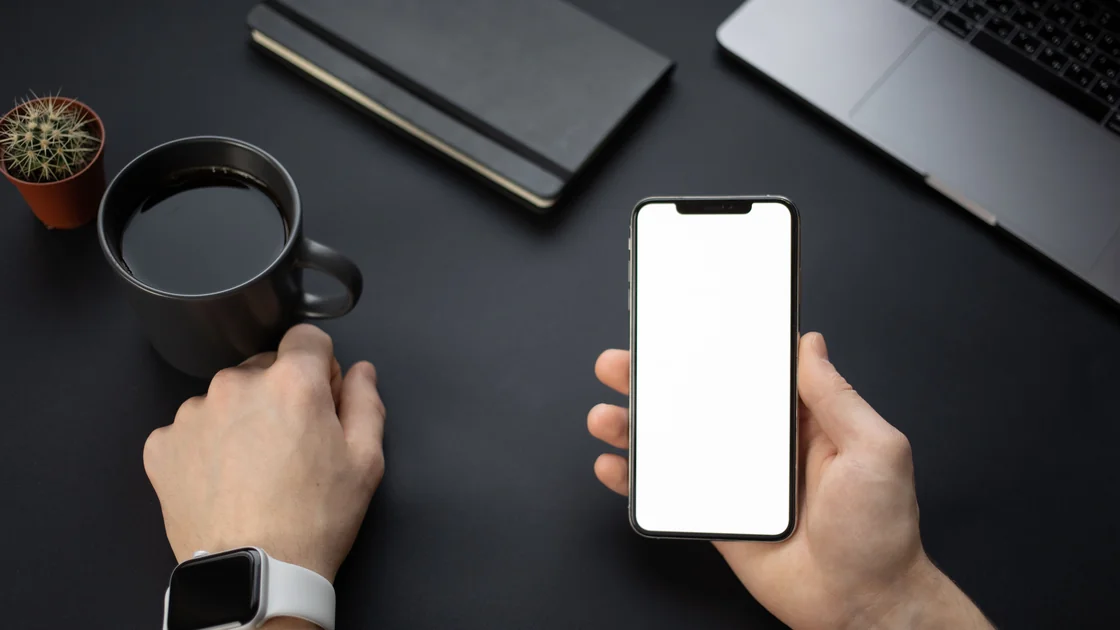

Smartwatch not syncing with phone, or refusing to pair? Keep both devices close, turn Bluetooth and Wi-Fi on, restart both, and pair or reconnect from the watch's official companion app rather than the phone's Bluetooth list. If that does not help, decide whether the watch is fully disconnected or only one data type is delayed, because transport, the companion app, the account, permissions, and data queues can fail independently.
Do not unpair, erase, or factory-reset the watch until you have confirmed which data is already stored in the account and which data exists only on the watch. A reset can erase apps, settings, and unsynced records.
Key Takeaways
- Separate a full connection failure from one stale feature.
- Check the paired phone, account, official companion app, and transport status.
- Review permissions and background restrictions for the affected data type.
- Update compatible software one layer at a time and retest.
- Verify backup and server synchronization before unpairing or erasing.
If several phone features are failing beyond the watch, use the device and app troubleshooting guide to identify the shared device layer first.
Look at both the watch status and the official companion app. Do not rely only on a Bluetooth settings screen: a saved pairing record is not the same as an active companion-app session, and some features can use Wi-Fi, cellular, or a cloud relay when Bluetooth is unavailable.
| Observation | Likely scope |
|---|---|
| Companion app says disconnected and watch shows no phone link | Transport, range, radio, pairing, or wrong phone |
| Watch is connected but notifications are missing | Notification access, Focus mode, app policy, or phone state |
| Time and basic status update but activity data does not | Data permission, companion service, account, or queue |
| One health or fitness app is stale | App-specific permission, service, compatibility, or storage |
| Sync works only while companion app is open | Background activity or battery restriction |
| Watch was recently moved to another phone | Pairing ownership, account migration, or incomplete restore |
Record the last successful sync, the affected data type, both battery levels, and whether either device recently updated, restarted, changed account, or entered a power-saving mode. Use a harmless observation such as a watch-face setting or test notification; do not create fake health readings or interpret health measurements as a troubleshooting test.
If every Bluetooth accessory is failing on the phone, the watch may not be the root cause. Compare with the guide for a Bluetooth device that is paired but not connected, while keeping the watch's companion-app relationship separate.
Place the watch and its paired phone close together. Confirm airplane mode is off where appropriate and that Bluetooth and Wi-Fi are enabled according to the manufacturer's normal guidance. Restart both devices, then reopen the official companion app.
Apple's connection guidance describes checking the watch connection indicator, keeping the paired devices close, confirming airplane mode is off and Wi-Fi and Bluetooth are on, and restarting both devices before unpairing.[1] Apple also explains that some watch functions use Bluetooth, Wi-Fi, or cellular and that some apps may not update without a connection to the paired iPhone.[2]
Check that the watch is still paired to the intended phone. Nearby old phones can automatically reconnect, and a watch may support only one active phone relationship. Turn off the old phone temporarily rather than deleting the pairing immediately. If the companion app lists the watch under another user, account, or phone, resolve that ownership path before changing permissions.
Do not treat the general Bluetooth menu as the complete setup tool. Many watches require the manufacturer's companion app to negotiate accounts, plugins, backups, and data services. Use only the official app from the platform store and reject unknown pairing or cleaner utilities.
Partly. An Apple Watch uses Bluetooth while the iPhone is near, tries a Wi-Fi network the iPhone has joined before when Bluetooth is unavailable, and cellular models can then use their own plan; Apple still says Wi-Fi and Bluetooth must stay on for every feature.[2] Google's Wear OS help says a mobile watch switches to its mobile network when Bluetooth is off, while SMS, phone notifications, and some third-party apps still need the phone to be on.[3] A Bluetooth-only watch generally loses phone-linked features until the connection returns.
Pairing failures usually come from the setup path rather than the radio. Most smartwatches pair through the manufacturer's official companion app, so a watch that does not appear in the phone's general Bluetooth list is not necessarily faulty, and pairing it there can leave the app without the account link it needs.
Apple handles an Apple Watch that cannot be found during pairing with the same connection checks described above, and only then suggests unpairing and pairing again.[1] Because unpairing can affect unsynced records, read the backup section before step 4 on a watch that holds data you need.
Open the official companion app and verify the connected watch model, signed-in account, and any required service account. A phone can have a valid Bluetooth relationship while the app is signed out, using the wrong profile, or waiting for updated terms or authentication.
Check for a visible sync status or error. If the app has separate plugins or services for the watch model, confirm they are installed from the official publisher and enabled. Avoid sideloading a random plugin to work around a compatibility warning.
For Wear OS, Google documents cloud synchronization for supported mobile-watch communication and recommends checking the connection, cloud sync where applicable, restarting the watch and phone, and treating factory reset as a last step because it erases apps, settings, and data.[3] Features and menu names vary by watch generation, phone platform, and manufacturer, so do not apply one vendor's exact menu to every watch.
If the watch and phone use different accounts, determine which account owns the backed-up data. Signing into a new account can create an empty profile that looks like failed synchronization. Do not merge or overwrite profiles until the original account and server copy are confirmed.
A watch can remain connected while one feature lacks permission. Review only the permission related to the symptom:
Grant the minimum permission the official feature requires. Do not grant accessibility, device administrator, screen capture, or account credentials to an unofficial sync helper.
For notifications, test one allowed app and check both devices' Focus or Do Not Disturb state. A missing notification does not prove the watch's activity data is stale. If notifications alone fail, use the dedicated iPhone notification guide or Android notification guide.
Apple notes that missing notifications, messages, or calls on the watch can mean the watch and iPhone are not connected, so check the connection icon before changing call settings.[1] If the watch shows as connected, check the companion app's phone and contacts permissions, the watch's own call or ring setting, and Do Not Disturb or Focus on both devices.
Health and activity records deserve an additional safety boundary. This article only diagnoses transport and data availability. It does not judge whether a measurement is medically accurate or explain symptoms. Contact the device maker for missing records and an appropriate professional for medical concerns or emergencies.
If synchronization resumes only when the companion app is open, inspect background refresh, battery optimization, data saver, and sleep restrictions for the official app and its required service. Use the manufacturer's supported exception rather than disabling battery protection for every app.
Check free storage on both devices. A nearly full watch may receive connection status but fail to install an update or commit a data batch. Remove optional downloaded media or unused apps through supported controls; do not delete health or activity databases manually.
Compare the phone operating system, watch firmware, companion app, and model compatibility. Update one layer, restart, and test before updating the next. This sequence preserves evidence if a particular update changes behavior. Keep both devices charged and close together during firmware installation.
If the problem started directly after an update, record version numbers and the exact error for manufacturer support. Do not download unofficial firmware, roll back through an untrusted tool, or bypass regional and account checks.
Also check date and time. A badly wrong clock can affect authentication and make activity appear under the wrong day. Correct the phone's automatic date and time first, then allow the watch to synchronize it through the supported path.
Not every watch feature shares one queue. Settings, notifications, workouts, third-party app data, photos, music, and health records can have different owners and schedules. Identify the app or service that is supposed to receive the missing item.
Use one non-sensitive test appropriate to that service. For example, change a benign watch setting or send a test notification. Avoid generating artificial workouts or measurements. Check whether the item appears in the companion app, the platform health store, and the third-party service in that order.
A third-party fitness app may import from the phone's health store on its own schedule. If the record exists in the official companion app but not the third-party account, the watch-to-phone stage succeeded and the remaining issue belongs to the downstream app. Do not reset the watch to repair a downstream export.
Similarly, old history may not restore immediately after pairing, while new activity begins to synchronize. Record whether the issue affects only historical data, only new data, or only one account. That distinction is more useful to support than a general statement that the watch does not sync.
Before unpairing, open the manufacturer's backup or account view and confirm the last successful backup or server sync. Determine which recent records exist only on the watch. Keep the phone account credentials, recovery method, and any organization approval available.
Then proceed carefully:
After reconnecting, test basic connection first, then permissions, then one data type. Do not restore several third-party apps and change all permissions simultaneously.
If the watch contains irreplaceable unsynced records and cannot connect, stop before erasing it and contact the manufacturer. A factory reset can restore device function while permanently losing the evidence or data you wanted to recover.
The transport may be healthy while the companion account, permission, background service, storage, or one data queue is blocked. Identify which data type is stale before changing the pairing.
The official companion app or service may be restricted in the background by battery optimization, data saver, or app sleep. Adjust only the documented setting for that app and retest.
An old paired phone can sometimes reconnect when nearby, and many watches support only one active phone relationship. Confirm the watch shown in the companion app and temporarily switch off the old phone.
Notifications use separate permissions and filters such as Focus, Do Not Disturb, and per-app access. The activity queue can continue even when notification delivery is blocked.
That usually places the failure after the watch-to-phone stage. Check the phone health store, third-party app permission, account, and import schedule rather than resetting the watch.
Yes. A full phone or watch can prevent databases, downloads, or updates from completing. Free space through supported controls and avoid deleting data stores manually.
Only after checking transport, account, permissions, background limits, storage, and software. Verify the current backup and identify unsynced records before unpairing.
The exact scope varies, but it can erase watch apps, settings, pairing state, and data not yet synchronized. Read the manufacturer's current warning and confirm backup before proceeding.
Sources checked 4 October 2026.
Sign up to experience all premium features at no cost.
*Available only to new users. Each user is limited to one trial.