Start your 3-day free trial
Sign up to experience all premium features at no cost.
*Available only to new users. Each user is limited to one trial.
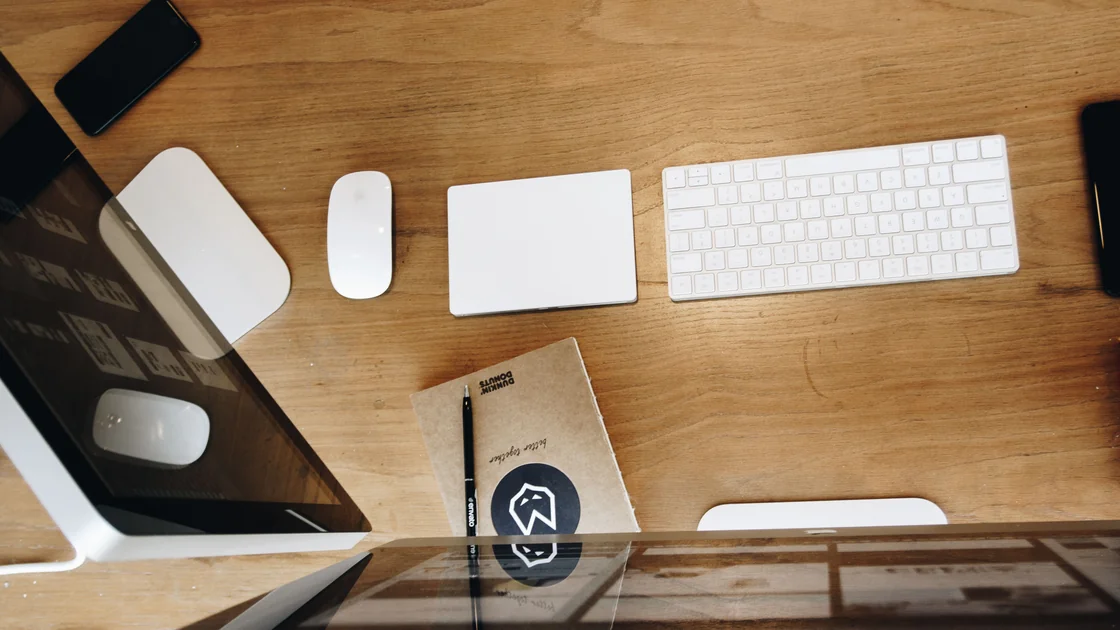

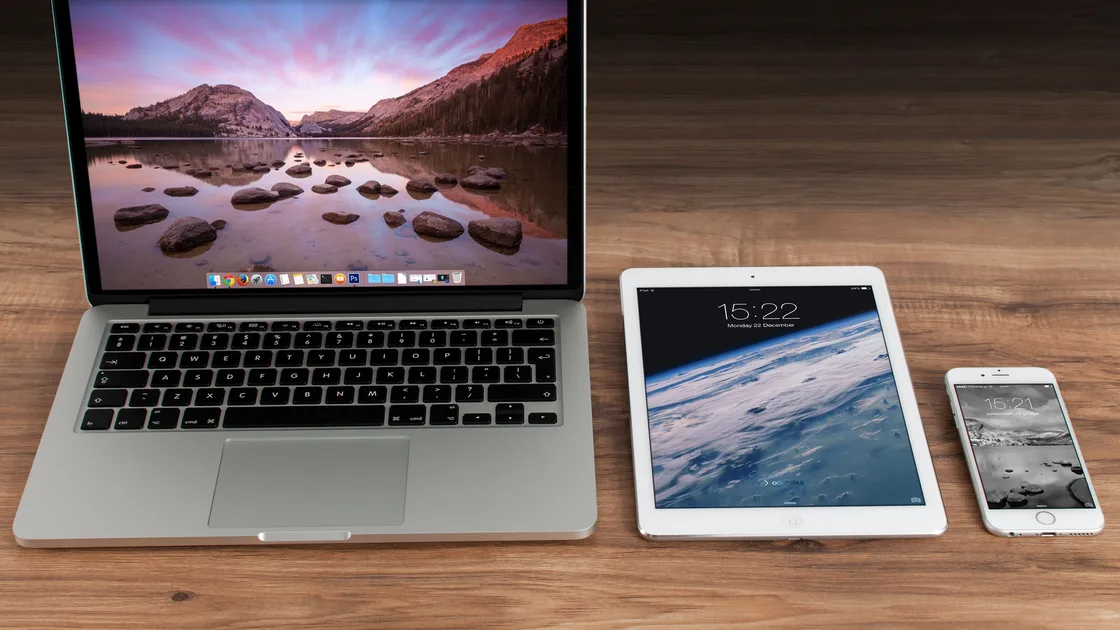
When you find Universal Clipboard not working between a Mac, iPhone, or iPad, a requirement is usually missing: both devices must be compatible, near each other, signed in to the same Apple Account, and have Wi-Fi, Bluetooth, and Handoff turned on, and the copied item stays available for only a short time. Prove that copy and paste works locally on each device first, then test both directions with a newly copied line of plain text.
Many people search for it as AirDrop copy and paste, but Universal Clipboard is a separate Continuity feature. It is not AirDrop, iCloud file synchronization, local clipboard repair, or a third-party clipboard manager; keep those paths separate so that a local app problem is not mistaken for a Continuity failure.
Key Takeaways
- Test local copy and paste on both devices before testing the cross-device path.
- Both devices must be compatible, nearby, signed in to the same Apple Account, and have Wi-Fi, Bluetooth, and Handoff enabled.
- Copy a fresh short text sample and paste promptly; Universal Clipboard content remains available only briefly.
- Compare both directions and more than one app to identify a single-device or content-type problem.
- Do not sign out of the Apple Account, delete system files, kill system services, or reset networking as first steps.
The device and app troubleshooting guide provides the broader one-app, one-device, and one-network comparison method.
On the first device, type a short non-sensitive line in a built-in text app, copy it, and paste it back into the same app. Repeat on the second device. Do not use a password, verification code, private message, photo, or file for the first test.
| Result | Likely scope |
|---|---|
| Local paste fails on one device | That device, app, selection, keyboard, permission, or clipboard manager |
| Local paste works on both, cross-device fails both ways | Continuity requirements, account, radios, Handoff, distance, or policy |
| Mac to iPhone works but iPhone to Mac fails | Direction-specific device, app, or receiving state |
| Plain text works but one image or file does not | App or content-type support, size, file state, or macOS file requirement |
| One app fails but built-in text apps work | App-specific copy or paste behavior |
If local copy fails, solve that first. Quit and reopen the affected app, confirm text is actually selected, and compare another built-in app. A third-party clipboard manager, remote-desktop client, security tool, or managed policy can also intercept or restrict clipboard data.
Keep a note of the exact source app, destination app, content type, direction, and time. “Copy from Mac Notes to iPhone Notes fails” is more useful than “clipboard sync is broken.”
Apple says Universal Clipboard works when compatible devices are near each other, signed in with the same Apple Account, and have Bluetooth, Wi-Fi, and Handoff turned on. The copied content is automatically added to the nearby device’s clipboard and remains there briefly or until either device copies something else.[1]
Check the Apple Account shown on each device without posting the address publicly. Family Sharing does not make two different Apple Accounts equivalent for Universal Clipboard. A work and personal account on separate devices will not satisfy the same-account requirement.
Open the currently available Handoff setting on each device and verify it is enabled. Menu paths change across macOS, iOS, and iPadOS releases, so use the search field in Settings or System Settings rather than following screenshots from an unrelated version.
Turn on Wi-Fi and Bluetooth on both devices. They do not need to be joined to an unknown public network for this test. Keep them on the same trusted local environment when possible and place them on the same desk.
Restart the observation with a fresh string such as clipboard test 10:42, using the current time so you can distinguish it from an old clipboard item. Copy it on device A and immediately paste it into a new blank note on device B. Wait only long enough for a normal Continuity exchange; do not queue many copies.
Then reverse the direction with a different string. Record whether either direction works. Copying something else on either device replaces the available item, and waiting too long can allow the brief cross-device clipboard window to expire.
Keep both devices awake, unlocked, and near one another for the test. Do not start with a large photo, formatted table, file, password-manager secret, or content from a remote desktop session. Plain text removes content-size and app-format variables.
If text works, test one small image only if the destination app normally accepts images. If Mac-to-Mac file copy is the goal, verify the system-version requirement and use a small non-sensitive file. Universal Clipboard is not a file-history service and does not expose an archive of previous copies.
Use a small matrix: Mac to iPhone, iPhone to Mac, built-in text app to built-in text app, and then the affected app. You do not need every combination; use enough comparisons to identify the boundary.
A one-way failure points toward the receiving state of one device or the source app in that direction. A single-app failure points toward that app’s clipboard support, privacy controls, remote-session behavior, or managed policy. Plain text working while a file fails points toward content support, file availability, or system-version requirements.
Temporarily quit third-party clipboard managers on both devices if doing so is permitted and you know how to restore them. Do not delete their databases or grant broad permissions. On a managed device, ask the administrator before disabling a required security or data-loss-prevention tool.
AirDrop working does not prove Universal Clipboard is healthy; it uses a different user flow and transfer contract. Likewise, an iCloud file appearing on both devices does not prove the clipboard path. Use the AirDrop guide only when the actual failure is AirDrop discovery or transfer.
Install available Apple software updates after saving work and confirming that both devices can complete the update safely. Apple’s compatibility document lists minimum hardware and operating systems for Continuity features; Universal Clipboard requires supported iPhone, iPad, Mac, or Apple Vision Pro combinations, and whole-file copy between Macs has its own macOS requirement.[2]
Do not assume that every device capable of AirDrop supports every Continuity feature. Check the exact model and software version. If one device is too old for the documented requirement, use AirDrop, Messages, a supported file service, or another appropriate method instead of forcing hidden settings.
Restart both devices after recording the comparison results. Then recheck Handoff, Wi-Fi, Bluetooth, account, and distance once. A restart is less destructive than signing out of the Apple Account or resetting network settings.
Do not force-quit Continuity daemons, delete preference files, run undocumented Terminal commands, or remove the Apple Account as an early fix. These steps can disturb other services and erase useful evidence without addressing compatibility or policy.
Work and school devices may restrict Handoff, account use, cross-device clipboard, local discovery, or content movement through management and data-loss-prevention policy. If a setting is unavailable, locked, or immediately reverts, do not remove the profile. Ask the administrator whether Universal Clipboard is allowed between those devices and accounts.
Keep devices close and avoid a heavily segmented guest network for the comparison. If AirDrop, screen casting, and other nearby features also fail, the local discovery environment may need administrator review. If one device is joined to a guest network, check what that guest network isolates before blaming Continuity. Do not disable the firewall or router isolation globally.
Apple’s Mac guide describes copying on one device and pasting on another through the same Continuity requirements; it is not an iCloud clipboard history and does not promise long-term storage.[3] Treat sensitive clipboard data carefully because it becomes available to another nearby device signed in to the same account during the brief window.
For escalation, provide device models, operating-system versions, Apple Account relationship, Wi-Fi/Bluetooth/Handoff states, distance, local-copy results, both cross-device directions, apps and content types tested, management status, and exact first failing time. Do not post the account address or copied content publicly.
When Universal Clipboard is not working, first prove local copy and paste on each Apple device. Then verify compatibility, the same Apple Account, Handoff, Bluetooth, Wi-Fi, proximity, and a fresh short-text test within the brief clipboard window. Compare both directions and more than one app. Use updates and restarts before disruptive account or network changes, and hand managed restrictions to the administrator.
No. Apple describes the copied item as available briefly, or until it is replaced by another copy. It is not a clipboard archive.
Yes. Family Sharing between different accounts does not replace the same-account requirement for Universal Clipboard.
Yes. Apple lists both Wi-Fi and Bluetooth, along with Handoff and proximity, as setup requirements.
Test local paste on the iPhone, then compare a built-in text app and a fresh sample. A one-way result narrows the issue to one receiving state, source app, or policy path.
Files have additional app, availability, size, and macOS-version requirements. Confirm the file is local and use Apple’s compatible Mac-to-Mac file guidance.
Not as an early step. It affects many services and can create new synchronization or recovery work. Check the account identity, requirements, radios, Handoff, and restart first.
No. AirDrop is an explicit nearby transfer flow, while Universal Clipboard makes a recent copied item briefly available for paste on another compatible device. If AirDrop works but copy and paste does not, check Handoff and the same Apple Account rather than AirDrop settings.
Yes. Organization policy can restrict Handoff, accounts, local discovery, or clipboard movement. Do not remove management profiles; ask the administrator.
Sources checked 4 October 2026.
This article covers Apple Universal Clipboard. Follow the current requirements for the exact device, software version, account, and organization.
Sign up to experience all premium features at no cost.
*Available only to new users. Each user is limited to one trial.