Start your 3-day free trial
Sign up to experience all premium features at no cost.
*Available only to new users. Each user is limited to one trial.
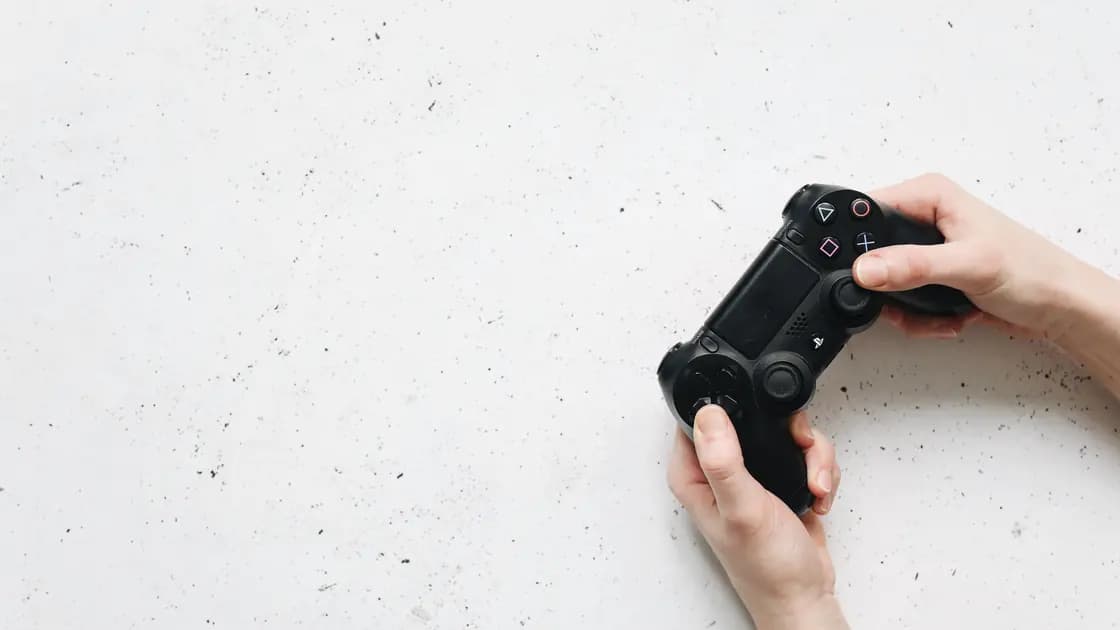

If game controller buttons are mapped incorrectly, identify the first layer where the physical press changes meaning. Test raw input outside the game, then inspect game bindings, platform accessibility assignments, controller profiles, launcher translation, and third-party remappers in that order. This is not an input-lag or controller-detection guide.
Key Takeaways
- Record physical button, reported input, and in-game action as three separate facts.
- Preserve accessibility mappings and custom profiles before changing them.
- Test the operating system before resetting a game's controls.
- Run only one translation or remapping layer during a controlled test.
- Remove duplicate virtual devices only after identifying which tool created them.
The streaming and gaming hub connects broader game diagnostics. If presses arrive late, use the controller input-lag guide; if no button registers at all, start with the cloud-controller detection guide. If the buttons are correct but the game uses the wrong language or regional layout, follow the game language and region guide.
Use a menu or training area where a wrong action cannot delete progress or spend currency. Note the controller model, wired or wireless connection, platform, game, launcher, and active profile. Do not factory-reset the controller or erase every binding before preserving the configuration that may be an intentional accessibility setup.
Build a three-column record for five or six controls: physical label, input reported by the platform, and action produced by the game. Include both face buttons, one shoulder button, a stick click, and a menu button. This reveals whether the mapping is a simple swap, a shifted profile, or a compound assignment.
Test one short press at a time. Toggle or turbo behavior can make one press look like repeated input, while simultaneous assignments can trigger two commands. Photograph or export any intentional custom layout before editing it.
Check whether on-screen prompts match the physical controller family. Prompts can show one platform's symbols while the game accepts another layout correctly. A prompt mismatch is a display issue unless the resulting action is also wrong.
Repeat the sample after returning to the same menu or training scene. Keeping the context fixed prevents normal gameplay state from looking like a mapping change.
Open the operating system's controller test panel or the controller maker's official diagnostic. Press each recorded button and observe the raw button number or control name. Do not launch the game, launcher configuration screen, or remapper during this baseline if they can intercept input.
If the raw test is already wrong, inspect the controller's onboard profile, mode switch, firmware tool, or hardware configuration before touching game bindings. If raw input is correct but the game action is wrong, the physical controller and basic connection have passed this layer.
Repeat once over a direct wired or Bluetooth connection if a wireless adapter exposes a different device mode. Do not confuse connection reliability with mapping: missed presses belong to detection or latency, while consistently swapped presses indicate translation.
Open the game's Controls, Input, or Key Bindings page and compare it with your record. Look for alternate layouts, left-handed mode, presets, and separate bindings for gameplay, menus, vehicles, or accessibility contexts. A correct gameplay layout can coexist with a changed menu layout.
Save or photograph the current preset. Restore the default only for the affected context if the game offers that scope, then test in a safe area. Reapply intentional changes one at a time instead of importing an old profile immediately.
If only one game is affected and raw input is correct, this layer is the strongest candidate. If the wrong mapping appears in multiple games, continue outward before reinstalling any title.
Inspect the console or operating system's accessibility controller settings. Apple devices can customize controller buttons and can add controls for a specific app when supported.[1] PS5 accessibility settings also provide Custom Button Assignments for the DualSense wireless controller.[2]
Record whether the mapping is global, controller-specific, or game-specific. Preserve it if it supports a user's mobility, comfort, or access needs. For a diagnostic, switch to an unmodified base profile or disable the assignment temporarily, then restore it after the test.
Do not call a deliberate accessibility mapping “corrupt.” If the base profile fixes the game, decide whether the game binding should adapt to the accessibility profile rather than erasing the platform setting.
Check hardware and platform profile indicators, shortcut buttons, and profile names. Pro controllers and adaptive controllers may store several layouts and switch them without opening a settings page. A borrowed controller can also carry an onboard mapping from another device.
Select a documented base or default profile and repeat the raw-input test. If the report changes, export or photograph the custom profile before editing it. Update firmware only through the manufacturer tool and only after configuration evidence is saved.
If the controller has a physical mode switch, confirm the expected mode for the platform. Changing between XInput, DirectInput, Switch, or mobile modes can alter labels and button numbering; use the manufacturer's instructions rather than trial-and-error resets.
Inspect the launcher-level controller configuration for the affected game. A launcher can translate a physical controller into another type, apply a community layout, or remap buttons before the game sees them. Compare the active per-game layout with the raw operating-system result.
For one controlled launch, disable only the per-game translation layer or choose a known default template. Keep the game's own bindings unchanged during this test. If actions become correct, rebuild the launcher layout rather than resetting the controller and game together.
Some games require a launcher input layer for unsupported controllers. In that case, do not leave it disabled as the final answer. Restore it and correct the smallest conflicting assignment.
Close third-party remappers, macro tools, virtual gamepad drivers, remote-play clients, and controller overlays one at a time. Then inspect the game or launcher device list. One physical controller can appear alongside a virtual copy, causing inputs to be translated twice or assigned to the wrong player.
Do not uninstall drivers at random. Identify the process or tool that created the virtual device, disable its output through the documented control, and reboot only if the tool requires it. Retest raw input and the game after each change.
If an overlay alone is broken while gameplay remains correct, use the game-overlay diagnostic. Mapping and overlay rendering have different owners.
Save the physical-to-raw-to-action table, controller model and firmware, connection type, selected hardware profile, platform accessibility state, game preset, launcher layout, and list of remapping tools. Record the single layer whose removal corrected the action.
Remove account names, controller serial numbers, and unrelated macros before sharing screenshots. State whether the fault affects menus, gameplay, one title, or every title. Support needs a reproducible mapping, not only “A and B feel wrong.”
Button meaning can be changed by game bindings, accessibility assignments, firmware profiles, launcher layouts, remappers or a virtual gamepad. Keep one input layer active at a time so the comparison identifies the owner of the wrong mapping.
A regional layout, platform accessibility assignment, controller profile, or launcher template may exchange those actions. Compare raw input with the game action before resetting anything.
No. A game can display symbols for another controller family while the intended action still occurs. Treat it as mapping only when the action is wrong too.
No. Preserve the current layout and test a base profile first. A full reset can erase intentional accessibility or game-specific work.
They can, but two translation layers may transform the same press twice. Disable one layer for a controlled test and keep the layer the game actually needs.
A remapper, remote-play tool, or virtual gamepad driver may expose a second device. Identify its owner before disabling or uninstalling it.
Firmware or an onboard profile can change how the controller reports controls. Use the manufacturer's official tool and preserve profiles before updating.
No. Button mappings are local configuration. A VPN cannot alter raw controller input, platform assignments, or game bindings.
Sources:
Sources checked 10 September 2026.
Related Articles:
Sign up to experience all premium features at no cost.
*Available only to new users. Each user is limited to one trial.


