Start your 3-day free trial
Sign up to experience all premium features at no cost.
*Available only to new users. Each user is limited to one trial.
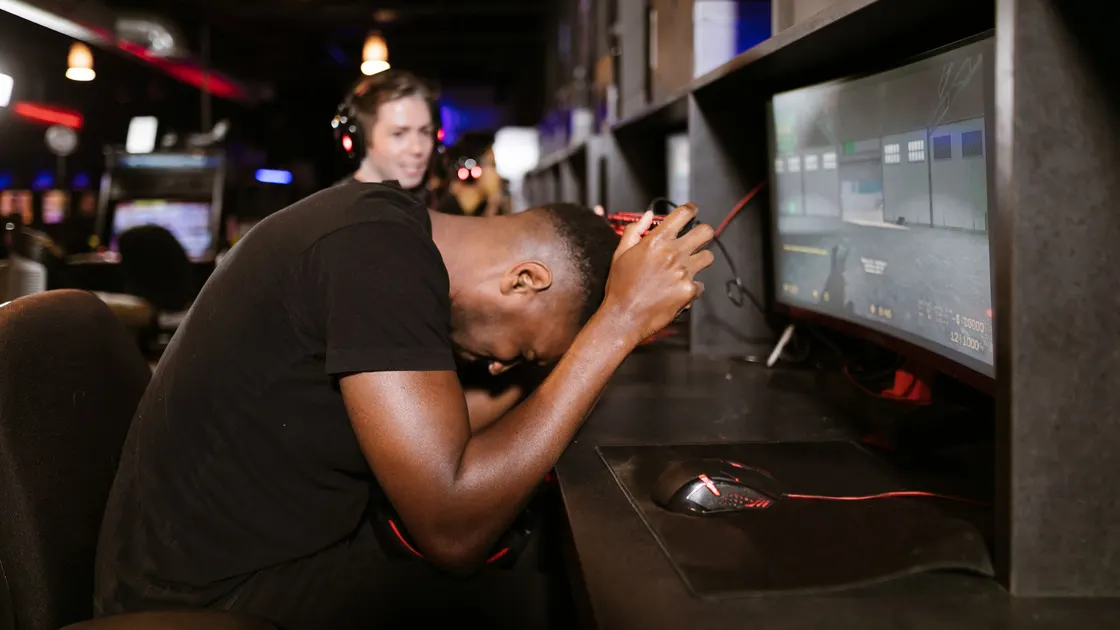

An online game error that appears while websites still load usually means the game session failed, not your whole connection: the game service, your client or account session, or brief packet loss and jitter that browsing hides. When an online game keeps disconnecting, a browser that still opens pages does not prove the game path is stable, because a live match depends on a continuous session and packets arriving consistently. Classify the failure, check the game service and client first, then compare Wi-Fi, packet loss and jitter, route, and only finally documented NAT behavior.
Key Takeaways
- “The internet works” can coexist with brief loss, jitter, or a broken game session.
- Check the publisher service, maintenance, game build, login session, and anti-cheat before changing the router.
- A wired or close-range Wi-Fi comparison is more useful than a single speed-test number.
- Change one variable at a time and restore changes that do not produce a repeatable result.
- Do not use DMZ, disable security controls, or forward a generic list of ports.
For general entertainment context, use the streaming and gaming overview. This guide focuses on disconnects from established online-game sessions, not download failures, cloud-stream image quality, or simply lowering ping.
Write down exactly when the disconnect occurs. The moment and scope narrow the failing layer more reliably than the message “connection lost.”
| Symptom | Most useful first comparison |
|---|---|
| Cannot sign in or enter the online menu | Publisher/platform status, account session, entitlement, client version |
| Disconnects while joining a lobby | Matchmaking region, party state, cross-play, version mismatch |
| Enters a match, then drops after minutes | Service incident, session expiry, Wi-Fi interruption, loss or route instability |
| Only one title disconnects | That title's service, build, anti-cheat, files, or account |
| Several real-time apps drop together | Local link, router, ISP path, or device power behavior |
| Browser and downloads continue during the drop | Short interruption, packet loss, jitter, UDP/realtime path, or game session |
Record the game, platform, build number, server or region if shown, exact error, local time and time zone, connection type, match duration, and whether party members were affected at the same moment. If the game returns to the menu but voice chat stays connected, note that too; separate services can fail independently.
Open the official status page for the publisher and the platform. Activision, for example, provides an Online Services page organized by title and platform.[1] A green global summary is useful but not conclusive: check the affected title, platform, region, maintenance notice, and recent support reports.
Confirm the game and launcher are fully updated. A client can sometimes reach menus yet lose compatibility when it joins a server. Restart the game once, let the launcher finish any pending verification or anti-cheat update, and sign in again if the service reports an expired session. Make sure the device date and time are automatic because a badly wrong clock can interfere with authentication.
If only one account fails on the same device and network, check enforcement notices, parental controls, subscriptions, platform entitlements, and linked publisher accounts. Do not create another account to evade a restriction. If only one game fails while another online title stays connected for a comparable period, keep the investigation at the game/client layer until evidence points elsewhere.
A disconnect message may describe the result rather than the cause. Save the exact code before restarting. Look for a crash, anti-cheat notification, launcher sign-out, corrupted-file warning, duplicate-login alert, or sleep/background event at the same time.
Close duplicate launcher sessions and stop signing into the same game account on another PC or console during the test. Verify files only through the launcher's documented function; do not delete random game folders. If an update is failing, switch to the dedicated game update troubleshooting guide instead of treating installation failure as a live-session network problem.
Temporarily remove unsupported overlays or mods only when the publisher identifies them as incompatible, and preserve the original configuration. Do not disable anti-cheat, antivirus, or the operating-system firewall to “see if it helps.” Those changes weaken the device and may cause a different failure without proving the original cause.
EA's connection guidance recommends wired Ethernet because it is generally more stable than Wi-Fi, and it also calls out signal strength, interference, and router placement.[2] If possible, play one comparable session over Ethernet. If wired is not available, move temporarily into the same room as the router, use the intended access point, and stop the device from roaming between mesh nodes during the test.
Do not treat a high download speed as a stability certificate. Run a longer ping or the platform's connection-quality test while observing the game. Look for intermittent loss, latency spikes, or large jitter, not just the average. EA's connection-quality material separates ping, jitter, and packet loss because each affects online play differently.[3] The latency, jitter, and packet-loss guide explains those measurements without turning this article into a general network tutorial.
Pause large uploads, cloud backups, live streams, and downloads for one controlled match. Check whether the device or Wi-Fi adapter enters power saving, especially if drops occur after a predictable idle interval. If the same device drops on Ethernet, do not keep changing Wi-Fi channels; move to the route and service comparisons.
Restart the game before restarting the whole network. If several real-time services fail, reboot the modem or router once using the vendor's normal process and wait for it to fully reconnect. Avoid repeated resets and do not factory-reset equipment unless the provider's support process specifically requires it and the configuration is backed up.
Compare another trusted network only if practical, such as a personal mobile hotspot with adequate data and a stable signal. A successful short test on another network shows that the original path participates, but it does not identify whether the cause is Wi-Fi, router firmware, ISP congestion, carrier routing, or the game edge. Repeat the comparison at a similar time and session length before drawing a conclusion.
Keep the original result, comparison result, server region, and time. Do not cycle through many endpoints until one happens to survive a short match, because that produces weak evidence and can introduce account-security prompts or a more distant route.
NAT type matters mainly when the game or platform specifically reports peer reachability, party-hosting, or matchmaking restrictions. It is not a universal explanation for a session that starts normally and later drops. Compare the platform's network test and the exact error before touching router rules.
Never place a console or PC in DMZ, disable the firewall, or forward a generic “gaming ports” list. If the publisher or platform documents a port requirement for this exact title and symptom, follow the current narrow instructions and the router maker's procedure, record the old state, and remove rules that do not change the result. See the port-forwarding guide for the security trade-offs.
Double NAT or carrier-grade NAT can affect hosting or peer-to-peer reachability, but changing it usually requires the router or ISP, not random local rules. Ask support whether the title uses dedicated servers or peer hosting and whether the observed NAT classification is supported. A strict NAT label without a matching symptom is not enough evidence.
Before contacting game support, collect the title and build, platform and OS, account region, server/playlist, exact error, timestamps and time zone, session duration, wired/Wi-Fi state, service-status result, and whether other games or real-time apps failed. Include two or three controlled comparisons rather than a long list of unrelated changes.
For ISP support, provide evidence that several real-time services show loss or interruption on the same local baseline. Include modem/router model and firmware, whether Ethernet reproduces it, approximate route or hop where loss begins if a trustworthy test shows one, and time-of-day pattern. Do not send passwords, session tokens, full account identifiers, or unredacted diagnostic archives.
A strong report says: “Build 1.42 on wired PC disconnects from two 15-minute matches at 20:10 and 20:27 UTC+8; official service page was normal; browser downloads continued; another online title stayed connected; exact code ABC-123.” That gives support a service, session, and route boundary they can investigate.
It usually names the stage that failed, such as sign-in, the lobby, or a live match, rather than the cause. Save the exact code, look it up on the publisher's support site, and check service status before changing the network. EA notes that very high ping can cause visual stuttering and even disconnect you from a match, so watch latency during the session too.[3]
Web pages use short requests and retry mechanisms. A game needs a continuous authenticated session and timely packets, so a brief loss or route problem may end the match without making ordinary browsing look offline.
No. Throughput can be high while packet loss, jitter, roaming, or brief interruptions still break real-time play. Compare a stable session and inspect variation over time.
That title may have a service incident, outdated build, anti-cheat or file issue, account restriction, different server region, or unique route. Test another title for a similar duration before changing the whole network.
No. Restart it once only when evidence points beyond one game or device. Repeated resets erase the timing pattern and can hide an unresolved service or line issue.
No. NAT is more directly relevant to peer reachability, hosting, and some party or matchmaking paths. Use the platform's documented interpretation and the exact symptom.
No. DMZ and broad port rules increase exposure and rarely isolate the cause. Use only title- and platform-specific current guidance after a matching reachability error.
Send the build, platform, exact error, timestamps, server or playlist, session duration, service-status result, connection type, and controlled comparisons. Redact account and security data. AethoVPN can be one controlled route comparison for game disconnects, but server outages, Wi‑Fi drops, client updates, and account kicks need separate evidence.
Sources checked 4 October 2026.
Sign up to experience all premium features at no cost.
*Available only to new users. Each user is limited to one trial.