Start your 3-day free trial
Sign up to experience all premium features at no cost.
*Available only to new users. Each user is limited to one trial.
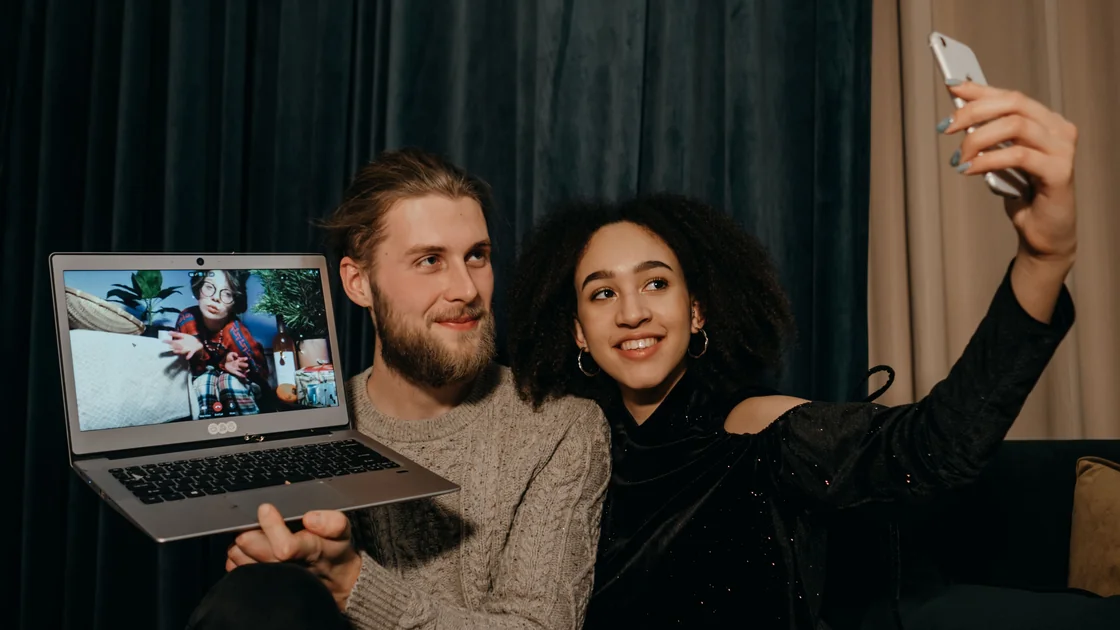

When a watch party or group streaming won’t sync, or one person sees the picture but hears no sound, find the first stage that fails: invitation, eligibility, host control, that device's audio output, buffering, or timeline drift. Group viewing coordinates several authorized players; it does not replace each participant's account rights, device support, or stable playback.
Key Takeaways
- Classify the first failure before repeatedly recreating the room.
- Verify current feature support and app versions for every participant.
- Confirm that each person can play the same title independently.
- Keep one host and remove duplicate sessions or idle playback devices.
- Measure who pauses or drifts, when it happens, and whether buffering occurs first.
The streaming troubleshooting hub covers wider problems. If one person's picture and sound are misaligned even outside the group, use the audio/video sync guide.
Record the first point where expected behavior stops:
| Symptom | First owner to check |
|---|---|
| Invite never arrives | Messaging, account contact, or session link |
| Invite opens but join fails | Feature support, app version, or eligibility |
| One person cannot start the title | That participant's subscription or catalog |
| Play and pause affect only some people | Host role or stale session membership |
| Everyone starts together, then one falls behind | Buffering, backgrounding, or device load |
| One device has sound ahead of picture | Local audio/video sync, not group time |
| One person has picture but no sound | That device's volume, mute, or audio output route |
| Session ends when someone leaves | Host or room ownership behavior |
Write down service, title, country, participant count, host, device types, app versions, invitation method, and timestamps. Use neutral labels such as Host, A, and B instead of names. Do not share invitation links publicly because they may expose session or account context.
First test whether all participants can join a new room without starting playback. Then test a short, widely available title. This separates session establishment from title-specific access.
Group-viewing support changes by service, device, operating system, app version, and account type. Check the provider's current official instructions immediately before testing; do not rely on an old compatibility list or a menu shown in a tutorial video.
Apple says SharePlay plays supported video in sync during a FaceTime call, others may need to tap Join SharePlay, and every participant needs their own access through a subscription or purchase on a device that meets the minimum requirements. It also says some content may not be shareable across different countries or regions.[1] These statements apply to Apple's SharePlay environment and participating apps.
YouTube says SharePlay with YouTube is currently available only on iPhone and iPad, requires sign-in with a personal Google account, and must be started by a YouTube Premium member; other participants can join without Premium.[2] Follow the live page because support and eligibility can change.
For each participant, record the operating system and app version, update normally, and restart the app. If one unsupported device is the only failure, move that participant to a documented supported device rather than repeatedly rebuilding the session.
End the group session and ask each participant to open the exact title, edition, episode, and timestamp on their own. Confirm that playback starts for at least a minute. A successful host cannot lend catalog rights to another account unless the platform explicitly documents such behavior.
Check each person's subscription status, add-on channel, rental or purchase, profile maturity level, and current country. Do not collect account passwords or payment details. A simple result—“title plays independently” or the exact provider error—is enough.
If one account receives a concurrent-stream limit, follow the too-many-devices guide. Do not sign unknown devices out until the account owner reviews them. If the title itself buffers outside the party, follow the streaming buffering guide.
Never use a group session to bypass a subscription, rental, regional catalog, age restriction, or participant limit. Eligibility errors are policy or entitlement boundaries, not synchronization defects.
Identify who created the call or room and who started playback. Keep that device in the foreground, connected, and powered. Avoid transferring control while diagnosing. If the service allows shared controls, ask everyone except the host to stop touching play, pause, seek, and skip for one short test.
Close old invitations and stale rooms. A participant may have joined yesterday's link, a second call, or a normal independent player. Compare the visible participant list with the people actually present, without exposing personal names in screenshots.
Use this clean-room sequence:
If a session always breaks when the host leaves, check the platform's current ownership behavior. Do not assume another participant automatically becomes host.
Ask each participant to check televisions, browsers, phones, tablets, casting targets, and media players using the same account. Stop only recognized idle playback. A forgotten browser tab or television can consume a stream slot or continue sending controls.
Avoid having the same person join the call on one device while streaming independently on another unless the provider explicitly supports that arrangement. Test headphones and casting later; first keep audio and video on the same supported device.
On phones and tablets, disable battery-saving restrictions only for a short documented test, keep the app foregrounded, and prevent the screen from locking. Incoming calls, Bluetooth handoffs, or operating-system media controls can pause one player without ending the room. If a participant must switch apps, use Picture in Picture, which Apple documents for continuing to watch while using another app.[1] Treat sending the streaming app fully to the background as a separate test, because it can interrupt playback on that one device.
If an unrecognized device appears, the account owner should secure the account through official settings. Do not remove every device simply to improve synchronization.
Group synchronization can correct small timing differences, but it cannot make a stalled participant download video faster. Each person should record the group timestamp immediately before and after a pause, whether a loading indicator appeared, and whether audio continued.
Compare participants separately. Keep the same title and room while one affected person tests a stable alternate connection. If the problem follows that device across networks, local app or device load is stronger. If it follows one network across devices, inspect Wi-Fi and path quality. Do not change every participant's network together.
AethoVPN may alter one participant's network path, but it cannot grant title access or guarantee group synchronization. If it is already in use, compare the ordinary authorized path and one controlled alternate path for the affected participant only; keep country and account eligibility compliant.
Record latency symptoms rather than relying on a single speed test. Repeated short buffering events, Wi-Fi roaming, packet loss, or background downloads can matter even when headline bandwidth looks high.
Use a graduated recovery sequence:
After each step, note the starting timestamp and time until drift. Recreating the room after every tiny pause hides whether the cause was buffering or stale membership. Reinstall only after confirming sign-in recovery and proving that the same account works on another device.
If the feature disappeared after an update, consult the current official support page. A retired or restricted feature cannot be restored by clearing cache.
Provide one timeline with anonymous participant labels, host identity, device and app versions, countries, title and edition, join method, independent playback results, and the first failed action. Include measured drift, such as “B was 18 seconds behind after buffering at 12:04,” rather than “we were out of sync.”
State whether the invite failed, access was denied, controls diverged, or playback drifted. Mention duplicate-device checks, updates, rejoin attempts, and the clean-room result. If the provider asks for diagnostics, use its official collection method.
Redact names, emails, phone numbers, invitation URLs, account IDs, IP addresses, and call notifications. Do not send passwords, payment information, session tokens, or another participant's private logs.
Each participant may need their own subscription, purchase, or regional access. The host's successful playback does not automatically grant rights to everyone.
No. Group drift means participants are at different program timestamps. Audio/video sync means sound and picture differ on one player even outside the group.
The cause is usually on that device. Apple says each person controls volume separately in SharePlay, so check that participant's media volume, mute switch, and Bluetooth or casting output before rebuilding the room.[1] If sound is also missing outside the group, treat it as a device or app problem.
No. Identify the affected participant, verify support and versions, and test rejoining first. Broad reinstalls remove evidence and may disrupt downloads.
That depends on the service and plan. Duplicate playback can consume stream limits or confuse controls, so use one supported playback device per participant during diagnosis.
The stalled player falls behind while others continue or resynchronize differently. Diagnose that participant's device and network path before changing the whole room.
No. Content and group features may have country or regional restrictions. Follow each service's current eligibility rules and do not bypass them.
Use the documented host or session creator for the controlled test. Keep shared controls idle until synchronization is proven.
Check the current official support page. Platform support can change, and an unavailable feature is not repaired by network or cache changes.
Sources checked 4 October 2026.
Sign up to experience all premium features at no cost.
*Available only to new users. Each user is limited to one trial.