Start your 3-day free trial
Sign up to experience all premium features at no cost.
*Available only to new users. Each user is limited to one trial.

Most iPhone privacy settings live in Settings > Privacy & Security: start with Location Services, Tracking, App Privacy Report, and Safety Check, then tighten Safari under Settings > Apps > Safari.[1][2][3][4][5] Do not turn every switch off. Change the settings that clearly reduce exposure without making daily use miserable.
This is not a full directory tour. It is a prioritized list of 10 settings worth checking first. If you only have 10 to 15 minutes, these changes already make a meaningful difference.
Use the digital privacy guide as the wider checklist: it connects this issue to accounts, devices, identifiers, and data-broker exposure.
Key Takeaways
- The highest-priority iPhone privacy settings are Location, App Tracking, Safari, sharing controls, and permission review.[1][2][3][4][5]
- Not every permission should be cut off blindly. The question is whether the feature truly needs that access.[1]
- App Privacy Report is useful for reviewing what data apps actually accessed.[2]
- Safety Check is better for reviewing who still shares your location, devices, and account access.[3]
- Safari's cross-site tracking prevention, privacy report, IP hiding, and private browsing features are stronger than many people remember, but private browsing mainly handles local traces.[5][7]
I have ordered these by what most everyday users should review first.
Privacy & SecurityThe usual path is:
SettingsPrivacy & SecurityLocation ServicesApple explains that you can decide app by app whether access is:
You can also turn off Precise Location separately.[8]
A practical rule: keep location for navigation, rideshare, and maps; do not give unrelated apps permanent “Always” access.
The usual path is:
SettingsPrivacy & SecurityTrackingApple's App Tracking Transparency guidance is clear: apps must ask permission before tracking you across other companies' apps and websites. You can also turn off “Allow Apps to Request to Track.”[4]
For most people, this is worth tightening early.
Under Privacy & Security, review categories such as:
Apple states that these permissions can be reviewed and revoked at any time.[1] My rule is simple: keep only permissions whose purpose you actually understand.
For a risk-based checklist, compare Is someone spying on my phone? 8 warning signs and the most practical check order.
App Privacy ReportPath:
SettingsPrivacy & SecurityApp Privacy ReportApple describes this feature as a way to see what sensitive data apps accessed over the past 7 days and which domains they contacted.[2]
It is not a blocker, but it is excellent for review. If a simple utility app frequently accesses your microphone, location, or many unfamiliar domains, reconsider whether it should stay installed.
The guides below localize the steps around Apple's official iOS 26 English interface examples; the report view appears only after you enable the feature and use apps for a while.[2]
Safety Check for sharing and access reviewPath:
SettingsPrivacy & SecuritySafety CheckApple explains that Safety Check lets you quickly review who is sharing your information, which devices are connected to your Apple account, and which apps still have system privacy permissions.[3]
Use it if you worry that:
Safari settings are usually under:
SettingsAppsSafariApple's current Safari privacy materials describe support for:
If Safari is your main browser, this has high value.
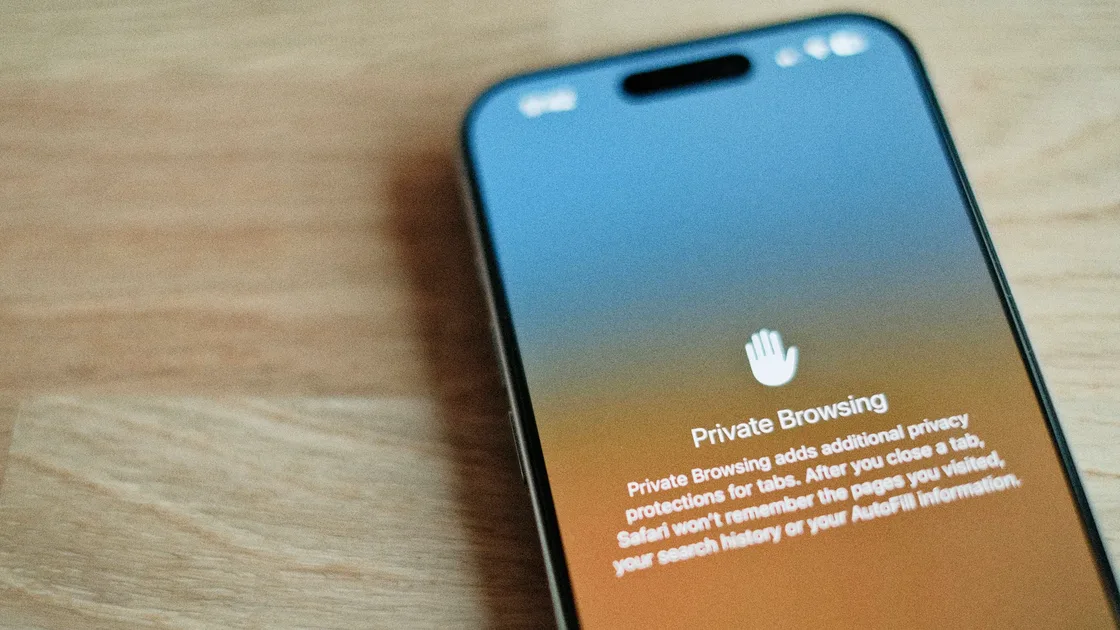
Private browsing can reduce locally saved history and search records while adding some tracking protections.[5][7] But it is not full anonymity.
For the exact boundary, read what Safari private mode does not hide.
These may not be the riskiest switches, but they are worth reviewing if you want to reduce unnecessary data sharing.
The common path is:
SettingsPrivacy & SecurityExact names can change by iOS version, but Apple keeps user choice around these privacy controls. This is a summary based on Apple's current privacy control documentation.[1][4]
Local Network and Bluetooth permissionsMany apps do not need long-term access to nearby local-network devices or Bluetooth environments. These permissions are also easy to forget after the first prompt.
If you are investigating suspicious behavior, compare How to tell if your phone is hacked: 8 common signs and check order.
This is not a classic “privacy toggle,” but it matters. CISA advises installing updates promptly and turning on automatic updates, because updates patch the security weak spots that criminals exploit.[6]
If you are more worried about malware or suspicious pop-ups, read how to check your iPhone for viruses and fake alerts.
If you do not want to overthink every switch, remember four rules:
No. A better standard is “only necessary permissions,” not blindly disabling everything.
Precise Location need to stay on?Not always. Many apps only need approximate location, not precise access all the time.[8]
App Privacy Report block apps directly?No. It is more like a visual record and review tool.[2]
It is Safari's summary of the trackers that Intelligent Tracking Prevention blocked; open it from the page menu, then Privacy & Security > Privacy Report.[5][7] It is separate from App Privacy Report in Settings, which logs app data access and contacted domains.[2] To hide the card, open a new tab, scroll to the bottom of the start page, tap Edit, and turn off Privacy Report. Tracker protection keeps running under Settings > Apps > Safari.[5][9]
Safety Check only for extreme situations?No. Even outside high-risk situations, it is useful for a full sharing-permission review.[3]
No. It mainly improves local trace handling and some tracking protection. It is not full anonymity.[4][5]
Yes. Strong system security cannot help if unnecessary permissions remain open indefinitely.
Disclaimer
This article is for general digital security education only and does not constitute official Apple technical support or a compliance assessment of any specific app. Setting names may vary by iOS version, region, and device model. AethoVPN concerns the iPhone's VPN network layer, not app tracking permission, location access, photo sharing, or Apple Account privacy settings.
Sources
Sources checked 4 October 2026.
Related Articles:
Sign up to experience all premium features at no cost.
*Available only to new users. Each user is limited to one trial.