Start your 3-day free trial
Sign up to experience all premium features at no cost.
*Available only to new users. Each user is limited to one trial.

Do phones take pictures of you every 5 seconds? No. If you think you have caught your iPhone taking pictures every 5 seconds, you are most likely seeing infrared light from the Face ID TrueDepth camera: Apple notes that some cameras can detect this light, and the same system also switches on for Attention Aware features and automatic screen checks. It does not mean the iPhone is saving photos.[1][2]
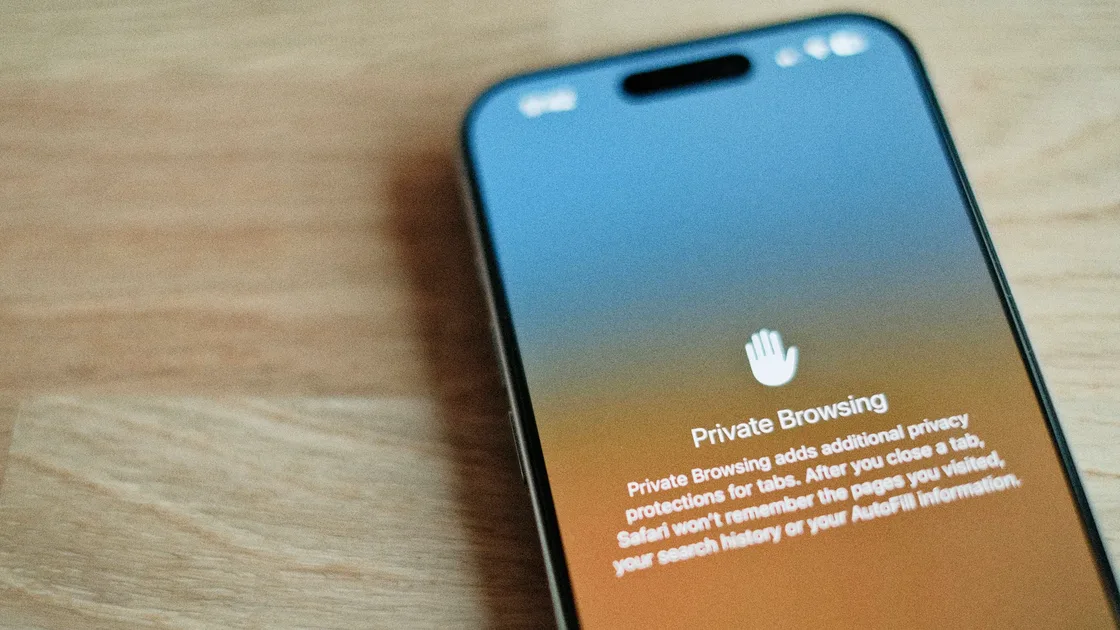
Still, do not ignore it completely. You should check camera permissions, the camera indicator at the top of the screen, suspicious apps, and configuration profiles to make sure no app is abusing access.
If you are reviewing phone privacy more broadly, use our iPhone privacy settings checklist. To connect device, account, and network exposure, start with the digital privacy guide.
Key Takeaways
- Face ID uses the TrueDepth camera system and infrared dot projection, which outside cameras may capture as flicker.[1]
- Apple says Face ID data is encrypted as mathematical representations and protected by the Secure Enclave; it does not send ordinary photos to servers.[1][2]
- Flicker does not equal photo capture. Look for the camera indicator, permission history, and suspicious apps.
- If the green camera dot appears often, or an app uses camera access without a good reason, review permissions.
- The safest process is to check Face ID, camera permissions, configuration profiles, and iOS updates.
There are three common triggers:
| What you see | More likely reason | Does it mean photos are saved? |
|---|---|---|
| Flicker near the top of the screen in the dark through another device | TrueDepth infrared dots or flood illuminator | No |
| Frequent checks when you pick up the phone or look at the screen | Face ID or Attention Aware features | No |
| Green camera indicator at the top | An app is using the camera | Check it |
Apple explains that the TrueDepth camera projects and reads depth information for Face ID. Face ID data is stored in encrypted form and is not directly available to normal apps.[1][2] When an app uses hardware features such as the camera or microphone, permission settings and status indicators help you confirm what is actually being used.[3][4]
The first step is to separate infrared sensing from photo capture.
More precisely, iPhone uses TrueDepth-related sensors when it needs to unlock, authenticate, detect attention, or support screen interaction. Apple also says you can turn off Require Attention for Face ID and Attention Aware Features.[1]
These checks usually determine whether you are looking at the screen, whether unlocking should proceed, whether alerts should change volume, or whether the screen should stay awake. Apple notes this can happen even if you never set up Face ID.[1]
That is not the same as “taking a photo every 5 seconds and saving it.”
Check in this order:
If you are also worried about location permissions, read what is precise location on iPhone?.
Do not dismiss it as a Face ID misunderstanding if you see these signals:
These signs do not prove surveillance, but they justify a deeper check. You can also use is someone spying on my phone? for a broader checklist.
The path is usually:
Turning them off may reduce some gaze checks, but it can also change convenience and security. Apple’s Face ID security design treats requiring attention as a way to reduce passive unlock risk.[1]
So I would not turn everything off blindly. First confirm whether you saw infrared flicker or actual app camera access.
If you plan to sell or give away the device, read how to wipe a phone completely.
iPhone taking pictures every 5 seconds is usually Face ID or TrueDepth infrared sensing being mistaken for photography.Usually no. Flicker seen through another camera often comes from the Face ID TrueDepth infrared system.[1]
Apple says Face ID data is encrypted as mathematical representations and protected by the Secure Enclave; it is not uploaded to Apple as ordinary photos.[1][2]
The green dot usually means the camera is being used. If you did not open a camera-related app, review camera permissions.
No. There is no sign that phones save a photo of you every few seconds. On Android 12 and later, an indicator appears in the status bar whenever an app uses the camera or microphone, and tapping it shows which app it was.[5] If it appears while you are not using a camera app, review that app's camera permission.
Yes. Attention Aware Features is in Face ID & Passcode, and Require Attention for Face ID is under Accessibility > Face ID & Attention. Turning them off may affect unlock security and convenience.[1]
No. A VPN protects network connections. It does not control local camera permissions. Camera concerns must be checked through permissions, apps, and system settings.
Turn off the permission, then uninstall the app. If you also see unusual heat, battery drain, or unknown profiles, continue with a full security check.
Disclaimer: This article is for general privacy and device settings information only and does not constitute forensic, security audit, or legal advice. Feature names may vary by iOS version.
Sources:
Sources checked 4 October 2026.
Related Articles:
Sign up to experience all premium features at no cost.
*Available only to new users. Each user is limited to one trial.