Start your 3-day free trial
Sign up to experience all premium features at no cost.
*Available only to new users. Each user is limited to one trial.
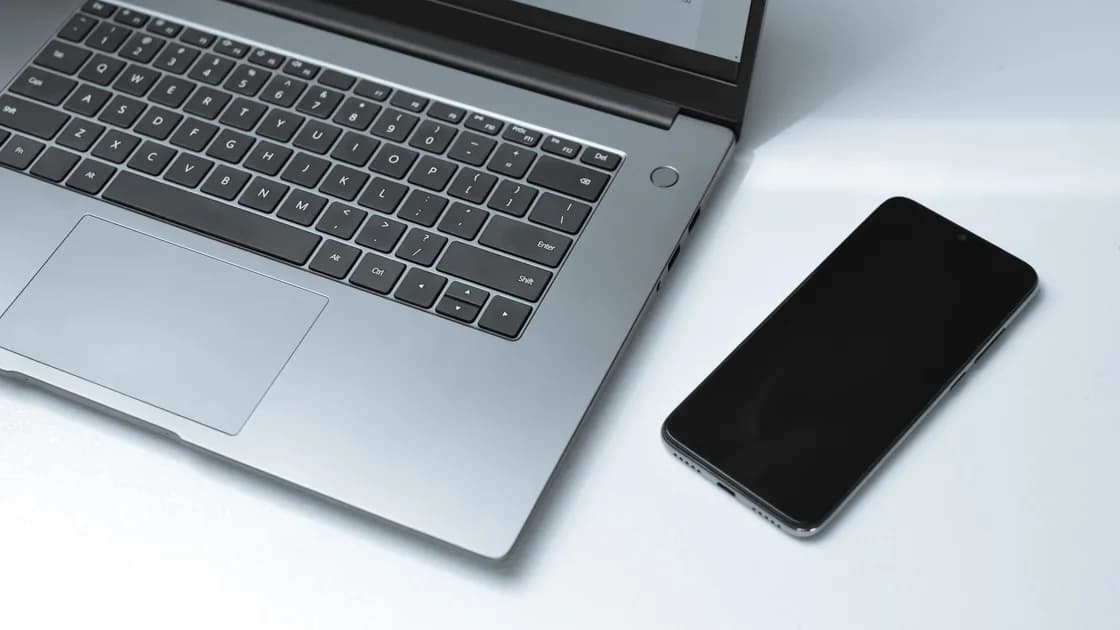

Yes, you can usually use your phone as a hotspot while traveling abroad if your roaming plan allows tethering. Confirm that, then meter data.
Key Takeaways:
- Verify roaming and tethering eligibility with the carrier before departure.
- Use a unique password, connect only necessary devices, and turn the hotspot off afterward.
- Treat laptops and tablets as metered clients: pause large updates, backups, and media downloads.
- A connected client does not automatically inherit the VPN running on the hotspot phone.
Use this guide alongside the international travel preparation checklist. If you are still choosing a connection method, compare a phone or portable hotspot with public Wi-Fi.
The hotspot consumes the phone's mobile data. Its cost, speed, availability, and device limit depend on the carrier, plan, destination network, and phone; verify each condition for the actual trip.
Confirm four separate layers:
Do not infer tethering from a roaming icon. A plan may allow data on the phone but restrict or meter hotspot data differently. Apple notes that Personal Hotspot requires a carrier plan that provides the feature.[1] Google similarly says that some mobile operators limit or charge extra for tethering.[2] These are prompts to check the specific account, not universal pricing claims.
Before departure, ask the carrier or inspect the official account information for:
Record the answer without copying full account credentials into a travel note. A screenshot of a plan name is less useful than the official terms and the date they were checked.
An international travel phone hotspot should be easy for you to recognize and difficult for a stranger to join.
Do not share the password in a public group chat or leave it displayed at a café or gate. If a companion no longer needs access, change the password when the phone cannot remove that client individually.
Bluetooth or USB tethering may be useful in some situations, but capability and steps differ. USB can provide a stable link and power relationship, while Wi-Fi is usually more convenient for several clients. Use only your own trusted cable and computer, and do not approve an unexpected trust or file-transfer request merely to obtain internet access.
Tethering abroad can make a laptop behave as though it has unrestricted broadband unless you intervene. Before connecting:
Take a baseline from the phone's carrier or data-usage screen, connect one client, perform a small real task, and check the change. Platform counters and carrier billing periods may not align, so use the carrier's official meter for billing decisions when available.
The phone uses battery both as a modem and a radio. Keep it ventilated, out of direct sun, and away from bedding or an enclosed bag. Charge with trusted equipment, but avoid trapping heat by running a heavy hotspot workload while fast-charging in a hot environment. If the phone becomes unusually hot, disconnect clients, stop high-bandwidth work, remove unnecessary charging, and let it cool in a safe place.
Do not assume they do. A VPN app on the phone usually protects traffic from the phone's own apps, but whether a laptop or tablet joined to the hotspot is also tunneled depends on the operating system, the VPN app, and its settings. Many setups send hotspot clients out through the carrier connection without the phone's VPN.
If the laptop needs VPN protection, run the VPN on the laptop itself and check its public IP address from that device. This separation is also explained in the guide to VPN use on cellular data. Test the real client after every change between hotel Wi-Fi, airport Wi-Fi, mobile data, and hotspot service.
Troubleshoot by symptom instead of changing every setting at once.
Do not install an unknown profile or app that promises to unlock tethering. A missing menu can reflect account provisioning, device policy, or carrier settings.
When a phone hotspot is connected with no internet, test the phone itself with Wi-Fi disabled. If the phone has no mobile data, solve roaming, coverage, account, APN, data-line, or outage issues first. If the phone works but the client does not:
Avoid copying random APN values from an unrelated carrier or country. Use the operator's official settings for the exact line.
Speed is constrained by the phone's mobile link, radio environment, plan management, phone load, and every connected client's demand. The hotspot cannot create capacity the cellular network does not provide.
Turn off the hotspot, confirm clients disconnect, and disable it from automatically reactivating if that is not wanted. Review the phone's connected-device and data-usage information. Remove or forget the travel hotspot from shared computers, and change the password if it was disclosed beyond the intended group.
Keep the phone charged for emergency calls and authentication rather than exhausting it on a nonessential laptop download. For a broader arrangement across several devices, use the multi-device travel protection guide. To understand why an eSIM and a VPN solve different problems, see the travel eSIM versus VPN guide.
Yes, the client traffic uses the phone's mobile-data connection. How it is charged or limited depends on the carrier, plan, destination, and account terms.
No. A carrier may include, restrict, meter, slow, or block tethering separately. Verify the exact plan before relying on it.
Ask the carrier, or read the official plan terms, whether the roaming pass covers hotspot use and has a separate allowance. Before departure, join the hotspot from that laptop at home to confirm the password and security mode. After arrival, load a page on the phone first, then connect the laptop and run one small task.
The limit depends on the phone, software, carrier, radio conditions, and policy. Connecting fewer devices usually improves control, battery life, and performance.
Operating-system updates, cloud sync, media, collaboration tools, and backups can run in the background. Mark the network as metered and pause unnecessary transfers.
Do not assume it does. Run and test the VPN on the laptop or other client that actually sends the traffic.
No. Turn it on for a defined session and off afterward. This reduces unwanted joins, battery drain, heat, and accidental data use.
Disclaimer: This article provides general connectivity guidance. Roaming, tethering, charges, device limits, coverage, and settings vary by carrier, plan, country, phone, and software version.
A VPN such as AethoVPN cannot create a hotspot connection or change tethering eligibility; use the connection test guide only after connectivity exists.
Sources checked 4 October 2026.
Sign up to experience all premium features at no cost.
*Available only to new users. Each user is limited to one trial.