How to Install Clash Verge Rev on Your Mac?
Clash Verge Rev is a compatible VPN client you can use with your AethoVPN subscription on macOS.
- Before you start:
- Check your Mac chip type: open the Apple menu and select
About This Mac, then look forChiporProcessor; - If your Mac uses Apple silicon, choose the Apple silicon /
aarch64version; - If your Mac has an Intel processor, choose the Intel /
x64version.
- Check your Mac chip type: open the Apple menu and select
- Open the Clash Verge Rev download page:
- Open the Clash Verge Rev download page from AethoVPN;
- Or go to the official Clash Verge Rev GitHub Releases page;
- Find the latest release and scroll to the macOS download section.
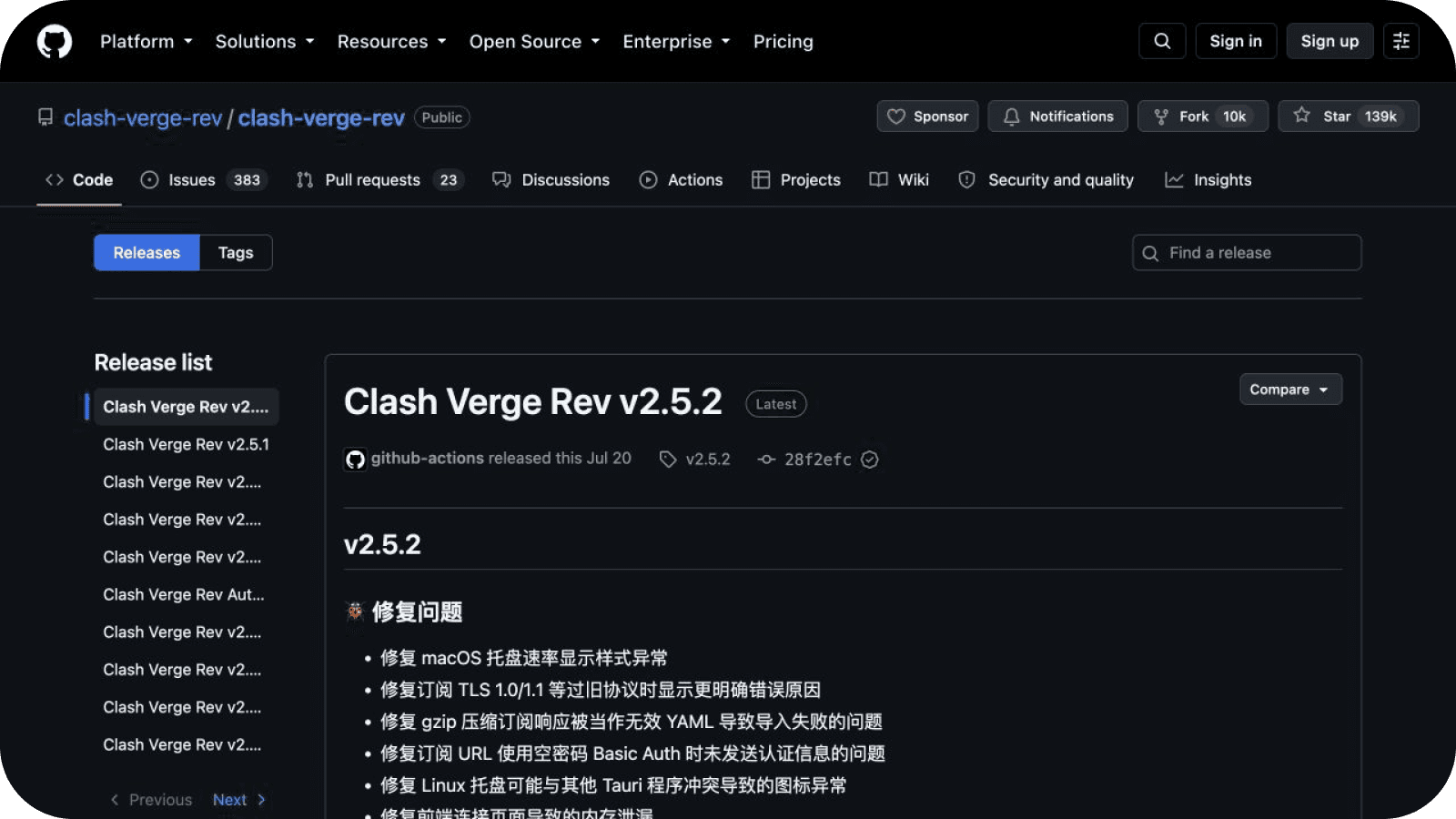
- Download the correct macOS version:
- Click the download link for your Mac:
- Apple silicon /
aarch64for Apple silicon Macs; - Intel /
x64for Intel Macs;
- Apple silicon /
- Wait for the
.dmgfile to finish downloading.
- Click the download link for your Mac:

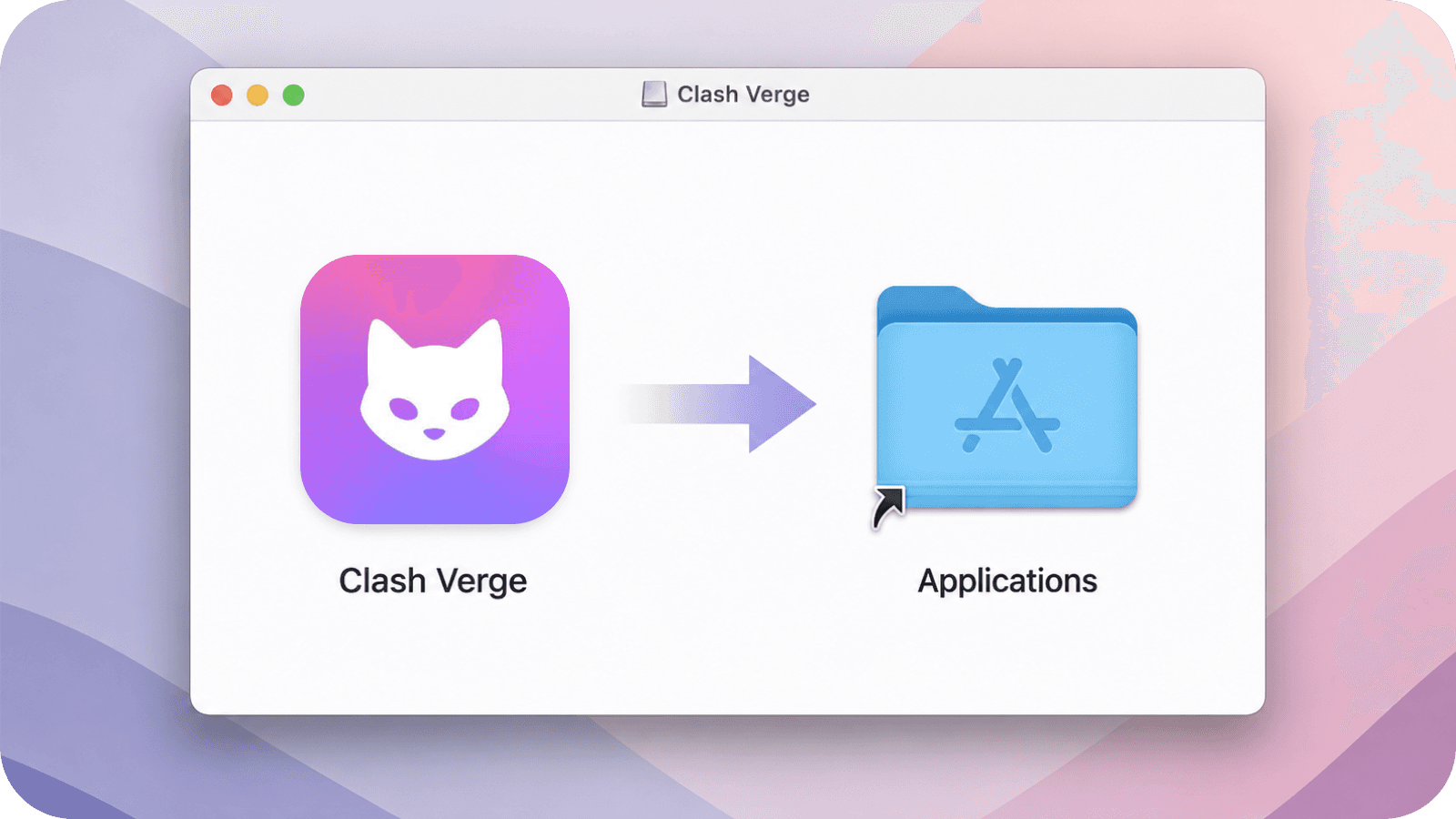
- Install Clash Verge:
- Open the downloaded
.dmgfile; - Drag
Clash Vergeinto the Applications folder; - The installed app may appear as
Clash Verge; this is normal; - Wait for the copy to complete.
- Open the downloaded
- Open Clash Verge:
- Open the Applications folder;
- Double-click
Clash Verge; - If macOS shows a security prompt, click
Open; - Follow any on-screen prompts to finish opening the app.
- Return to the AethoVPN Setup Guide:
- Go back to the AethoVPN Mac setup guide;
- Continue to
Add your AethoVPN configuration; - Click
Import to VPN app, then selectImport to Clash Verge Rev; - Or click
Copy subscription URLand import it manually into Clash Verge.
- If you cannot open Clash Verge:
- Make sure you downloaded the correct version for your Mac chip;
- Try downloading the latest release again;
- If macOS blocks the app, open
System Settings > Privacy & Security, then allow Clash Verge to open.