Start your 3-day free trial
Sign up to experience all premium features at no cost.
*Available only to new users. Each user is limited to one trial.

To use an EV charging app in China, first confirm that you are legally allowed to drive the vehicle and that its connector, voltage, charging method, and battery instructions match the station. At the site, identify the charger operator from the physical equipment, use only its official app or mini program, verify the connector and price notice, start one session, monitor it, stop it correctly, and confirm the final order before leaving.
Key Takeaways:
- A map pin marked “available” does not prove that the bay, charger, connector, payment method, or vehicle is usable on arrival.
- The operator shown on the physical charger—not a random QR code or search result—determines the correct app and support channel.
- Confirm parking rules, plug type, charging power, visible damage, price components, and payment before connecting.
- Do not force a connector, unplug an active session, press emergency stop for a normal checkout, or leave without checking the final order.
This guide begins after driving authorization and vehicle access are settled. Use the separate guides for a temporary Chinese driving permit, rental eligibility with a foreign license, and toll or parking apps. The China planning pillar provides the wider service context.
Read the vehicle or rental-company instructions. Identify whether the car accepts AC, DC fast charging, or both; the connector standard; maximum accepted power; location of the charge port; how to unlock it; whether the vehicle must be off; and how charging is stopped and the connector released.
| Check | Why it matters | Reliable source |
|---|---|---|
| Driving and vehicle authorization | Charging access does not create permission to drive or use the car | Permit, rental agreement, vehicle owner |
| Connector and charging method | Similar-looking equipment must never be forced | Vehicle manual and charge-port label |
| Battery and thermal limits | The car may reduce or stop power for protection | Dashboard and vehicle manual |
| Operator identity | It determines the official app, account, price, order, and support | Charger body, station sign, official operator channel |
| Parking access and hours | A working charger may sit behind a gate or time restriction | Property and station signage |
| Payment and phone requirements | App registration or wallet support varies | Current official app and station instructions |
State Grid's published highway charging guide illustrates one operator's workflow: its e充电 service can locate stations, show status, and support charging by card, QR scan, account, or plug-and-charge depending on setup.[1] Treat that as a concrete example, not a national promise; China has multiple operators and station owners.
Start from the physical charger or an official operator website/app-store publisher. Check the operator name, hotline, charger number, and QR destination before installing anything. Avoid QR stickers pasted over another label, app download pages asking for an enterprise profile, unofficial APKs, and mini programs with a slightly altered name.
An app may require a mainland or other supported phone number, SMS login, identity fields, vehicle information, or a supported payment method. The current e充电 listing, for example, describes station search, QR charging, charging cards and plug-and-charge functions under the State Grid Smart Internet of Vehicles developer identity.[2] Other operators can have different registration and wallet rules.
If registration or payment is unavailable, look for an official mini program, card, guest payment, property desk, station attendant, rental-company charging card, or another compatible station. Do not use another person's verified account without their informed permission and operator authorization.
Search while the battery still leaves a realistic alternative. Filter by connector, DC or AC, rated power, opening hours, current status, and vehicle access. Read recent official notices where available, but treat crowd-sourced comments as clues rather than proof.
Check whether the station is inside a residential compound, shopping center, office park, hotel, motorway service area, or paid car park. Charging fees and parking fees are separate. Confirm height limits, gate access, overnight restrictions, maximum stay, and whether the property closes before your session should finish.
Save the address, operator name, station hotline, charger ID, and a second compatible site. Estimated range changes with speed, weather, heating or air conditioning, elevation, and battery temperature, so do not plan to arrive at the displayed minimum.
At the site, compare the operator and station name in the app with the signs and charger. Confirm the bay is intended for charging and that the charger ID matches the equipment you are about to use. A QR code can identify a different plug on the same cabinet.
Inspect the cable, connector, holster, screen, emergency-stop button, and ground. Do not use equipment with a cracked plug, exposed conductor, burned surface, water ingress, collision damage, unusual heat, or a warning that you cannot interpret. Keep children and loose objects away from the cable.
Check whether another vehicle is actively using the cabinet or sharing its power. Do not move another driver's connector or occupy a bay whose rules prohibit waiting. If the sign and app disagree, follow the safer physical restriction and contact the operator.
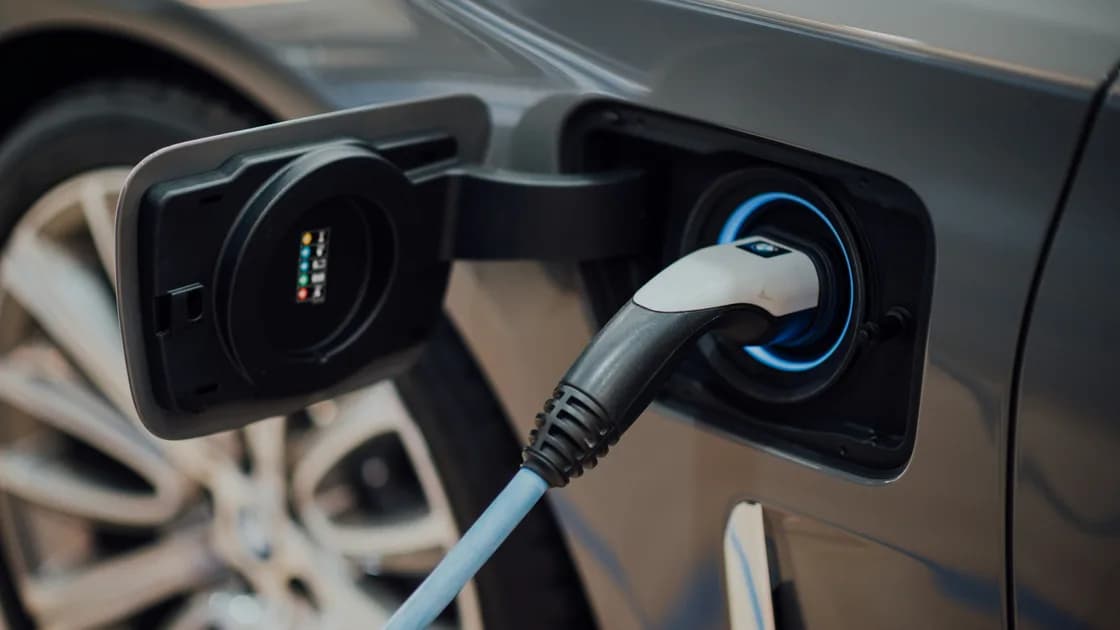
Match the plug and charge method to the vehicle manual. Align the connector naturally; stop if it does not seat without force. A mechanically fitting plug still does not prove the car accepts every advertised power level, so let the vehicle and charger negotiate normally.
Before authorizing, read the station's current price display. Charging can include electricity, service, parking, occupancy, overtime, or other clearly disclosed components. Do not copy an old price from a blog or another site. Check whether the app uses a balance, pre-authorization, direct wallet payment, charging card, or post-session settlement.
Confirm that the chosen payment method works and that you can receive any required SMS. Do not preload more than you are comfortable leaving in an operator wallet; read the current refund method if a stored balance is required.
Park within the markings without stretching the cable across a traffic path. Select Park, apply the parking brake, switch off or place the car in its required charging state, and open the port according to the manual.
Follow the operator's on-screen sequence. Some systems ask you to connect first and then scan; others identify the charger before connection. The State Grid example tells users to connect the charging gun, choose a supported start method, and scan the QR code with the operator app or mini program for a QR session.[1]
After insertion, check that the connector has locked if the vehicle normally locks it. Keep the cable free of sharp bends, doors, tires, puddles, and trip hazards. Do not use adapters or extension equipment unless the vehicle, charger, and operator expressly support them.
Scan the QR code attached to the identified charger or enter its number in the official app. Before confirming, compare the plug or outlet number, station, price, vehicle if shown, and payment method. Cancel if the app opens an unrelated merchant, requests a transfer to a personal account, or identifies another charger.
Wait for both sides to agree: the charger should show an active session, and the vehicle should show charging rather than merely “connected.” Confirm that power or energy begins increasing and that no fault appears. A successful payment authorization alone is not evidence that energy is flowing.
If the app says “starting” for too long, do not scan repeatedly and create multiple orders. Note the charger ID, plug, timestamp, displayed status, and any reference, then check the dashboard and contact official support.
During the first minutes, verify stable charging, expected but not guaranteed power, cable condition, connector temperature, dashboard warnings, and the app's order. Rated charger power is not a promise: the vehicle, battery state of charge, temperature, shared cabinet, grid conditions, and protection systems can reduce it.
Stay close enough to respond under the station rules. Do not sit or place objects on the cable, smoke, open the battery system, or attempt to reset a fault by manipulating equipment. If you smell burning, see smoke, hear abnormal arcing, find severe heat, or receive a vehicle safety warning, move people away and use the site's emergency instructions.
The operator guide lists vehicle faults, battery or connector overheating, emergency-stop conditions, and a session that will not stop as distinct support cases.[1] Use the code and charger ID when reporting instead of guessing at the cause.
Use the normal stop control in the app, charger, or vehicle as instructed. Wait until both charger and car show the session has ended and the connector unlocks. Do not pull the cable under load or use the emergency-stop button as an ordinary checkout control.
Remove the connector by its handle, inspect it briefly, and return it fully to the holster. Close the charge-port cap and door. Move the car when charging or the permitted grace period ends so that you do not incur an occupancy fee or block another driver.
Open the final order and check charger ID, start and end time, energy, itemized charges, payment status, and invoice option. Save the reference until any pre-authorization or stored-balance adjustment is reconciled. If the app still shows an active session after physical stop, contact the operator before leaving.
When charging will not start, separate physical compatibility, vehicle readiness, charger status, account login, payment, and order state. Try only reversible checks: reseat the connector once if the operator instructs, confirm the correct charger number, close a stale unpaid order, or move to a clearly available compatible unit.
When the cable will not release, verify that the session is stopped on both systems and follow the vehicle's documented unlock sequence. Do not force the latch. If energy appears to continue, a safety alarm appears, or normal stop fails, use the posted emergency procedure and operator hotline; emergency stop is for the conditions defined by the equipment.
For a duplicate, failed, or incorrectly billed order, preserve the charger ID, times, energy readings, payment reference, and app status. Report through the official operator channel. Do not initiate repeated payments merely to clear an ambiguous first order.
No. Networks, station owners, interoperability, accounts, and payment methods vary. Identify the physical charger's operator and keep an alternative compatible station in your route plan.
It depends on the current operator and login method. If the official app does not support your number, ask about a mini program, card, guest option, attendant, rental-company solution, or another operator.
No. Payment support varies by operator and channel. Confirm the actual method before connecting and keep another legitimate option rather than assuming a card logo guarantees acceptance.
Advertised power is an equipment rating, not a guaranteed delivery. Vehicle limits, battery temperature and state, shared hardware, grid conditions, and protection systems can lower the rate.
Follow the property, operator, rental-company, and vehicle rules. Remain able to respond, monitor the order, observe maximum-stay rules, and move the car promptly when charging ends.
Preserve the order, payment reference, charger ID, timestamps, and vehicle/charger status. Do not create repeated orders; contact the operator and let it reconcile the authorization or refund.
Not automatically. Try the normal stop methods and official support first. Use emergency controls only for the conditions and sequence stated by the equipment or when an actual safety hazard demands it.
No. Network routing cannot grant driving authority, establish connector compatibility, create an operator account, authorize payment, or control charging equipment.
Disclaimer: This guide provides general operational and safety information, not vehicle, electrical, legal, or operator-specific advice. Follow the vehicle manual, rental agreement, charger instructions, site rules, and official support directions.
Sources checked 6 September 2026.
Related articles:
Sign up to experience all premium features at no cost.
*Available only to new users. Each user is limited to one trial.