Start your 3-day free trial
Sign up to experience all premium features at no cost.
*Available only to new users. Each user is limited to one trial.
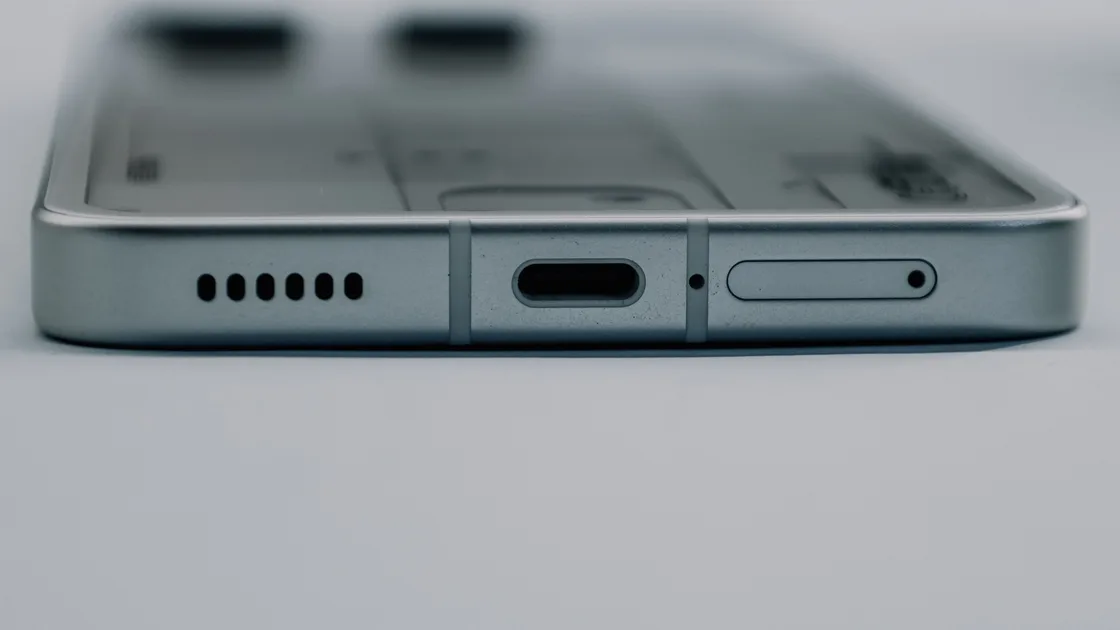

To fix distorted audio on a phone, find which output is affected, then compare two or three clean local recordings at moderate volume. Disconnect Bluetooth and adapters, remove the case, and clean openings only with a dry soft brush, never liquid or metal tools. If the phone speaker sounds muffled or crackles in every local source, arrange service.
Key Takeaways
- Separate the call receiver, loudspeaker, Bluetooth route, and wired output.
- Compare two or three local audio sources before blaming the phone hardware.
- Remove cases and protectors that overlap an opening, then clean only with safe dry methods.
- Restart and update before considering broad resets.
- Distortion across all local sources, damage, or moisture exposure is a service signal.
For a general isolation method, use the device and app troubleshooting guide.
A phone can send sound to the narrow receiver near your ear, one or more loudspeakers, Bluetooth headphones, a car, a hearing device, a wired adapter, or a casting target. Identify the active route before changing volume or cleaning hardware.
Use a simple matrix:
| Test | What a difference can show |
|---|---|
| Ordinary call at the ear | Receiver/earpiece, call network, or call app |
| Same call on speakerphone | Loudspeaker versus receiver path |
| Local video or song | Phone output without live call-network quality |
| Alarm or ringtone | System audio independent of one media app |
| Bluetooth off, audio from phone | Whether sound was routed elsewhere |
| Headphones connected | Phone speaker versus source or software |
Do not diagnose from one compressed voice message or one streaming clip. The recording itself may be clipped, low bitrate, quiet, or damaged. Google recommends playing two or three different songs or videos from different apps, such as a video recorded on the phone and a song from a music app; if only some of them sound distorted, those files may be broken.[1]
If other people cannot hear you, that is an input problem; follow the microphone troubleshooting guide. If only a computer lacks output, use the computer audio guide. This article is about sound produced by the phone.
The kind of bad sound narrows the cause. Fuzzy, crackly, or static-filled audio in every app at moderate volume points to the speaker, debris on its mesh, or moisture. Distortion that starts only near maximum volume often comes from the recording itself or a rattling case, and a quieter, muffled sound usually means something covers the opening.[1][2]
If the speaker sounds weird only during calls, the connection or call app may be responsible; Google suggests switching Wi-Fi off or on and calling again.[1] Use the comparison below to confirm which pattern you have before cleaning or resetting anything.
Choose two or three local files or built-in sounds you know are clean. Set volume near the middle, place the phone on a stable surface, and listen in a quiet room. Keep the test brief; prolonged high volume can be uncomfortable and can hide rather than reveal the pattern.
Follow this sequence:
Google notes that some music sounds distorted when played loudly, so turn the volume down as well as up before judging the speaker.[1] If distortion appears only at the top step, lower the volume and compare another source; clipping in a recording or a resonance from the case may become obvious only there. Maximum volume is not a repair procedure.
If only one app sounds wrong, update it, close and reopen it, inspect its equalizer or playback settings, and test the same file elsewhere. If every app and system sound is affected, focus on routing, obstruction, system state, or hardware.
Remove the case, wallet attachment, decorative film, and any accessory that overlaps the receiver or speaker openings. Apple recommends checking whether the receiver or speaker opening is blocked or dirty and removing cases or protectors during diagnosis.[2]
Inspect the exterior in good light. Pocket lint, adhesive, makeup, dust, or a misaligned screen protector can cover a fine mesh without looking dramatic. Compare the top receiver and bottom speaker openings, but remember that hole layouts differ by model; some openings are microphones and should not be probed.
Use only a method supported for the device. Apple describes cleaning a receiver or speaker opening with a small, clean, dry, soft-bristled brush.[2] Google advises a soft, lint-free cloth for the phone exterior.[1] Keep these boundaries:
Retest without the case before replacing it. If the sound becomes clear, inspect whether the case is warped, installed backward, or incompatible with the exact phone. Do not enlarge its holes while it is on the device.
A phone may remain connected to earbuds, a car, a hearing device, a speaker, or a nearby computer. The phone's own speaker can seem faint because some or all audio is playing elsewhere. Open the normal audio-output control and confirm the selected route without forgetting accessibility devices that are intentionally paired.
Turn Bluetooth off for one controlled test, as Google recommends for sound troubleshooting.[1] If phone-speaker audio becomes normal, reconnect one device at a time. Remove a saved device only when you know how to pair it again; work vehicles, hearing devices, and managed accessories may require an administrator or specialist.
If Bluetooth audio itself cuts out, use the Bluetooth interruption guide. If headphones cannot connect at all, use the Bluetooth headphone connection guide. A single silent earbud belongs in the one-earbud guide.
Also check wired adapters. A partially inserted plug or damaged USB-C/Lightning audio adapter can leave the phone in an unexpected route or produce noise. Disconnect it, inspect for visible damage, and do not force or twist the connector.
Restart the phone after recording the initial pattern. Then install stable operating-system and app updates offered through official settings or stores. Test the same local files and routes again before changing anything else.
Review audio features only if they relate to the symptom: equalizers, hearing accommodations, mono audio, balance, volume limits, spatial effects, call noise processing, and per-app playback controls. Record the original value and change one item at a time. Accessibility settings may be essential to the user, so do not reset them casually.
Use this order:
Do not install a generic “speaker cleaner” app and assume a tone can eject every contaminant. A water-ejection feature designed by a device manufacturer for a specific model is different from an unknown app driving the speaker at high output. Sound cannot repair torn mesh, corrosion, a loose component, or dried residue.
A factory reset is not a useful first experiment. It erases context, takes time, and cannot remove physical blockage or repair a damaged transducer. Consider it only when official support recommends it after backup and the evidence strongly points to software.
Recent rain, submersion, steam, cleaning spray, a drop, or a crushed case changes the risk. Sound may be temporarily muffled when moisture covers a mesh, while impact can loosen or deform a speaker, seal, or connector. Do not charge, heat, or open a wet device contrary to its manufacturer guidance.
Water resistance is conditional, model-specific, and can decline with wear or repair. Do not shake the phone violently, put it in rice, use a hair dryer, place it on a heater, or push absorbent material into openings. Move it to a dry, ventilated place and follow the exact manufacturer's liquid-exposure instructions.
Stop audio testing if you hear scraping, severe buzzing at low volume, intermittent sound when the chassis is moved, or an odor. Also stop if the display is lifting or the device is unusually hot, because battery swelling or internal damage requires prompt professional handling.
Long periods at maximum volume can reveal existing distortion or stress the speaker, but volume history alone does not prove damage. A repeatable fault at moderate volume across several clean local sources is stronger evidence.
Arrange inspection when all local sources sound distorted through the same physical output after accessories, routing, restart, and updates have been checked. Service is also appropriate after liquid exposure, impact, display repair, severe debris, or a visible damaged mesh.
Before service, back up the phone and document:
Use recordings carefully. A video captured by another device can demonstrate the change, but microphone placement and automatic gain alter the sound, so it is supporting evidence rather than a calibrated measurement. Do not share private calls or notifications.
Choose a repair provider that can preserve sealing and run model-specific audio diagnostics. Do not open the phone, replace mesh with an improvised material, or buy a part based only on a generic symptom label.
The call receiver, network, call app, or voice processing may be involved while the loudspeaker remains normal. Compare the same call on speakerphone and test local audio before cleaning or resetting anything.
Yes. A case can cover an opening, resonate at certain frequencies, or sit incorrectly. Remove it for one controlled test and replace it if sound clears.
No. A rigid tool can puncture mesh, compact debris, damage a microphone, or break a water-resistant seal. Use only the manufacturer's supported dry brush or cloth method.
The source may be clipped, the case may resonate, or the speaker may distort near its limit. Compare clean local files at moderate levels; maximum volume is not a diagnostic fix.
Yes, moisture at a mesh can change sound, but liquid can also cause internal damage. Stop forcing audio, avoid heat and improvised drying, and follow the exact model's liquid guidance.
That points toward the file, stream, app settings, codec, or app state rather than every phone speaker. Update the app and compare the same source in another supported player.
It cannot remove debris, dry corrosion, repair torn mesh, or replace a damaged speaker. Use it only after backup when official support has narrowed the problem to software.
Stop when distortion affects several local sources at moderate volume, follows impact or liquid, changes as the chassis moves, or comes with heat, odor, or a lifting display. Back up before inspection.
Sources checked 4 October 2026.
Sign up to experience all premium features at no cost.
*Available only to new users. Each user is limited to one trial.