Start your 3-day free trial
Sign up to experience all premium features at no cost.
*Available only to new users. Each user is limited to one trial.
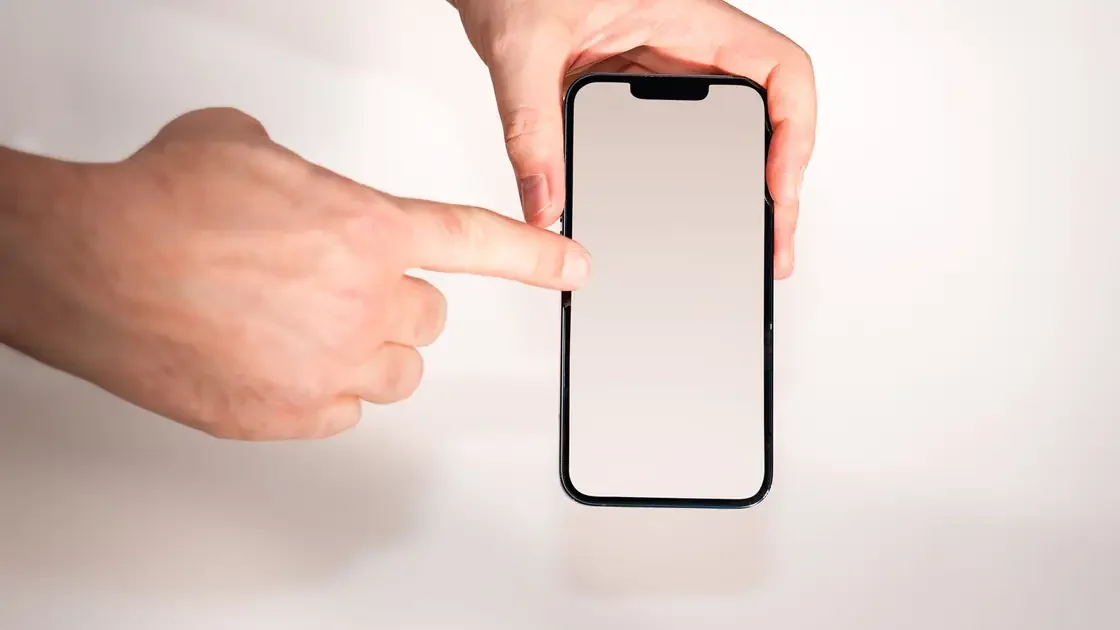

A phone touchscreen is slow or misses taps for three broad reasons: something on or around the glass interferes (moisture, a protector, a case, or a charger), the app or phone is too busy or hot to respond quickly, or the display hardware is damaged. To find out which, clean and dry the screen, remove the case and protector for a controlled test, disconnect the charger, restart the phone, and compare the same gestures in built-in apps. A repeatable dead zone, visible damage, or trouble that began after a display repair is stronger evidence of a hardware problem than general sluggishness.
Key Takeaways
- Describe the symptom precisely: delay, missed taps, ghost touches, or a fixed dead zone.
- Test without moisture, gloves, a case, a screen protector, a charger, or other accessories.
- Compare one affected app with built-in controls before resetting anything.
- Install supported updates only after preserving important data.
- Stop testing a cracked, lifting, swollen, unusually hot, or liquid-damaged phone.
This guide covers phones that still display an image and accept at least some touch input. When you are not sure the screen is the cause, the layered device and app troubleshooting method helps you decide where to start. For a computer display that does not respond to touch, use the laptop touchscreen guide. If the phone mainly dims or changes brightness, use the screen brightness guide.
Do not treat every bad interaction as the same fault. Repeat one simple action, such as tapping a keyboard key, dragging an icon, or scrolling a built-in settings page, and record exactly what happens.
| Symptom | Useful interpretation |
|---|---|
| Tap appears after a delay | The app or phone may be busy rather than missing touch input |
| Some taps never register | Moisture, a protector, accessories, or the touch sensor may be involved |
| The same strip or corner never responds | A fixed display or digitizer fault is more likely |
| Items move without contact | Treat this as ghost touch; remove power and accessories first |
| Only one app is affected | The app, its current screen, or an accessibility interaction may be responsible |
| Touch worsens while charging | The charger, cable, outlet, grounding, heat, or electrical interference may matter |
Test slow response separately from animation or network delay. If a button visually highlights immediately but the next page loads slowly, touch input probably arrived. If the highlight never appears until a second tap, input is more likely being missed.
Rotate the phone and repeat the test when the operating system permits it. A problem that remains in the same physical strip after rotation points toward the screen. A problem that follows the same on-screen button is more likely tied to the app or layout.
Do not use an online drawing page or an unknown diagnostic app as your only evidence. A built-in keyboard, home-screen icon, settings list, and calculator provide several comparisons without granting a new app broad access.
Use the phone's own tools before any third-party tester. On iPhone, touch and hold an empty area of the Home Screen until the icons jiggle, then drag one icon slowly along every row and edge. If it drops or jumps in the same strip each time, that strip is not registering touch; a continuous line drawn in Notes gives a second check.
iPhone has no user-adjustable touchscreen calibration setting, and Apple's screen troubleshooting moves from restart, cleaning, and accessory checks straight to service.[1] An app that promises to recalibrate the panel cannot change the sensor.
Some Pixel phones include a built-in test. Google lists Touch diagnostics under Settings > Display & touch for Pixel 9 models, plus a Touch sensitivity page with Adaptive touch, or Screen protector mode on Pixel 8a and earlier.[2] Other Android makers may offer their own diagnostics app or support menu; use only the manufacturer's version.
Apple's touch-response guidance begins with simple physical checks: restart the device, make sure the screen is clean and dry, and remove accessories, cases, and screen protectors for testing.[1] Google's Pixel guidance likewise starts by removing the case, screen protector, gloves, or stickers and cleaning the screen.[2] These steps are reversible and help separate surface interference from a persistent fault.
Power the phone off if you can do so normally. Wipe the display with a clean, soft, lint-free cloth. Remove water, lotion, oil, dust, and grit; do not pour cleaner into an opening or scrape the glass. Let a damp phone dry in a ventilated place according to its manufacturer’s guidance.
Then test with bare, dry fingers and remove:
Disconnect the charger and test on battery. If touch works normally, reconnect the cable, then the adapter, then the original outlet one item at a time. Apple advises trying a different outlet, cable, or charger when the screen works after an accessory is disconnected.[1] Use certified, undamaged equipment that meets the phone maker’s requirements; do not keep using a charger that becomes hot, sparks, smells, or has damaged insulation.
A protector that caused no problem for months can still lift after impact, collect debris at an edge, or change after replacement. Its removal is a diagnostic step, not proof that all protectors are incompatible.
Open two built-in apps and repeat the same tap, swipe, and keyboard tests. Then return to the app where you first noticed the issue.
If only one app is affected, save work, close and reopen it, check its supported updates, and inspect its accessibility or gesture settings. Avoid clearing app data until you know what local drafts, downloads, sessions, or authenticator records would be removed. Reinstalling is a late step because it can erase local-only content.
If every app is slow but taps still register, check whether the phone is overheated, almost out of storage, installing an update, restoring a backup, or running an intensive task. Let it cool naturally and finish known background work. Use the iPhone overheating guide or Android overheating guide when heat is the dominant symptom.
Temporarily turn off only an accessibility feature that changes touch timing or gestures if you recognize it and can restore its original value. Examples include touch accommodations, hold duration, accidental-touch protection, magnification gestures, or a floating control. These features are valuable and may be intentionally configured; do not disable accessibility settings wholesale.
Also check whether the issue occurs before third-party apps load, such as on the lock screen or during the supported shutdown menu. Do not deliberately lock yourself out if the PIN keyboard is already unreliable. Preserve another supported unlock or account-recovery route first.
Start with a normal restart. If touch is too unreliable to use the on-screen controls, consult the exact model’s official forced-restart instructions. A forced restart is not a factory reset, but button sequences differ, and repeated forced shutdowns can discard unsaved work.
After the restart, repeat the same test before opening many apps. If the symptom is gone, note what was connected and what the phone was doing. If it returns predictably in one app, collect that version and reproduction path for the app developer.
Install stable operating-system and app updates offered through the phone’s supported update mechanism. Back up important data first, keep adequate charge, and do not install unofficial firmware or a random “touch calibration” utility. Modern capacitive phones generally do not need the old manual calibration routines advertised by generic repair apps.
Do not jump to Reset All Settings or a factory reset. A reset cannot repair cracked glass, a loose display connection, a swollen battery, or an incompatible replacement screen. If you eventually consider erasing the phone, verify the backup by checking that irreplaceable photos, messages, recovery codes, and files can be restored, and make sure you know the account credentials required after activation.
Safe mode may help on supported Android models when a downloaded app is suspected, but entry and exit steps vary. Use the manufacturer’s exact instructions and remember that widgets and some app settings may change. An iPhone does not provide an equivalent general-purpose safe mode for this test.
Inspect the phone under good light without bending or pressing it. Look for cracked glass, dark spots, colored lines, a raised edge, a gap in the frame, recent liquid exposure, or a chassis that rocks on a flat surface. A lifting display can indicate battery swelling; stop charging and arrange safe service rather than pressing it back into place.
Note whether the problem began after a drop, a strong bend, liquid exposure, extreme heat, or a screen replacement. Apple explains that a nongenuine or improperly functioning replacement display can produce missed touches, unintended touches, incorrect touch location, and performance problems.[3] That does not prove every third-party repair is at fault, but repair history is essential evidence for the technician.
Temperature can affect both system performance and the way you interact with the display. Move the phone out of direct sun, stop charging, remove an insulating case, and let it return to a normal operating temperature. Do not put it in a refrigerator or freezer; condensation can add damage.
If only a small area fails, move critical controls by rotating the screen or using an accessibility feature only long enough to back up data and arrange service. Do not repeatedly press harder. Excess force will not restore a capacitive sensor and may worsen cracked glass or a swollen assembly.
Arrange manufacturer or qualified service when the same physical area misses touches after surface and accessory checks, ghost touches continue with the charger disconnected, or the problem returns immediately after a clean restart. Service is also appropriate when diagnostics report a display fault or an official update cannot complete because input is unreliable.
Stop using the phone when safe if you see swelling, separation, smoke, leakage, unusual odor, extreme heat, or sharp broken glass. Keep it away from flammable material and follow local battery-disposal or emergency guidance. Do not mail or transport a visibly damaged lithium-ion battery without the carrier’s and manufacturer’s instructions.
Before service, back up what you can, remove payment cards or passes if the supported process permits it, and document the model, operating-system version, repair history, accessories, affected area, and exact reproduction steps. Do not give a technician your account password. Use the manufacturer’s service mode or backup-and-erase procedure when available.
If the display was replaced recently, return with the receipt and describe whether the fault appeared immediately or developed later. Ask the repairer to test the complete touch surface, connectors, display part identity, frame pressure, and battery condition rather than merely cleaning the glass.
A case or protector may press or cover the edge, but a fixed physical strip can also indicate display or digitizer damage. Remove accessories, rotate the screen, and repeat the same gesture to see whether the failure stays in the same place.
Yes. A thick, damaged, dirty, lifting, or misaligned protector can interfere with some phones. Remove it for one controlled test; do not assume every protector is incompatible.
The cable, adapter, outlet, grounding, heat, or electrical interference may be involved. Disconnect power, then reconnect one known-good component at a time and stop using damaged or overheating equipment.
No. Ghost touch means the phone appears to receive input without intentional contact. Missed taps mean intended input is not registered. Both can share causes, but ghost touch deserves an immediate test without power and accessories.
Usually not. Generic calibration apps cannot repair physical sensors or connectors and may ask for unnecessary permissions. Use built-in diagnostics or the phone maker’s support process.
A reset may help only if software is the cause. It cannot repair a cracked panel, loose connection, frame pressure, swelling battery, or faulty replacement display, so preserve data and finish physical checks first.
Use an already trusted computer, supported cloud backup, accessibility controls, or a compatible external input method if the manufacturer supports it. Avoid approving unfamiliar devices or exposing account credentials merely to copy data.
Stop using the phone when the display lifts, the battery area swells, the device emits smoke or odor, it leaks, becomes extremely hot, or broken glass creates a cut or battery risk.
Sources checked 4 October 2026.
Sign up to experience all premium features at no cost.
*Available only to new users. Each user is limited to one trial.