Start your 3-day free trial
Sign up to experience all premium features at no cost.
*Available only to new users. Each user is limited to one trial.

When a phone or computer reports that your USB-C charger says Slow Charger, the device has detected a charging path that supplies less power than the device expects under the current conditions. Record the exact message, then compare the device's recommended input with the adapter, cable, port, dock, display, and other loads in the path. A warning is evidence about negotiated or available power; it does not by itself identify which component is inadequate.
Key Takeaways
- Start only from a literal slow-charger or equivalent system warning.
- Compare watts and supported charging standards across the complete path.
- A USB-C connector does not guarantee a particular power level.
- Bypass docks, displays, hubs, and multiport chargers for one direct test.
- Do not confuse Slow Charger with charging paused, not charging, heat, or battery optimization.
The device and app troubleshooting guide provides the broader isolation method. This article is deliberately narrower than the general slow-charging guide and the USB-C no-charge guide: use it only when the operating system or device reports a slow charger while power is connected.
Copy the exact wording and note where it appears. On Windows it may be a notification associated with a USB-C power connection. On iPhone, Battery settings can identify a connected charger as slow. On supported Mac software, battery information can show a Slow Charger message. Similar wording does not guarantee identical thresholds, so preserve the device model, operating-system version, battery percentage, workload, and time.
Microsoft explains that a PC may charge slowly or discharge while plugged in when the charger does not meet the PC's power requirements, is connected through a device that limits power, or uses an unsuitable cable or port.[1] Apple says iOS shows Slow Charger when a higher-wattage charger could improve the charging experience; the message does not by itself mean the iPhone or charger is faulty.[2] Apple explains that a Mac can report Slow Charger when the delivered wattage is too low for that Mac model.[3]
The warning does not necessarily mean counterfeit hardware, a dead battery, or a failed USB-C port. It can be expected when a high-power laptop is attached to a small phone adapter, when a monitor offers limited upstream charging, when a dock reserves power for its own ports, or when a multiport charger divides its total output. It may also appear because the cable cannot carry or advertise the needed power.
Do not use this article when the device shows “Not Charging,” liquid detection, charging on hold, temperature pause, optimized charging, or no power response. Those states have different causes and safety actions. Do not hold a connector at an angle; use the positional charging guide if physical movement changes the connection.
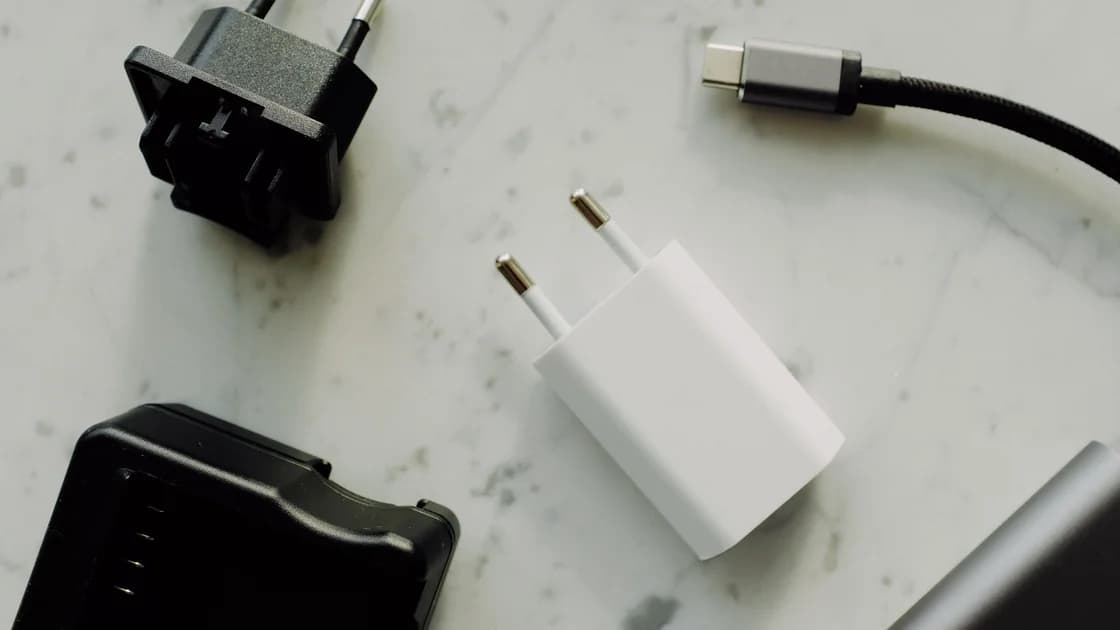
Find the device maker's recommended adapter wattage and supported charging standard for the exact model. Then read the output label or official specification for the adapter. Watts equal volts multiplied by amps, but USB-C Power Delivery uses negotiated combinations rather than letting the device draw any printed maximum. Both endpoints and the cable must support a compatible mode.
For a multiport adapter, distinguish total wattage from the maximum available to one port. A “100 W” charger may divide power when a second phone, tablet, or laptop is connected. Product documentation may publish different allocations for different port combinations. Disconnect other loads for one test and use the port designated for the highest output.
Do not assume the adapter that fits is the adapter the device expects. A 20 W phone adapter can safely power many larger devices at a reduced rate, but a laptop under load may charge very slowly or continue consuming battery. Conversely, a higher-wattage standards-compliant adapter does not force excessive power into a correctly designed USB-C device; the supported path negotiates what the device accepts. Use manufacturer-approved or standards-compliant equipment and follow all safety notices.
Record three values where available: the device's recommended wattage, the adapter port's maximum for the current port combination, and any delivered or negotiated wattage reported by supported system information. Do not treat a third-party meter as the sole authority, especially if inserting it changes the negotiation. A meter can be a diagnostic component only when it is rated for the voltage and current and used according to its instructions.
Check both connector ends and the cable's label, packaging, or exact model specification. USB-C describes the connector shape, not guaranteed power, data speed, or video support. Some cables are designed for lower power; higher-power paths require appropriately rated cable assemblies and, at the highest levels, electronic identification.
USB-IF's current cable and connector guidance uses certified power logos for 60 W and 240 W cables.[4] A logo is useful only when it belongs to the actual certified cable and has not been confused with a similar product. If the cable is unmarked and its provenance is unknown, compare with a known-good cable recommended for the device and charger.
Inspect for cuts, crushing, exposed conductors, discoloration, a bent connector shell, looseness, unusual heat, odor, or arcing. Disconnect and replace damaged equipment. Do not splice a USB-C cable, clean energized contacts, or continue using a connector that becomes hot. A cable that transfers data or charges a phone is not automatically suitable for a laptop's required power.
Keep cable length and intermediaries under control. Test with one short, known-good rated cable directly between charger and device. Remove magnetic tips, right-angle adapters, extension cables, inline meters, hubs, and couplers. Restore them one at a time only after the direct path no longer shows the warning.
Read the computer or phone manual for the exact port. A laptop may have several USB-C-shaped ports but accept full charging on only certain ones, or may distribute charging and peripheral capabilities differently. A monitor may offer one upstream USB-C port with power and other downstream ports with little or no charging power.
Connect the charger directly to the device's documented charging port. Avoid guessing from a lightning-bolt, battery, or USB symbol because vendors use symbols differently. If the device ships with a dedicated power input as well as USB-C, confirm whether USB-C charging is supported and at what wattage.
Look for debris or physical damage only with power disconnected and using the maker's instructions. This article does not cover a loose port, liquid warning, or connection that works only when bent. Stop for visible damage, heat, smell, sparks, corrosion, or liquid. Do not probe contacts with metal or force a plug that does not seat normally.
If the direct charger and known-good cable remove the warning on one USB-C port but not another, compare the port specifications before concluding hardware failure. If two documented charging ports behave differently with the same controlled path, preserve the result for manufacturer support.
Remove every intermediary for one test. Connect a known-good wall adapter directly to the device with a known-good rated cable. If the warning disappears, the direct source is adequate and one of the removed components changes available power or negotiation.
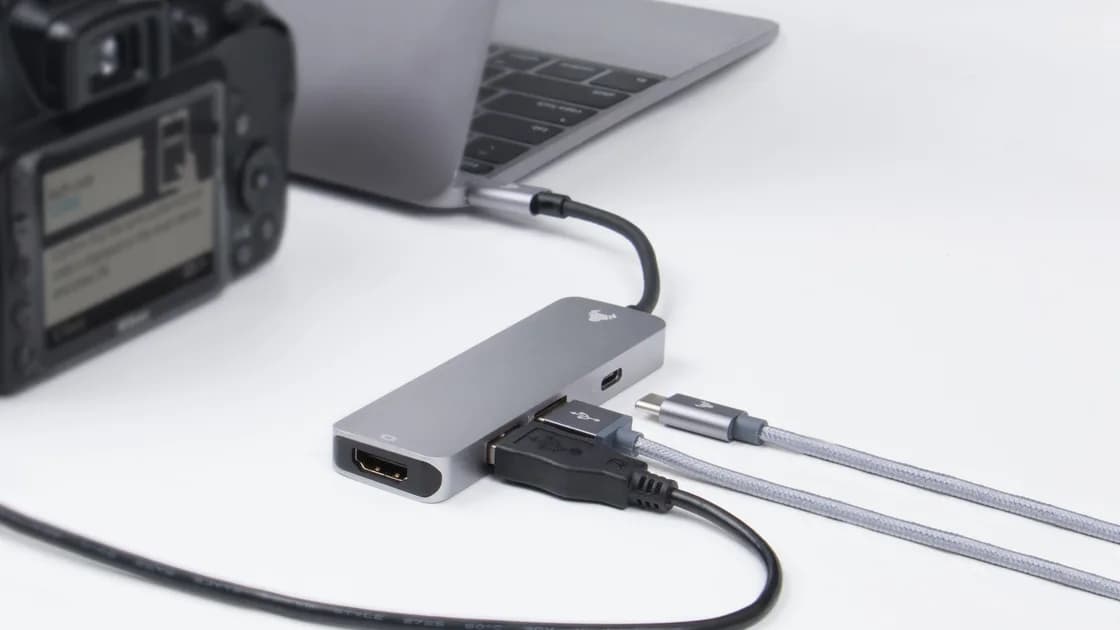
USB-C docks consume power for their electronics and may reserve a portion of the adapter rating for USB devices, Ethernet, storage, and displays. A dock advertised with a 100 W input may deliver less than 100 W to the host. Check its host-delivery specification, required power supply, firmware instructions, and port labels. The USB-C dock guide covers broader dock failures; here the only question is whether the dock delivers enough host charging power.
Displays with USB-C charging also publish a maximum delivery figure. Brightness does not directly define charging wattage, but the monitor's design and selected USB-C mode may affect how it allocates bandwidth or power. Use the supplied or specified cable and the correct upstream port. Do not infer delivery from the monitor's mains consumption rating.
Multiport chargers can re-negotiate power when another device is connected or removed. This may briefly interrupt charging and can lower the port allocation. Test the target device alone, then reconnect other loads one at a time. If the warning appears only with a certain combination, use the maker's allocation table or separate chargers rather than repeatedly reconnecting under heavy load.
A Slow Charger warning means the detected source is below an expected power level. “Not Charging” can mean no usable negotiated power, a port that does not accept charging, a protection state, or a hardware fault. “Charging On Hold” or an optimized-charge message can be a temperature or battery-longevity decision even when the adapter is powerful enough. These labels must not be combined into one diagnosis.
Workload also affects what you observe. A laptop rendering video or powering several peripherals may consume more than a small source supplies, so battery percentage can fall while the plug icon remains visible. Reduce workload only as a diagnostic comparison; it does not upgrade the charger. A sleeping device may gain charge from the same source because its demand is lower.
Battery health, temperature, charge level, and platform charging logic can limit the rate accepted by the battery. If the system explicitly labels the source Slow Charger, first fix the source path. If the warning disappears but charging remains slower than expected, then move to the platform's general battery and charging guidance rather than continuing to replace USB-C cables.
Never cool a device with ice, place it in a freezer, cover a hot adapter, or charge damaged equipment unattended. Stop immediately for swelling, case separation, smoke, burning odor, sparks, liquid, or abnormal heat. Use the manufacturer or a qualified service provider.
Build a reference path from the device maker's recommended or equivalent standards-compliant adapter, one known-good rated cable, the documented charging port, a direct wall outlet, and no dock or second load. Let the device reach a normal temperature, record battery percentage and workload, connect the path, and wait for the system to update its status.
If the warning clears, add back one component at a time: original cable, original adapter, dock or display, then other charger loads. Keep the same device state as closely as practical. The first change that restores the warning identifies a compatibility or power-budget boundary. Confirm its exact published rating before replacement.
If the warning persists on the reference path, test the adapter and cable with another compatible device only within their ratings, or test another known-good recommended charger on the original device. Do not repeatedly buy higher-wattage hardware without checking the model specification. Update the operating system and supported dock or charger firmware only through official channels.
Contact support with the exact warning, device model, OS version, recommended wattage, adapter and cable models, port used, dock/display path, connected loads, and direct-test result. Seek service sooner if a known-good reference path produces the warning on every documented port or if there is physical or thermal damage.
Not by itself. It means the device sees less power than expected for the best charging experience. Stop using equipment only when it is damaged, unusually hot, sparking, wet, discolored, or otherwise unsafe.
It may negotiate a supported lower-power mode, but the laptop can warn, charge slowly, or lose battery under load. Check the laptop's recommended wattage and use an appropriate standards-compliant source.
No. The printed figure may be a total, a single-port maximum, or available only in a certain port combination. The device, cable, and charger negotiate a mutually supported level.
No. Connector shape does not guarantee power capability. Use a cable whose documented rating meets the device and charger path; certified 60 W and 240 W markings can help identify supported power.
The monitor may deliver less power than the device recommends, or the wrong USB-C port or cable may be in use. Compare the monitor's host-delivery rating with a direct known-good wall charger.
Many multiport chargers divide their total output and renegotiate when ports are added. Check the allocation table and test the target device alone on the designated high-power port.
No. Slow Charger describes the source's power capability, while charging on hold often reflects temperature or battery-management logic. Preserve the exact system wording and follow the matching guidance.
Seek service when the warning persists with a known-good recommended adapter and rated cable on every documented charging port, or when a port is loose, damaged, corroded, wet, sparking, or abnormally hot.
Sources checked 10 September 2026.
Sign up to experience all premium features at no cost.
*Available only to new users. Each user is limited to one trial.