Start your 3-day free trial
Sign up to experience all premium features at no cost.
*Available only to new users. Each user is limited to one trial.

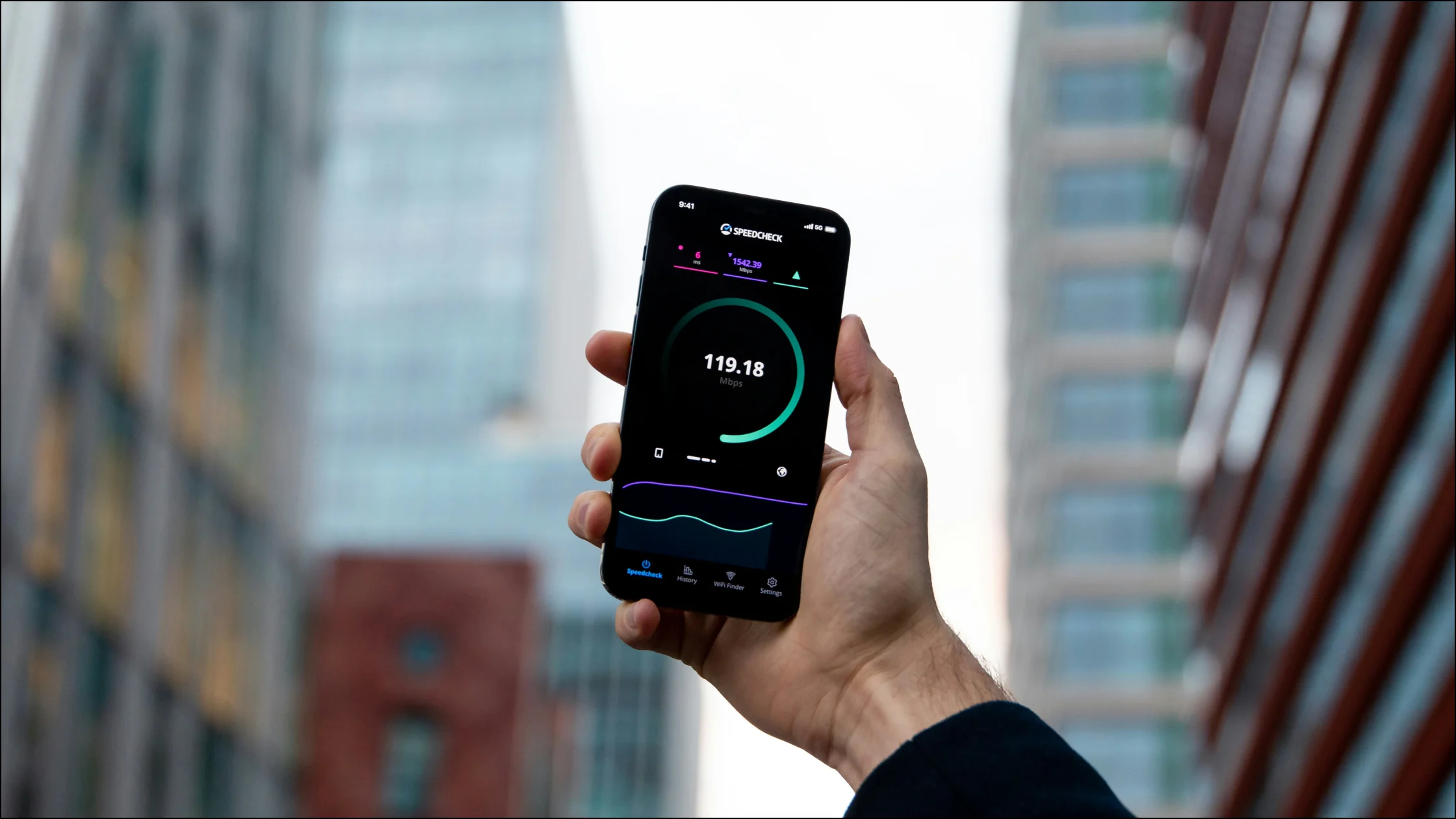
If you want to speed up a VPN, do not start by blaming the VPN service. Most slow VPN sessions come down to distant servers, the wrong protocol, weak Wi-Fi, background bandwidth use, or no baseline speed test at all. The first step is to identify what is actually slowing you down.[1][2][3]
If the networking terms in this article feel abstract, the complete VPN guide explains the tunnel, exit IP, and encryption model before you troubleshoot this specific case.
Here is the short version: test your baseline, switch to a nearby server, try another protocol, then troubleshoot your local network. That order is usually more useful than reinstalling the app.
Key Takeaways
- A VPN adds some overhead, but real-world speed usually depends on the server, protocol, and local network, not just whether the VPN is on.[3]
- Before you try to
speed up VPNperformance, test your connection without the VPN.[1]- A nearby server, the right protocol, and stable Ethernet or high-quality Wi-Fi are usually the biggest wins.
- For streaming, calls, or gaming, look at download speed, upload speed, and latency, not just Mbps.[1][2]
- Many “slow VPN” problems are really unstable local network problems.
The most useful lesson from Surfshark’s approach is simple: do not blame the VPN first. A cleaner test is:
If you need a testing template, use How to Run a VPN Speed Test: 3 Steps to Compare Download, Upload, and Latency.
Netflix recommends about 3 Mbps for HD, 5 Mbps for 1080p, and 15 Mbps for 4K.[1] That means “slow” depends on what you are trying to do.
This is the most common quick win. The farther the VPN server is, the longer your traffic has to travel, and latency usually rises. If you only need encryption on public Wi-Fi or want to hide your real IP address, you usually do not need a server on the other side of the world.
Try this:
In AethoVPN, this step happens in the app's location list: start with the nearest location that shows a green load indicator, or with the smart-recommended node, and run it against your no-VPN baseline before you try anything farther away. Keep the baseline and test times, because they let a support conversation separate a slow tunnel from a slow local network. A closer, less loaded location shortens the route, but it cannot make a home line or hotel Wi-Fi faster than it already is without the VPN. If your current VPN stays slow on nearby servers and you want a controlled second comparison, start a 3-day free AethoVPN Pro trial, which each user gets once.
Different protocols can produce very different speed results. WireGuard’s own page notes that older benchmarks are dated, but it still describes WireGuard and IPsec as usually faster than OpenVPN, with WireGuard retaining advantages in some scenarios.[3]
A practical order is:
If you want the protocol context first, read differences among VPN protocols.
Sometimes the VPN is not the slow part. The Wi-Fi is. Wireless networks are easily affected by walls, other devices, router load, and crowded channels. Once you add VPN encryption, existing weaknesses become more visible.
For a cleaner test:
Cloud sync, system updates, game downloads, and NAS backups can all make a VPN look slow. Before testing, check that there are no automatic downloads, no large file sync jobs, and no other devices consuming most of the connection.
It sounds basic, but it often beats changing advanced settings.
Networks fluctuate. A single test can turn one random spike into a false diagnosis. Run 3 tests on the same server, record download, upload, and latency, then use the median result rather than the highest result.
If your connection is slow even without the VPN, the VPN is probably not the root cause. Common issues include a low-tier internet plan, evening congestion, ISP throttling, unstable routing, or an old router. In other words, the VPN may simply expose a weak network that was already there.
Old VPN clients, operating system network bugs, and driver problems can cause connection failures, protocol fallback, unstable throughput, or poor speeds after sleep and wake.
If you also see connection failures, frequent drops, or slow server switching, pair this with VPN connection troubleshooting.
Different tasks need different speed metrics:
| Use case | What matters most |
|---|---|
| Video streaming | Download speed[2] |
| Video calls | Upload and stability |
| Gaming | Latency |
| Remote desktop | Latency and jitter |
If your download speed still says 200 Mbps but latency has doubled, meetings and games can still feel bad.
Use this sequence:
Distance is only one part of the problem. A hotel, airport, train, or airplane network may already have high latency or limited capacity, and the route from that network to a VPN server can add another long segment. Test the base connection first, then compare a nearby server with the location you need for a service. If the nearby server is much faster, the bottleneck is probably distance or routing rather than the VPN app itself.
For a travel-specific test, use the same device and network while you try one nearby location, one required-region location, and a second protocol if the client offers it. Change one variable at a time and record latency, not just download speed. On airplane Wi-Fi, a VPN cannot create more cabin bandwidth; it can only add the protection layer you need for the available connection.
The server-location guide for travelers covers the location decision. For the special constraints of an aircraft connection, see VPN on airplane Wi-Fi.
speed up VPN performance, follow a diagnosis order instead of chasing mystery settings.[1][3]It adds some overhead, but the drop is not always noticeable. Server distance, protocol choice, and local network quality usually matter more.
Switch to the nearest server and change the protocol. Those two steps are the most likely to help immediately.
Games depend heavily on latency and jitter, not just download speed.
Usually no. Test your baseline, switch servers, change protocols, then check your local network.
Yes. Wi-Fi interference and instability often become more obvious once VPN encryption is added.
It is faster in many scenarios, but not every one. You still need to test on your own network.[3]
Disclaimer: This article is for general network and performance optimization information only and does not promise any specific product speed. Actual performance depends on device, ISP, region, time of day, and server load.
Sources:
Sources checked 8 May 2026.
Related Articles:
Sign up to experience all premium features at no cost.
*Available only to new users. Each user is limited to one trial.